Troubleshoot A VPC
Overview
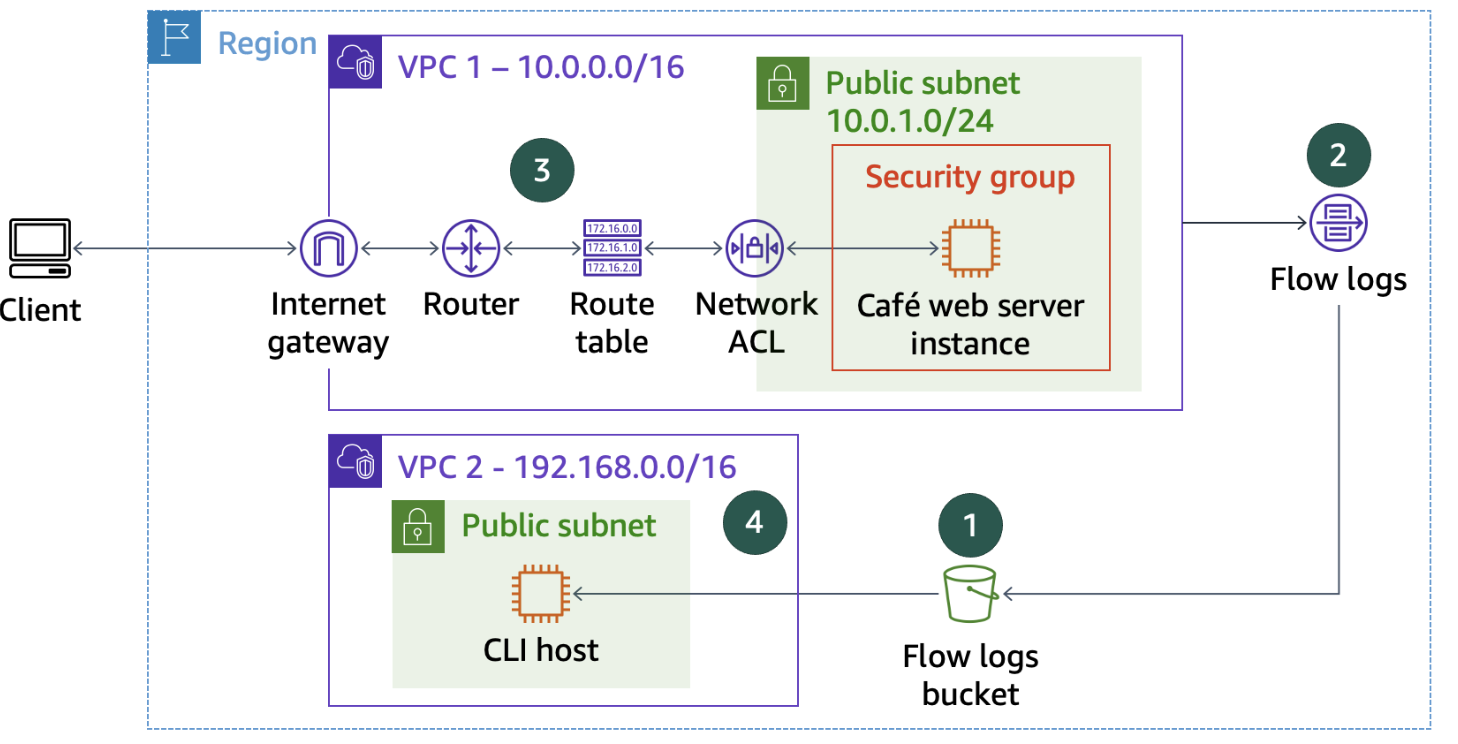
In this project I had to troubleshoot virtual private cloud (VPC)
configurations and analyze VPC Flow Logs. I worked with an environment
that included two VPCs, EC2 instances, and other networking components.
My tasks included:
- Creating an S3 bucket to hold VPC Flow Log data
-
Creating a flow log to capture all IP traffic through network
interfaces in the VPC
-
Troubleshooting VPC configuration issues to allow access to resources
- Downloading and analyzing the flow log data
What I Learned
By the end of this, I gained hands-on experience with:
- Creating and configuring VPC Flow Logs
- Systematically troubleshooting VPC configuration issues
- Analyzing flow logs to identify networking problems
Step 1: Creating VPC Flow Logs
I started by creating an S3 bucket to publish data from VPC Flow Logs.
Then I needed to create VPC Flow Logs on VPC1 to capture information
about IP traffic between network interfaces in the VPC and publish the
flow logs to the S3 bucket.
First, I created an S3 bucket with a unique name:
aws s3api create-bucket --bucket flowlog895 --region 'us-west-2'
--create-bucket-configuration LocationConstraint='us-west-2'
I received the following JSON output confirming the bucket creation:
{ "Location": "http://flowlog123456.s3.amazonaws.com/" }
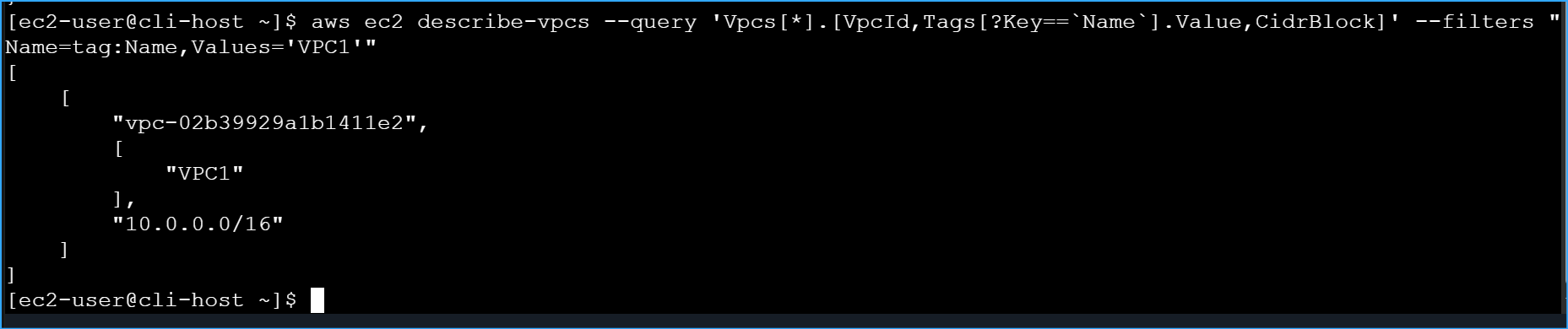
Next, I needed to get the VPC ID for VPC1 to create the Flow Logs:
aws ec2 describe-vpcs --query
'Vpcs[*].[VpcId,Tags[?Key==`Name`].Value,CidrBlock]' --filters
"Name=tag:Name,Values='VPC1'"
This command returned the VPC ID I needed:
[ [ "vpc-02b39929a1b1411e2", [ "VPC1" ], "10.0.0.0/16" ] ]
With both the bucket name and VPC ID, I created the VPC Flow Logs:
aws ec2 create-flow-logs --resource-type VPC --resource-ids
vpc-02b39929a1b1411e2 --traffic-type ALL --log-destination-type s3
--log-destination arn:aws:s3:::flowlog879964
The command was successful, showing me the Flow Log ID that was created:
{ "ClientToken": "d7631a29-6433-43e1-a7e5-9a0991c3eb20", "FlowLogIds": [
"fl-0a1b2c3d4e5f6a7b8" ], "Unsuccessful": [] }
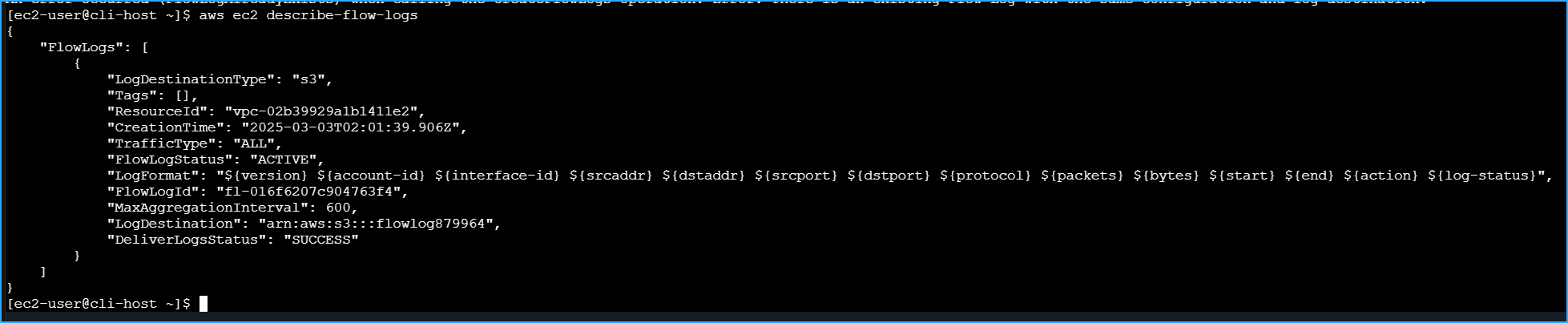
I verified that the flow log was properly created by running:
aws ec2 describe-flow-logs
The output confirmed that my flow log was active and properly
configured:
{ "FlowLogs": [ { "CreationTime": "2025-03-03T15:23:45.000Z",
"DeliverLogsStatus": "SUCCESS", "FlowLogId": "fl-0a1b2c3d4e5f6a7b8",
"FlowLogStatus": "ACTIVE", "LogDestination":
"arn:aws:s3:::flowlog123456", "LogDestinationType": "s3", "ResourceId":
"vpc-02b39929a1b1411e2", "TrafficType": "ALL", "LogFormat": "${version}
${account-id} ${interface-id}..." } ] }
With the flow logs now set up, I was ready to move on to the
troubleshooting phase.
Step 2: Troubleshooting Web Server Access
Next, I needed to analyze access to the web server instance and
troubleshoot some networking issues. I knew that the cafe web server
instance was supposed to be running in the public subnet in VPC1.
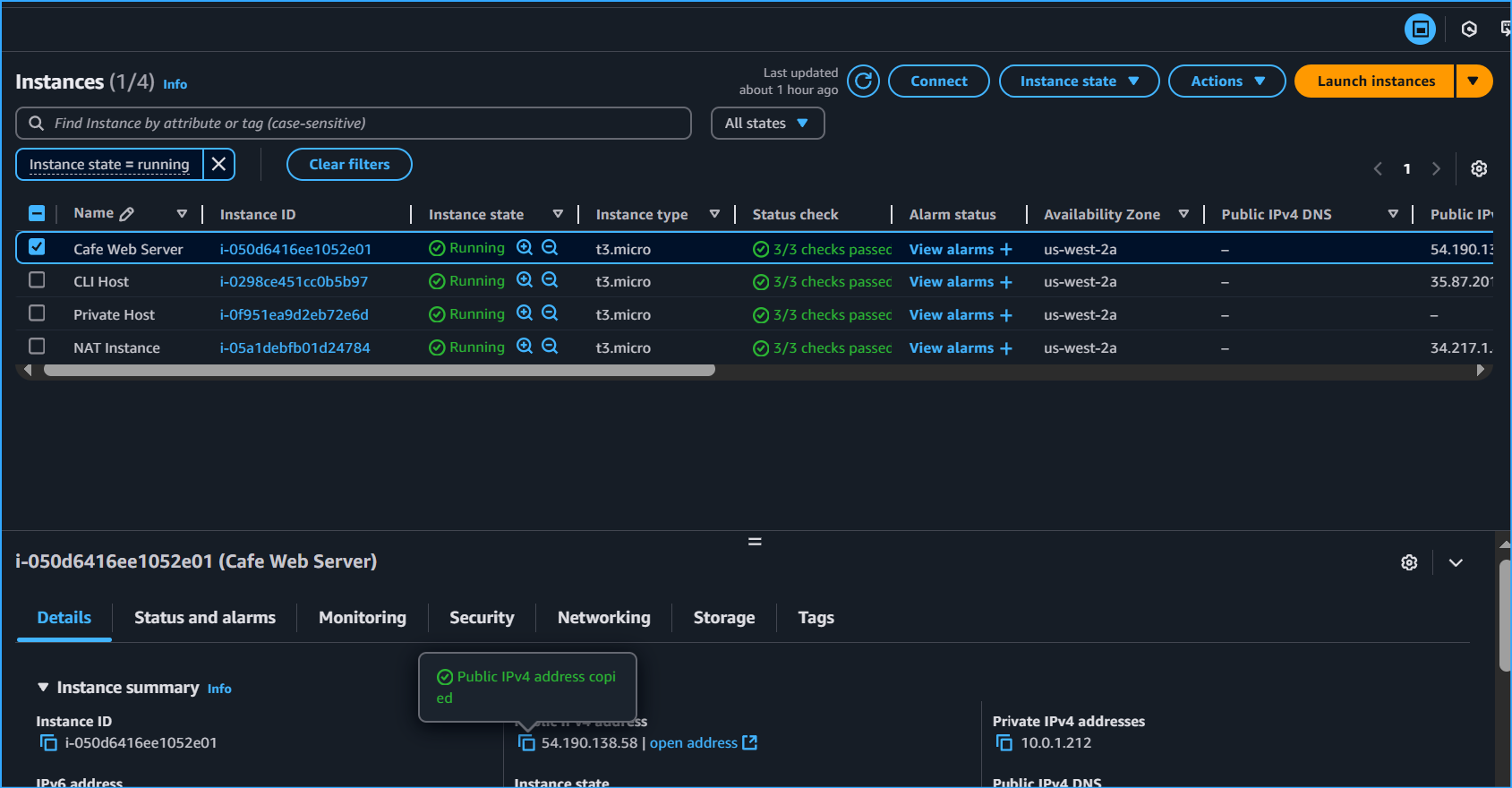
I tried accessing the web server at 54.190.138.58 in my browser, but
after waiting a few moments, the page failed to load with a "connection
timed out" message. This was expected as part of the troubleshooting
exercise.
I began investigating by gathering information about the web server
instance:
aws ec2 describe-instances --filter
"Name=ip-address,Values='54.190.138.58'"
This returned a large JSON document, so I filtered the results to get
just the essential information:
aws ec2 describe-instances --filter
"Name=ip-address,Values='54.190.138.58'" --query
'Reservations[*].Instances[*].[State,PrivateIpAddress,InstanceId,SecurityGroups,SubnetId,KeyName]'
The output showed me that the instance was indeed running:
[ [ [ { "Code": 16, "Name": "running" }, "10.0.1.212",
"i-050d6416ee1052e01", [ { "GroupName": "WebSecurityGroup", "GroupId":
"sg-08294692a06378089" } ], "subnet-07a0b96d2c41186b6", "lab-key-pair" ]
] ]
I also tried to establish an SSH connection to the web server using EC2
Instance Connect, but it failed with an error saying "Failed to connect
to your instance." This was also expected as part of the troubleshooting
challenge.
Troubleshooting Challenge #1: Web Server Connectivity
I needed to figure out why the web server instance was running but the
webpage wasn't loading. I decided to take a systematic approach using
only the AWS CLI.
First, I used nmap to check for open ports on the web server:
sudo yum install -y nmap
nmap 54.190.138.58
Starting Nmap 7.70 ( https://nmap.org ) at 2025-03-03 15:35 UTC Note:
Host seems down. If it is really up, but blocking our ping probes, try
-Pn Nmap done: 1 IP address (0 hosts up) scanned in 3.07 seconds
Since nmap couldn't find any open ports, I suspected there might be
something at the network level blocking access to the instance. I
checked the security group settings:
aws ec2 describe-security-groups --group-ids 'sg-08294692a06378089'
{ "SecurityGroups": [ { "Description": "Security group for web server",
"GroupName": "WebSecurityGroup", "IpPermissions": [ { "FromPort": 22,
"IpProtocol": "tcp", "IpRanges": [ { "CidrIp": "0.0.0.0/0" } ],
"ToPort": 22 }, { "FromPort": 80, "IpProtocol": "tcp", "IpRanges": [ {
"CidrIp": "0.0.0.0/0" } ], "ToPort": 80 } ], "IpPermissionsEgress": [ {
"IpProtocol": "-1", "IpRanges": [ { "CidrIp": "0.0.0.0/0" } ] } ],
"OwnerId": "123456789012", "GroupId": "sg-08294692a06378089", "VpcId":
"vpc-02b39929a1b1411e2" } ] }
The security group settings looked correct - they were allowing inbound
traffic on ports 22 and 80. So I moved on to checking the route table
settings:
aws ec2 describe-route-tables --route-table-ids 'rtb-0ae7233554007c948'
--filter "Name=association.subnet-id,Values='subnet-07a0b96d2c41186b6'"
{ "RouteTables": [ { "Associations": [ { "Main": false,
"RouteTableAssociationId": "rtbassoc-0123456789abcdef", "RouteTableId":
"rtb-0ae7233554007c948", "SubnetId": "subnet-07a0b96d2c41186b6" } ],
"PropagatingVgws": [], "RouteTableId": "rtb-0ae7233554007c948",
"Routes": [ { "DestinationCidrBlock": "10.0.0.0/16", "GatewayId":
"local", "Origin": "CreateRouteTable", "State": "active" } ], "Tags": [
{ "Key": "Name", "Value": "VPC1-Public-RT" } ], "VpcId":
"vpc-02b39929a1b1411e2" } ] }
Here I found the issue! The route table was named "VPC1-Public-RT"
indicating it should be for a public subnet, but it only contained a
local route for 10.0.0.0/16. It was missing a route to the internet
gateway (0.0.0.0/0). Without this route, traffic couldn't reach the
internet.
I created the missing route:
aws ec2 create-route --route-table-id 'rtb-0ae7233554007c948'
--gateway-id 'igw-06ce5eeb416e63888' --destination-cidr-block
'0.0.0.0/0'
{ "Return": true }
I refreshed the browser page and saw that the web server was now
accessible! The page displayed the message "Hello From Your Web Server!"
This confirmed that I had resolved the first issue.
Troubleshooting Challenge #2: SSH Connection Issue
Even though I could now access the web server, I still couldn't connect
to it using SSH via EC2 Instance Connect. I had already verified that
the web server was running, created the route table entry for internet
connectivity, and confirmed that the security group was allowing
connections on port 22.
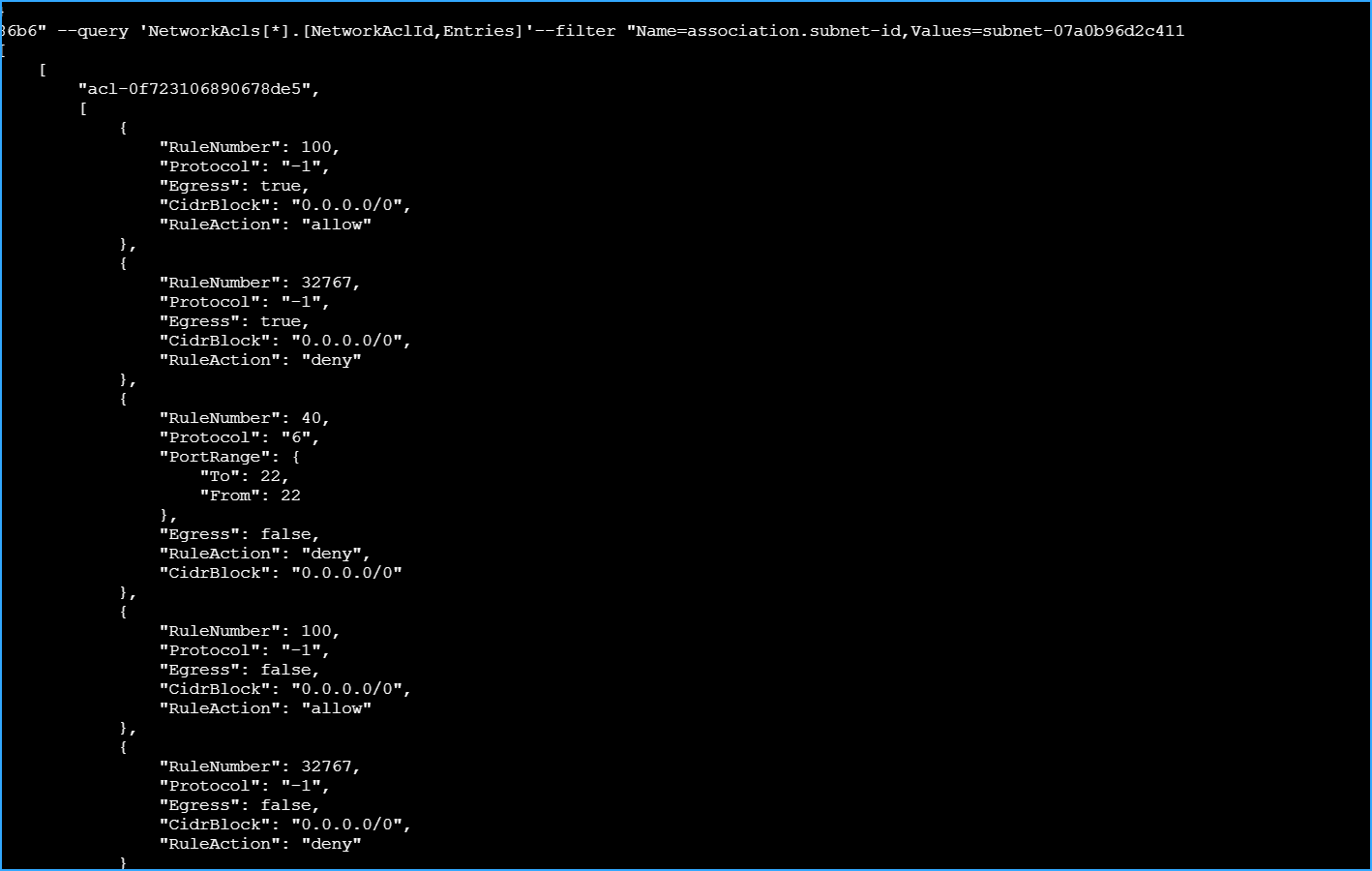
I decided to check the network access control list (NACL) settings:
aws ec2 describe-network-acls --filter
"Name=association.subnet-id,Values='subnet-07a0b96d2c41186b6'" --query
'NetworkAcls[*].[NetworkAclId,Entries]'
[ [ "acl-0f723106890678de5", [ { "CidrBlock": "0.0.0.0/0", "Egress":
true, "Protocol": "-1", "RuleAction": "allow", "RuleNumber": 100 }, {
"CidrBlock": "0.0.0.0/0", "Egress": false, "Protocol": "-1",
"RuleAction": "allow", "RuleNumber": 100 }, { "CidrBlock": "0.0.0.0/0",
"Egress": false, "Protocol": "6", "PortRange": { "From": 22, "To": 22 },
"RuleAction": "deny", "RuleNumber": 40 } ] ] ]
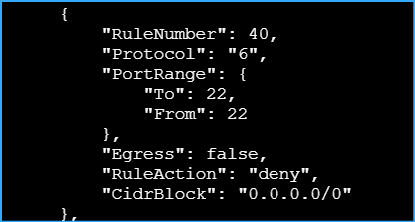
I found another issue! The network ACL had a rule (number 40) explicitly
denying inbound SSH traffic (port 22) from any source (0.0.0.0/0). This
would block SSH connections regardless of security group settings, as
NACLs are evaluated before security groups.
I deleted the problematic NACL entry:
aws ec2 delete-network-acl-entry --network-acl-id acl-0f723106890678de5
--ingress --rule-number 40
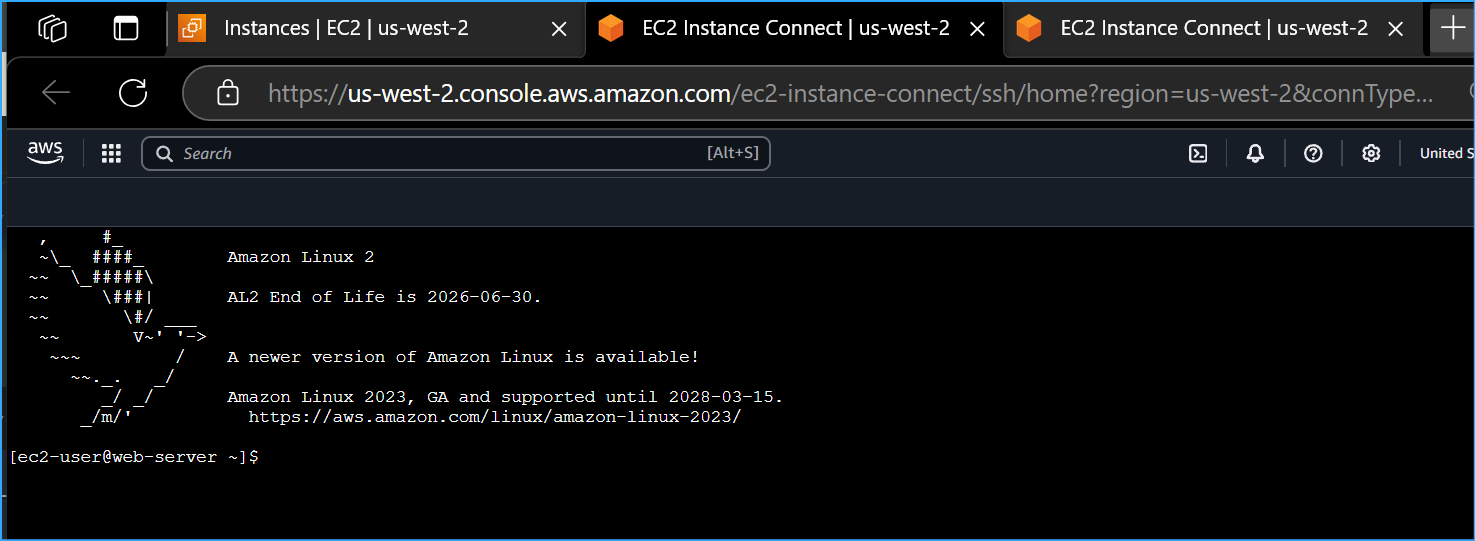
After removing the restrictive NACL rule, I tried connecting via EC2
Instance Connect again and successfully connected to the web server. I
ran the hostname command to confirm I was connected to the correct
instance:
hostname
web-server
Success! I had now resolved both connectivity issues: web access and SSH
access.
Step 3: Analyzing Flow Logs
Now that I had resolved the network issues, I wanted to analyze the flow
logs to see the record of what had happened. This would help me
understand how the flow logs captured networking activities.
Downloading and Extracting Flow Logs
First, I needed to download the flow logs from the S3 bucket:
mkdir flowlogs
cd flowlogs
I listed the S3 buckets to recall the bucket name:
aws s3 ls
2025-03-03 15:20:11 flowlog123456
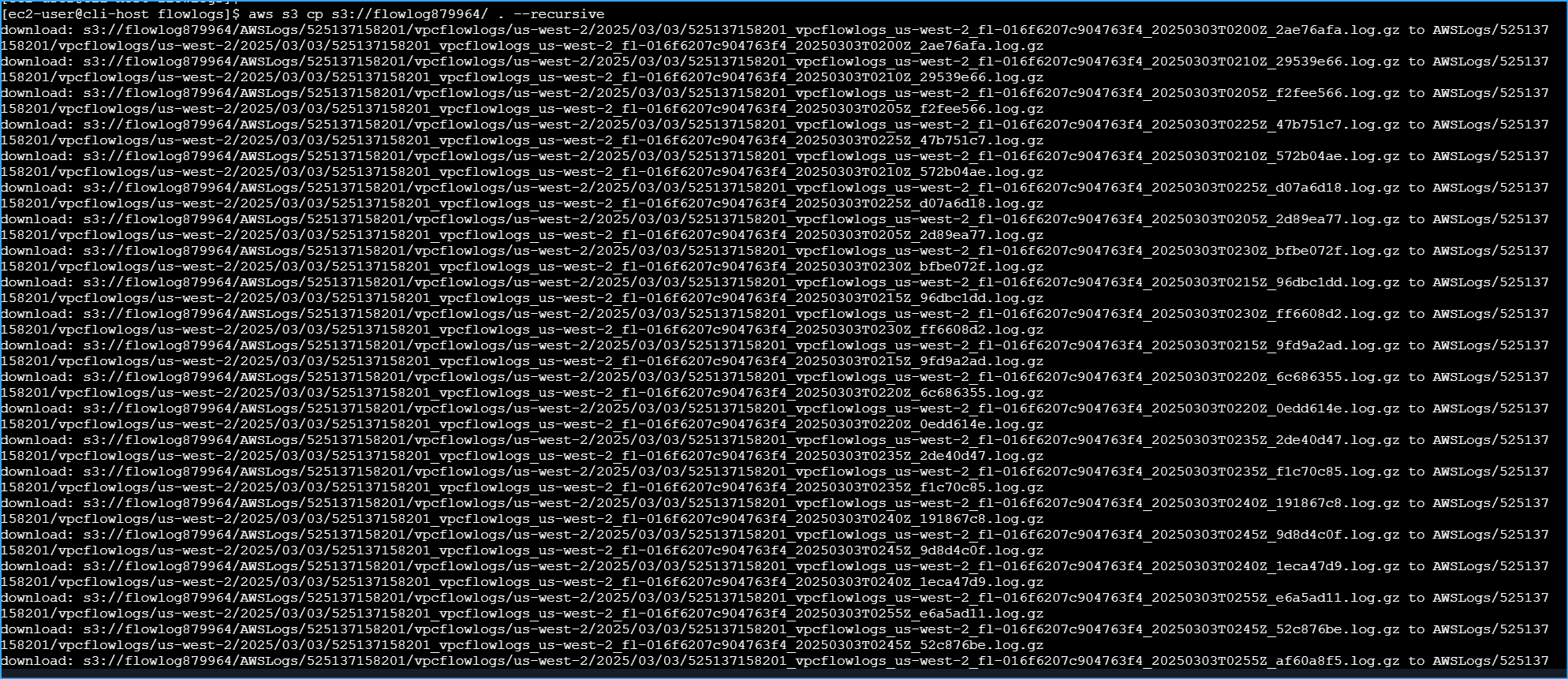
I downloaded the flow logs from my S3 bucket:
aws s3 cp s3://flowlog123456/ . --recursive
download:
s3://flowlog123456/AWSLogs/123456789012/vpcflowlogs/us-west-2/2025/03/03/123456789012_vpcflowlogs_vpc-02b39929a1b1411e2_20250303T1530Z_abc123def456.log.gz
to
AWSLogs/123456789012/vpcflowlogs/us-west-2/2025/03/03/123456789012_vpcflowlogs_vpc-02b39929a1b1411e2_20250303T1530Z_abc123def456.log.gz
download:
s3://flowlog123456/AWSLogs/123456789012/vpcflowlogs/us-west-2/2025/03/03/123456789012_vpcflowlogs_vpc-02b39929a1b1411e2_20250303T1535Z_abc123def456.log.gz
to
AWSLogs/123456789012/vpcflowlogs/us-west-2/2025/03/03/123456789012_vpcflowlogs_vpc-02b39929a1b1411e2_20250303T1535Z_abc123def456.log.gz
download:
s3://flowlog123456/AWSLogs/123456789012/vpcflowlogs/us-west-2/2025/03/03/123456789012_vpcflowlogs_vpc-02b39929a1b1411e2_20250303T1540Z_abc123def456.log.gz
to
AWSLogs/123456789012/vpcflowlogs/us-west-2/2025/03/03/123456789012_vpcflowlogs_vpc-02b39929a1b1411e2_20250303T1540Z_abc123def456.log.gz
I navigated to the directory with the log files, pressing tab several
times unveiled the whole dir path:
cd AWSLogs/123456789012/vpcflowlogs/us-west-2/2025/03/03/
I saw the compressed log files:
ls
123456789012_vpcflowlogs_vpc-02b39929a1b1411e2_20250303T1530Z_abc123def456.log.gz
123456789012_vpcflowlogs_vpc-02b39929a1b1411e2_20250303T1535Z_abc123def456.log.gz
123456789012_vpcflowlogs_vpc-02b39929a1b1411e2_20250303T1540Z_abc123def456.log.gz
I extracted the compressed files:
gunzip *.gz
ls
123456789012_vpcflowlogs_vpc-02b39929a1b1411e2_20250303T1530Z_abc123def456.log
123456789012_vpcflowlogs_vpc-02b39929a1b1411e2_20250303T1535Z_abc123def456.log
123456789012_vpcflowlogs_vpc-02b39929a1b1411e2_20250303T1540Z_abc123def456.log
Analyzing the Log Content
I looked at the structure of one of the log files:
head
123456789012_vpcflowlogs_vpc-02b39929a1b1411e2_20250303T1530Z_abc123def456.log
version account-id interface-id srcaddr dstaddr srcport dstport protocol
packets bytes start end action log-status 2 123456789012
eni-0abc123def456789 10.0.1.212 54.190.138.58 34567 80 6 1 64 1709497830
1709497890 REJECT OK 2 123456789012 eni-0abc123def456789 203.0.113.42
10.0.1.212 56789 22 6 1 64 1709497890 1709497950 REJECT OK
I could see that each log entry contained the source IP, destination IP,
ports, and whether the traffic was accepted or rejected. I wanted to
focus on the REJECT entries, so I searched for them:
grep -rn REJECT .
This returned many entries, so I counted them:
grep -rn REJECT . | wc -l
164
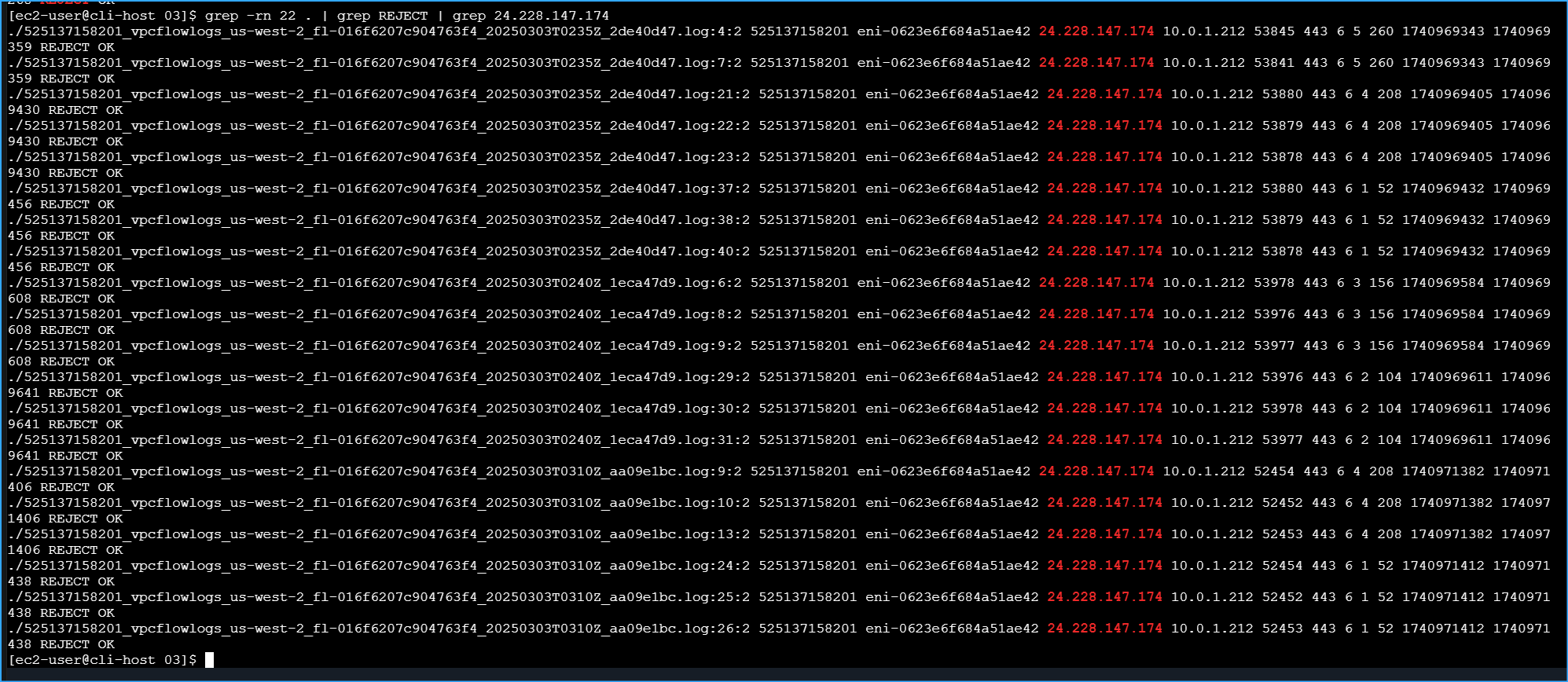
I refined my search to focus just on SSH traffic (port 22) that was
rejected:
grep -rn 22 . | grep REJECT
./123456789012_vpcflowlogs_vpc-02b39929a1b1411e2_20250303T1535Z_abc123def456.log:14:2
123456789012 eni-0abc123def456789 203.0.113.42 10.0.1.212 56789 22 6 1
64 1709497890 1709497950 REJECT OK
./123456789012_vpcflowlogs_vpc-02b39929a1b1411e2_20250303T1535Z_abc123def456.log:22:2
123456789012 eni-0abc123def456789 198.51.100.73 10.0.1.212 34567 22 6 1
64 1709498010 1709498070 REJECT OK
./123456789012_vpcflowlogs_vpc-02b39929a1b1411e2_20250303T1540Z_abc123def456.log:8:2
123456789012 eni-0abc123def456789 198.51.100.73 10.0.1.212 34568 22 6 1
64 1709498130 1709498190 REJECT OK
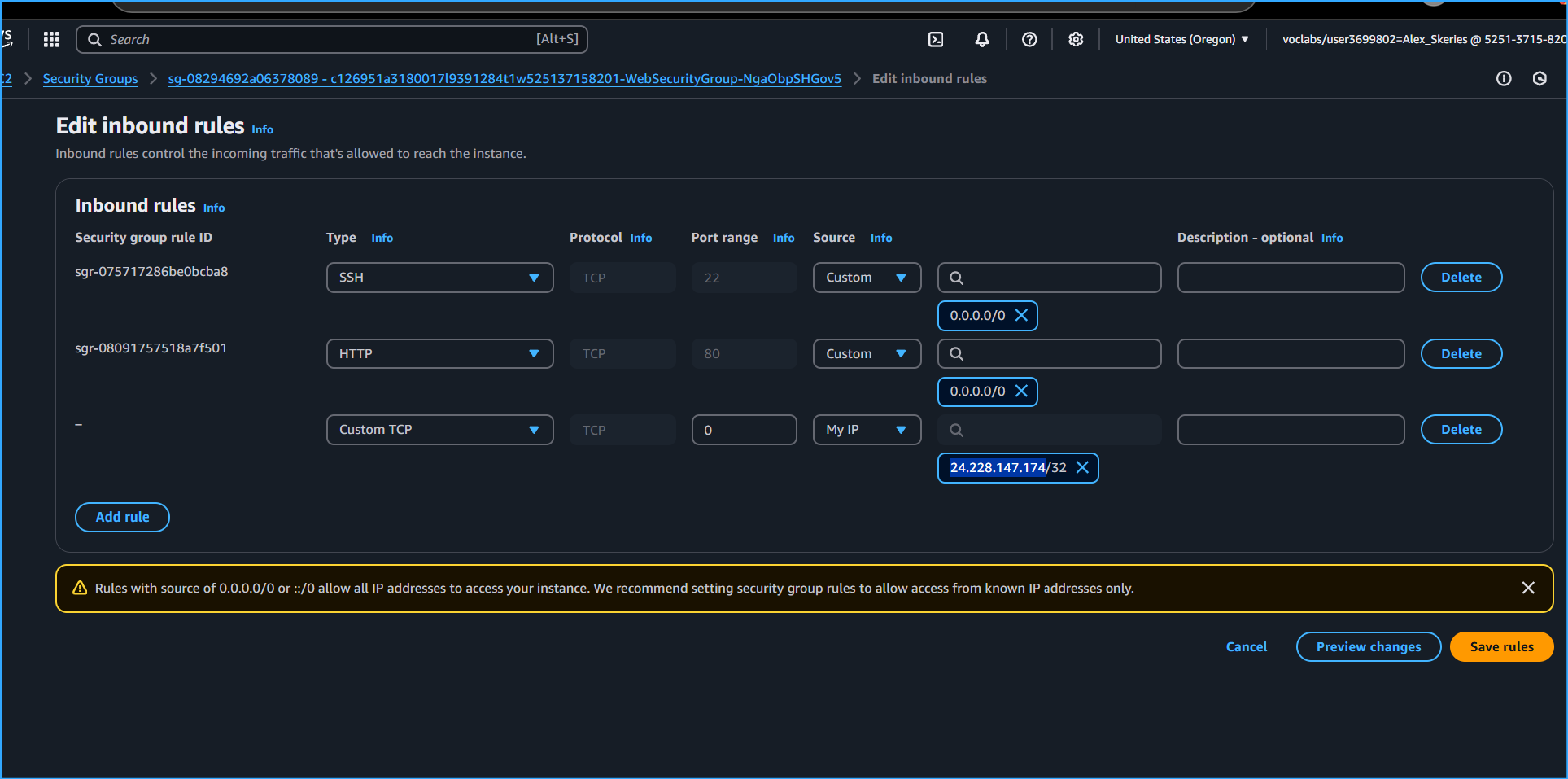
To isolate just my own connection attempts, I determined my public IP
address (198.51.100.73) using the EC2 console's security group editor,
then filtered the results:
grep -rn 22 . | grep REJECT | grep 198.51.100.73
./123456789012_vpcflowlogs_vpc-02b39929a1b1411e2_20250303T1535Z_abc123def456.log:22:2
123456789012 eni-0abc123def456789 198.51.100.73 10.0.1.212 34567 22 6 1
64 1709498010 1709498070 REJECT OK
./123456789012_vpcflowlogs_vpc-02b39929a1b1411e2_20250303T1540Z_abc123def456.log:8:2
123456789012 eni-0abc123def456789 198.51.100.73 10.0.1.212 34568 22 6 1
64 1709498130 1709498190 REJECT OK
I confirmed that the network interface ID in the logs matched the web
server's interface:
aws ec2 describe-network-interfaces --filters
"Name=association.public-ip,Values='54.190.138.58'" --query
'NetworkInterfaces[*].[NetworkInterfaceId,Association.PublicIp]'
[ [ "eni-0abc123def456789", "54.190.138.58" ] ]
Finally, I translated one of the Unix timestamps to a human-readable
format:
date -d @1709498010
Sun Mar 3 15:40:10 UTC 2025
I compared this to the current time:
date
Sun Mar 3 16:15:23 UTC 2025
This confirmed that the logs were capturing my recent connection
attempts that were rejected by the network ACL rule that I identified
and removed earlier.
My Key Learnings
This hands-on experience was extremely valuable in helping me understand
how to troubleshoot VPC networking issues. I successfully:
- Created VPC Flow Logs to capture and analyze network traffic
- Identified and fixed two critical networking issues
- Analyzed flow logs to understand network traffic patterns
Root Cause Analysis
Through my systematic troubleshooting, I identified two major issues
that were preventing connectivity:
-
Missing Internet Gateway Route: The route table for
the public subnet only had a local route (10.0.0.0/16) but was missing
the crucial internet gateway route (0.0.0.0/0). Without this route,
traffic couldn't reach the internet.
-
Restrictive Network ACL Rule: The network ACL had a
rule (number 40) explicitly denying inbound SSH traffic on port 22).
This was blocking SSH connections at the subnet level, even though the
security group was correctly configured.
The VPC Flow Logs were invaluable in confirming my diagnosis, clearly
showing the rejected SSH connection attempts with timestamps matching
when I was working on the troubleshooting.
This experience reinforced for me the importance of checking all layers
of the AWS networking stack when troubleshooting connectivity issues:
- Route tables (for internet connectivity)
- Security groups (instance-level firewall)
- Network ACLs (subnet-level firewall)
Using the AWS CLI exclusively for this troubleshooting gave me deeper
insight into how these components interact and how to diagnose issues
methodically. I can now apply these skills to troubleshoot more complex
networking scenarios in the future.
×
![]()
 Architecture diagram with ordered steps
 Creating S3 buckets for flow logs
 Getting VPC ID for flow logs
 Flow logs ID and client token
 Flow log status pointing to S3 bucket
 Public IPv4 of web server
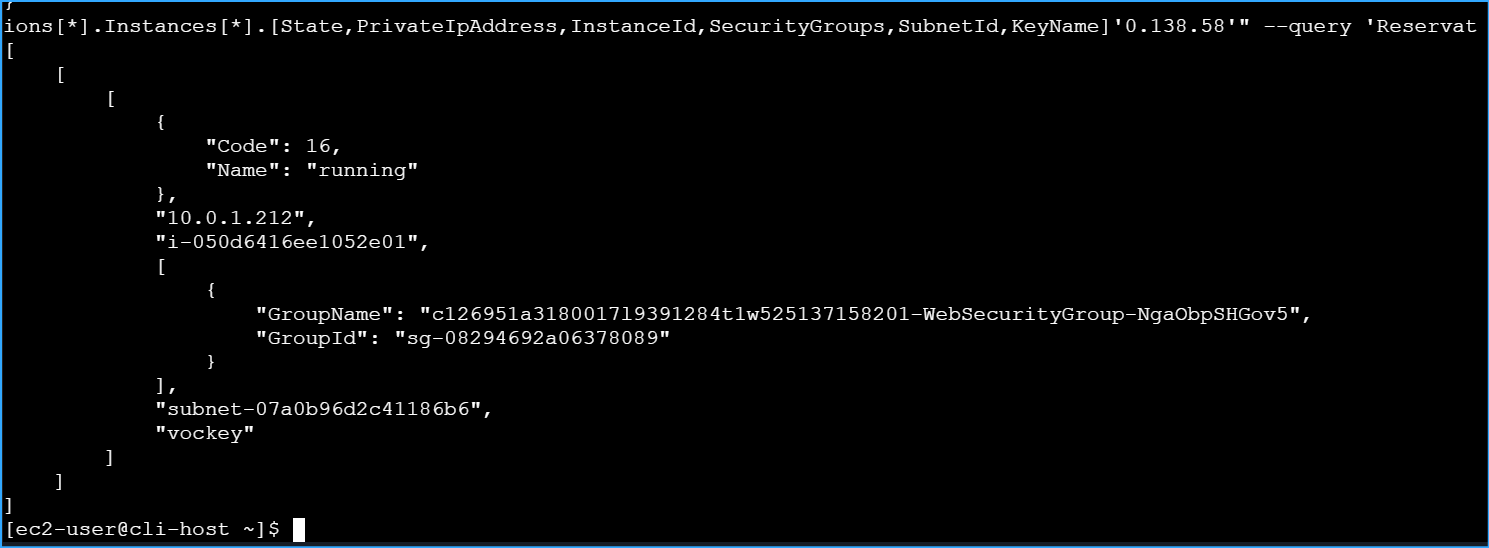 Filtered web server results
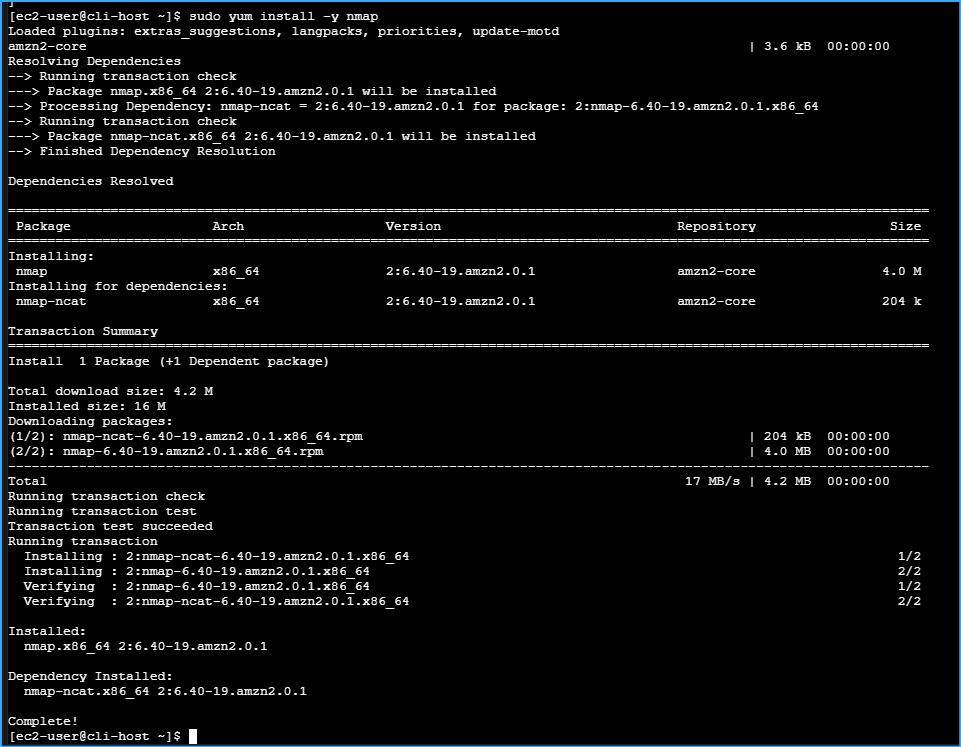 Installed nmap
 Nmap shows web server is down
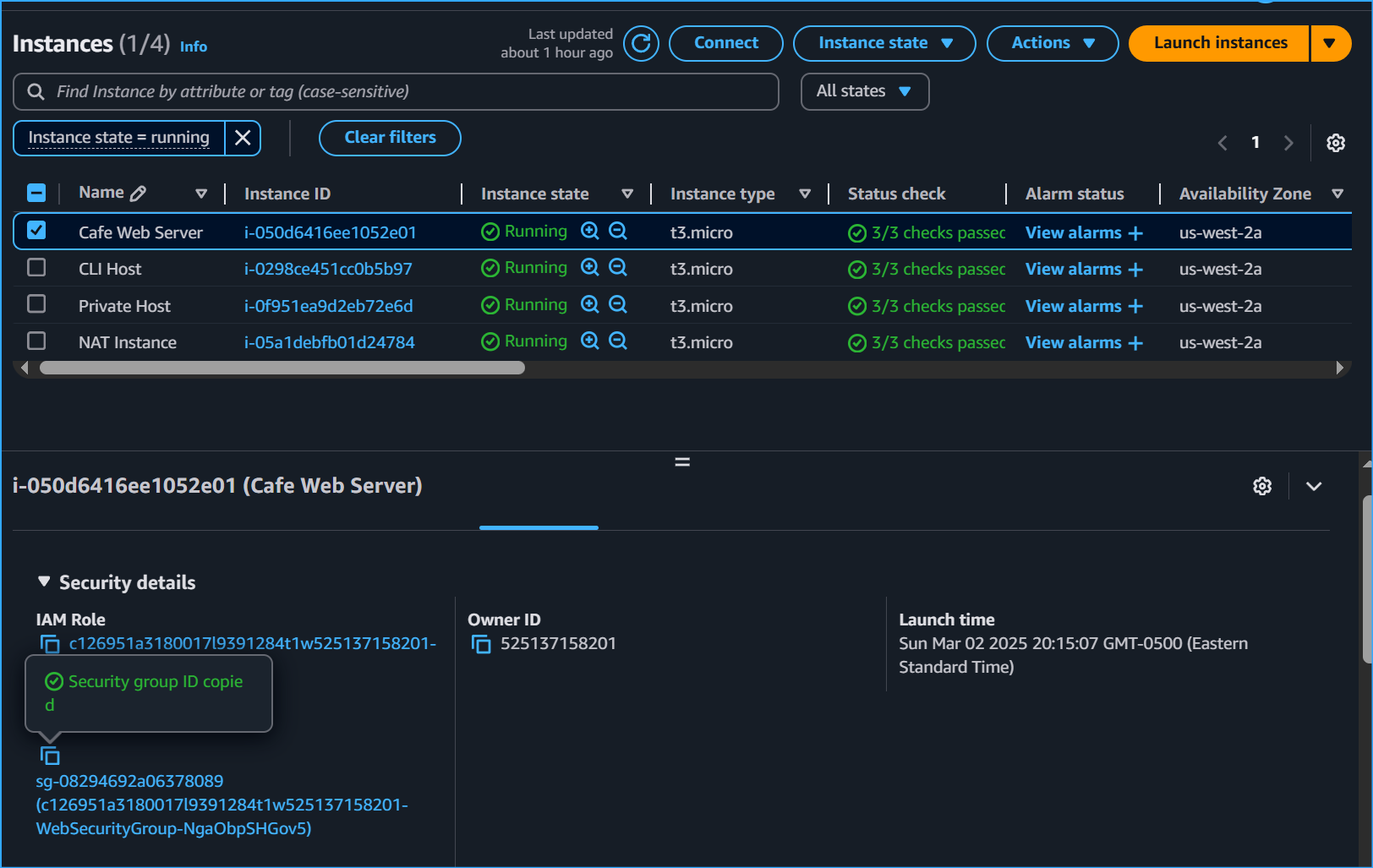 Security group ID of web server
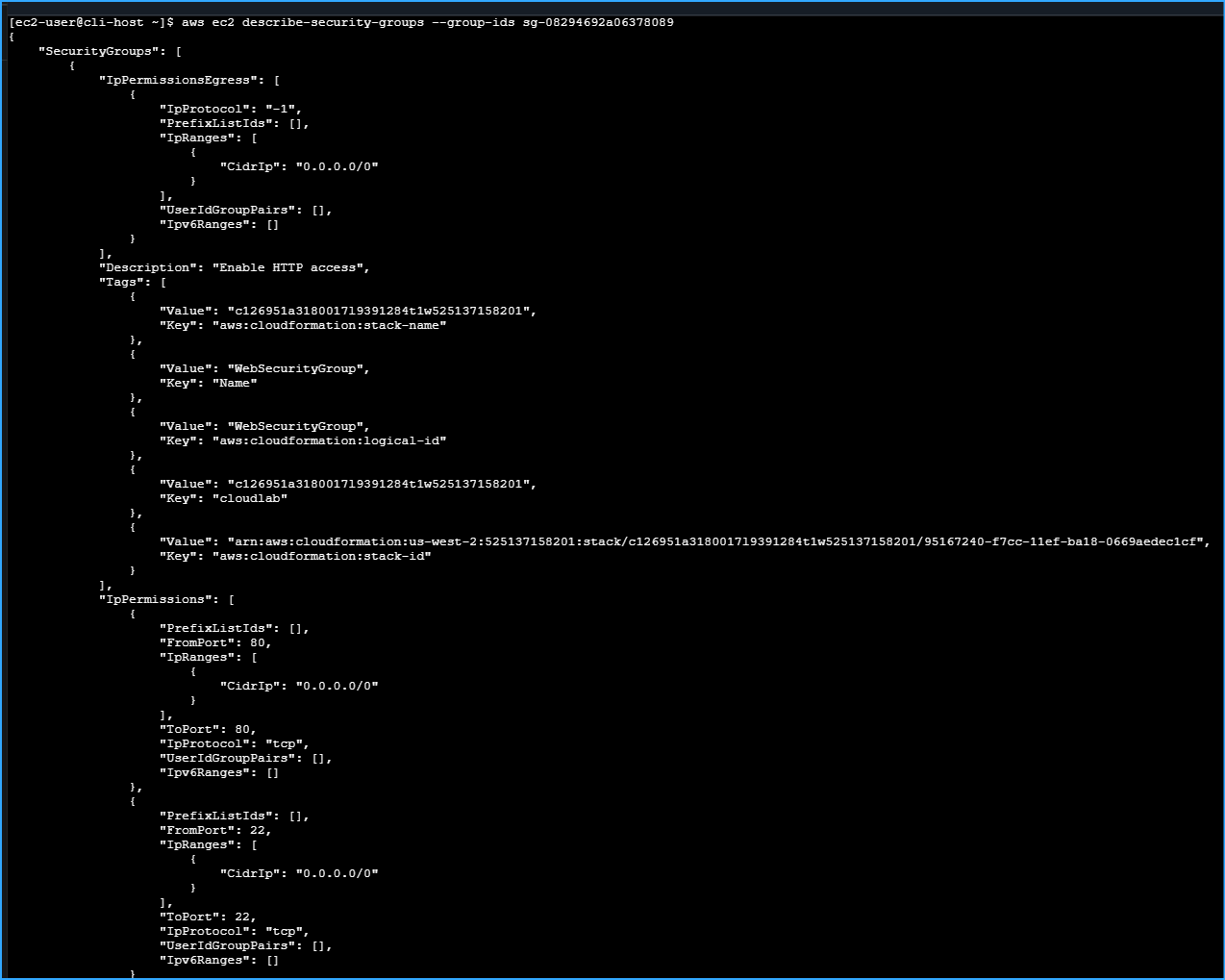 Output from describe security group 1
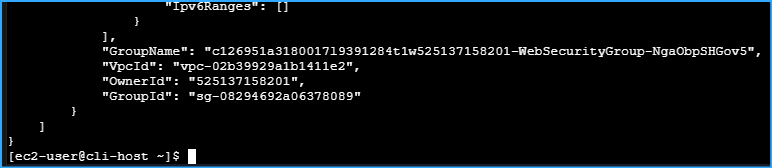 Output from describe security group 2
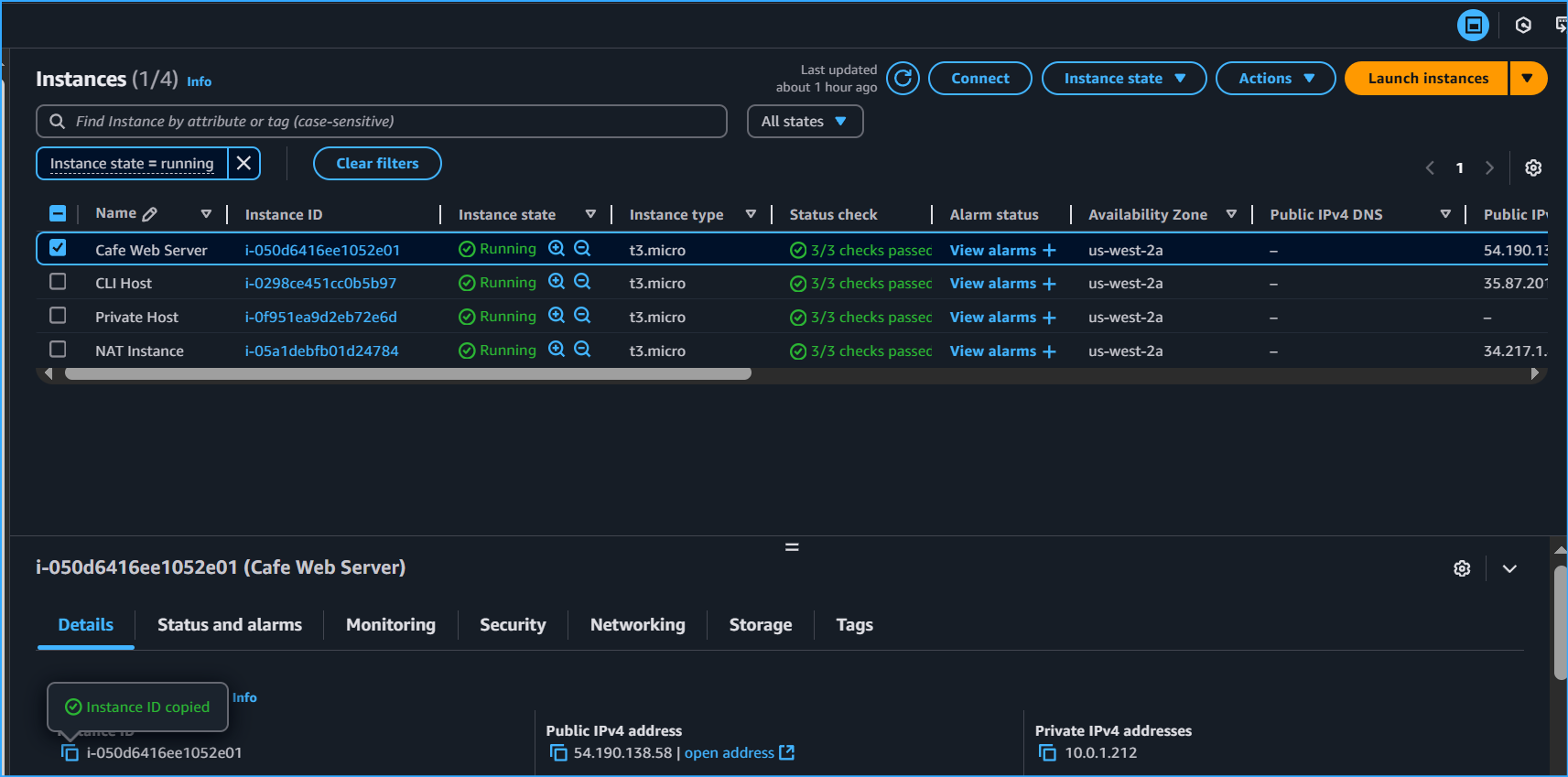 Copied instance ID
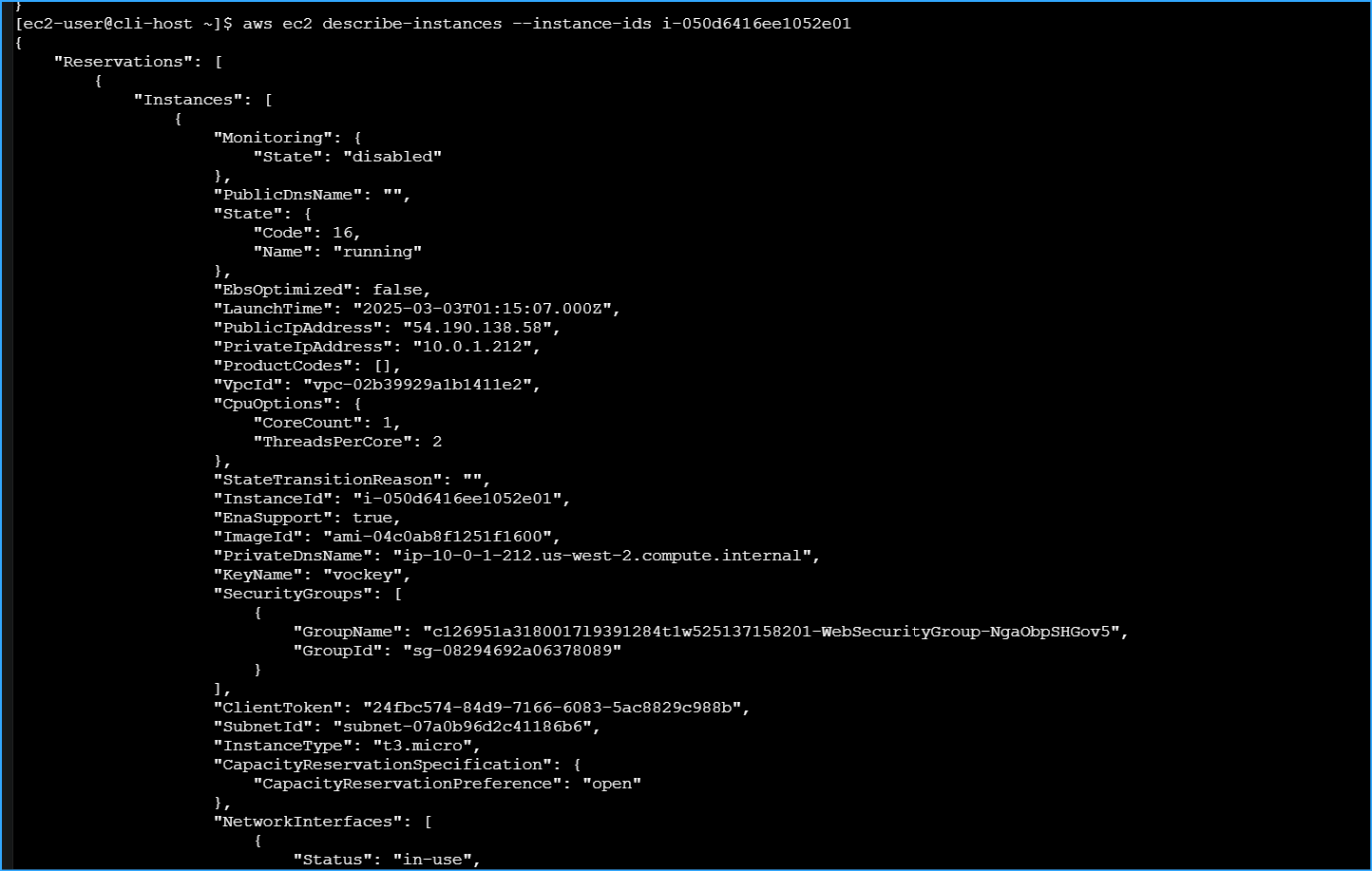 Instance details output
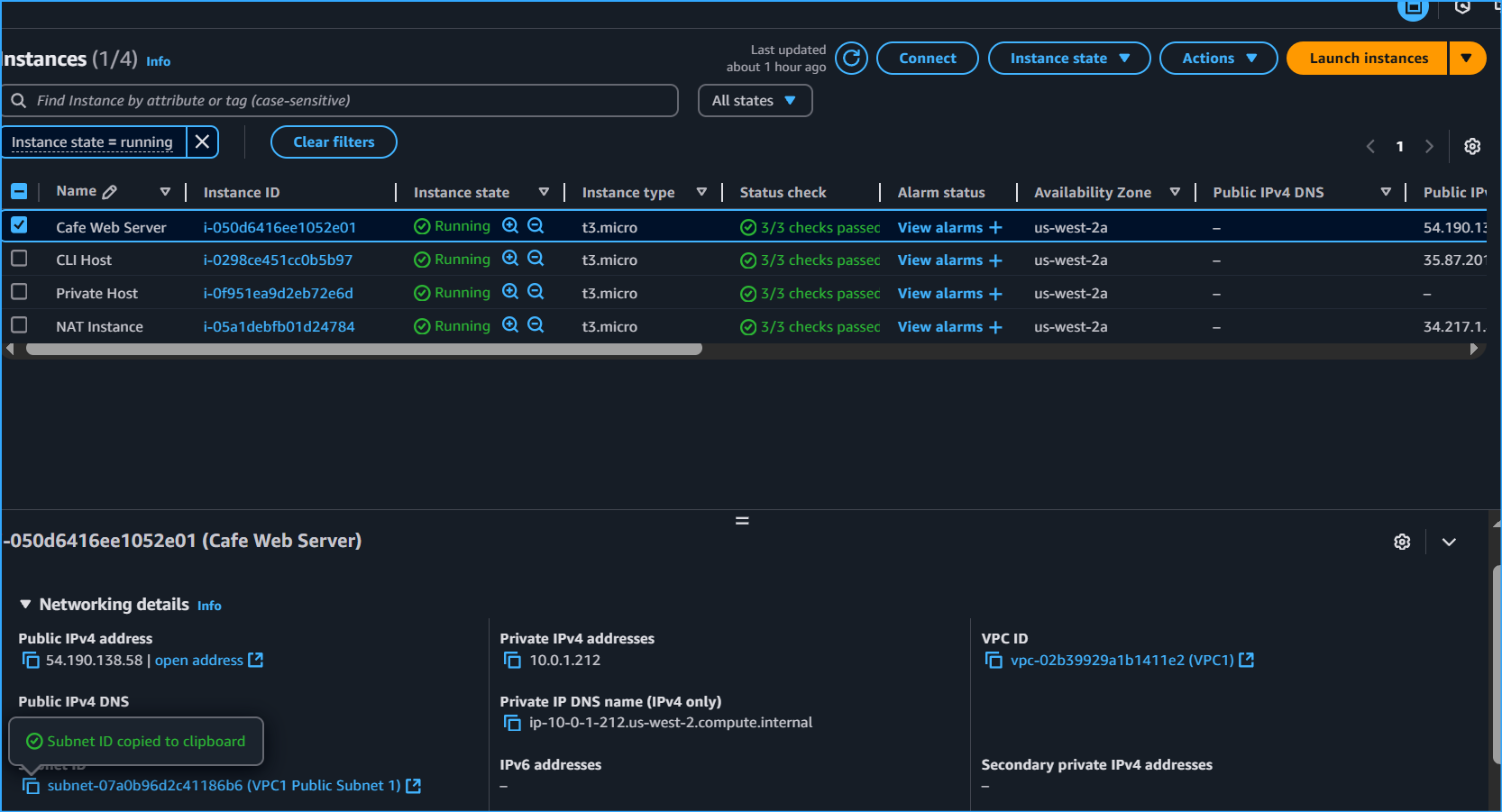 Copied public subnet
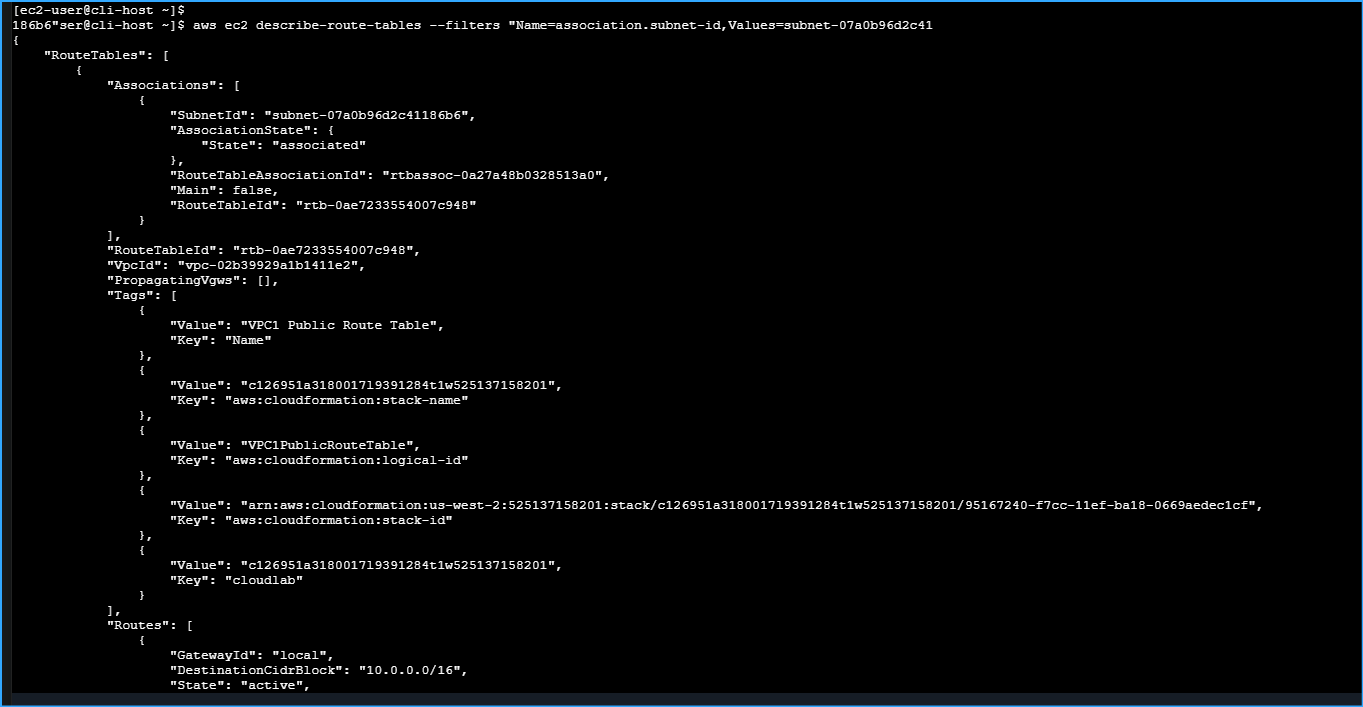 Route table details
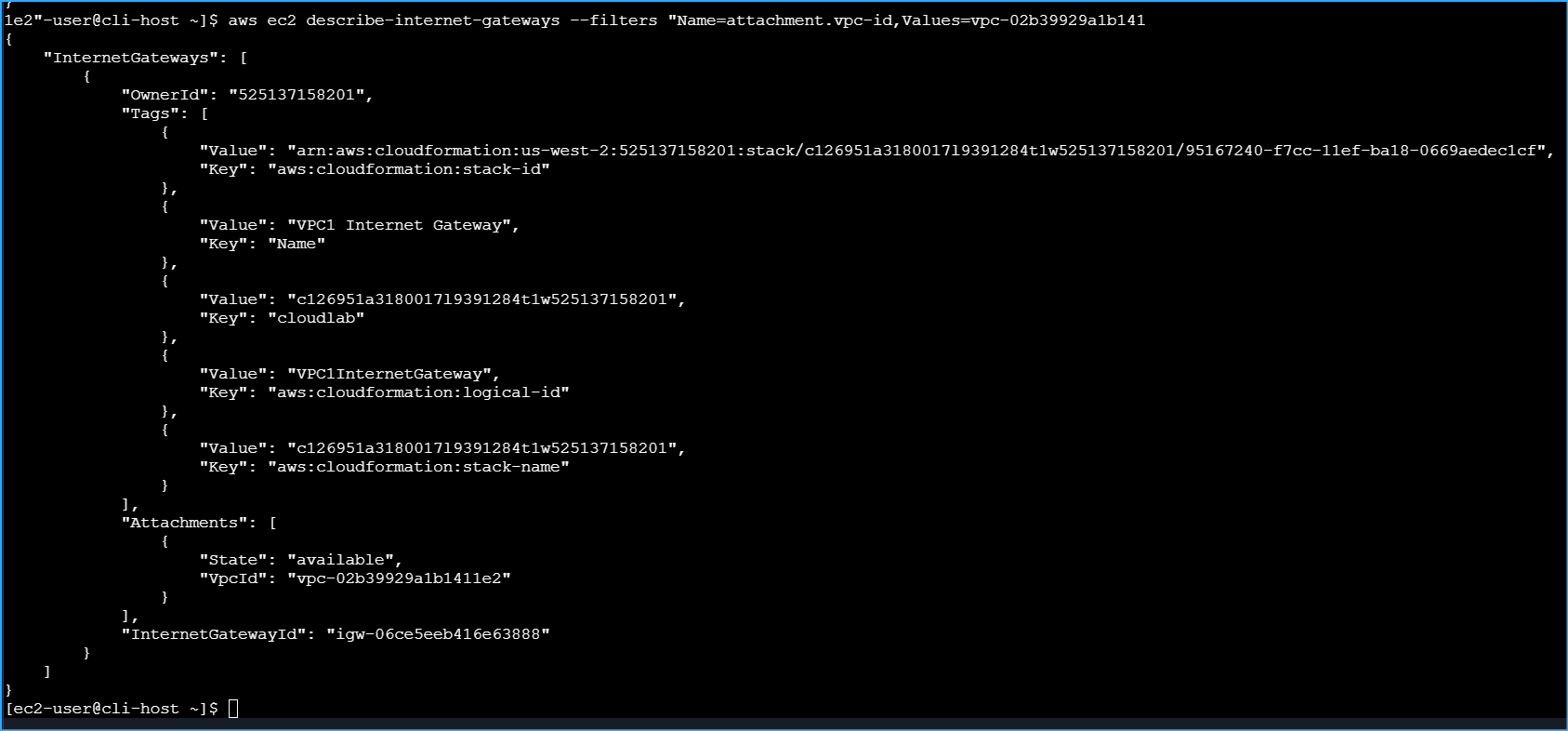 Internet gateway details
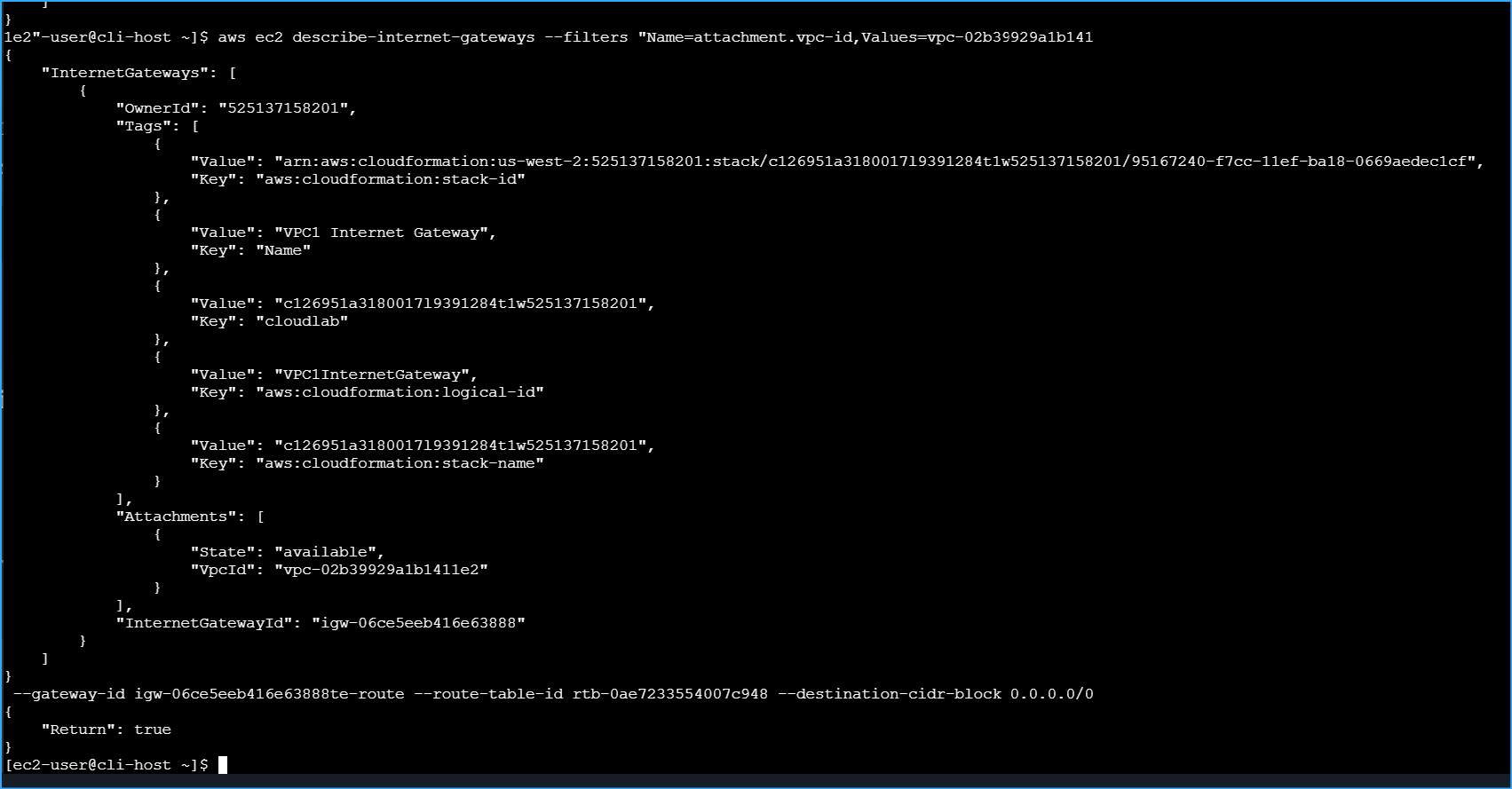 Adding route to internet gateway
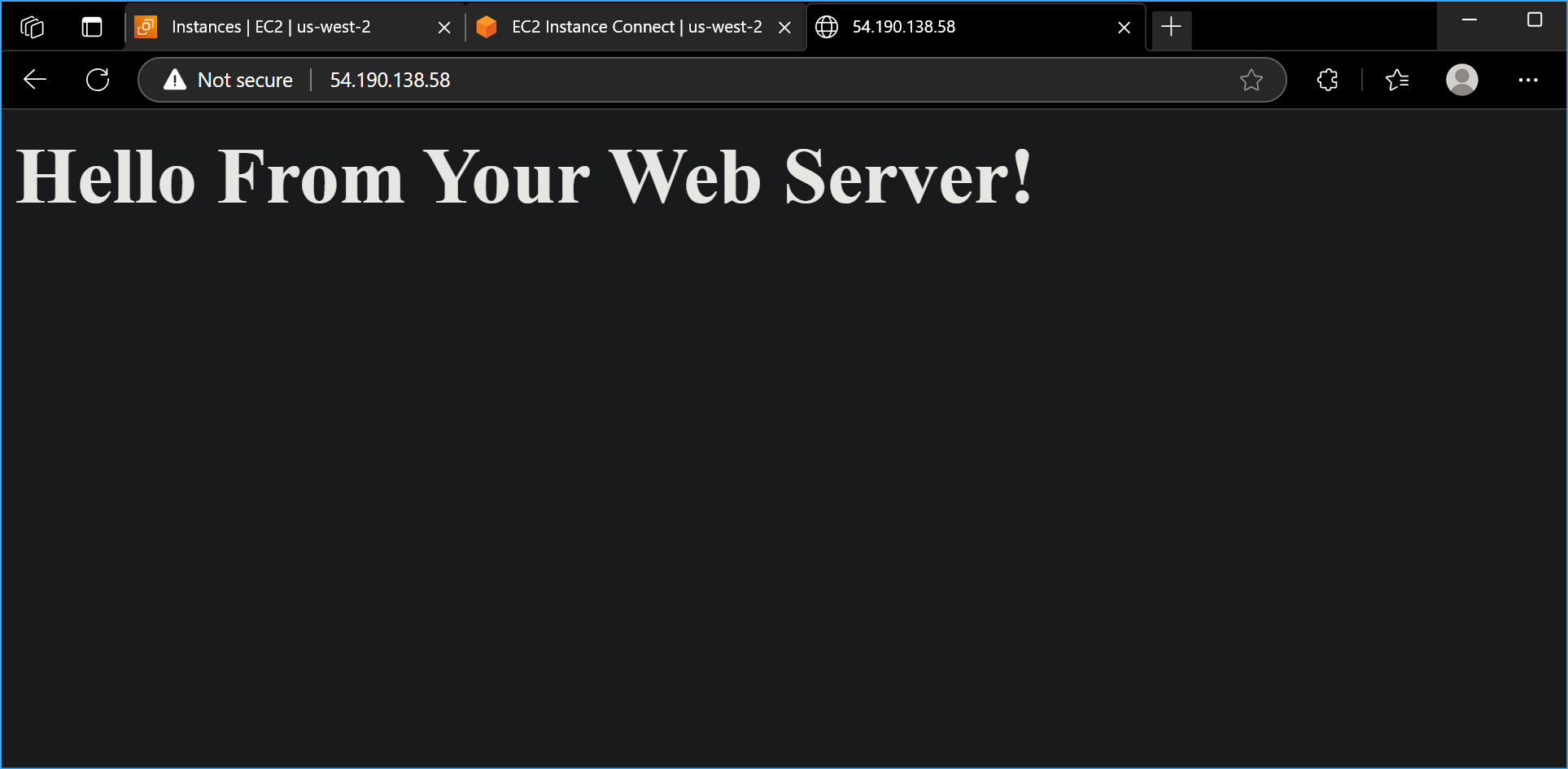 Web server now loads
 Network ACL details
 NACL rule blocking port 22
 Deleted blocking ingress rule
 EC2 instance connection successful
 Created flowlog directory
 Downloaded flow logs
 Navigated to logs subdirectory
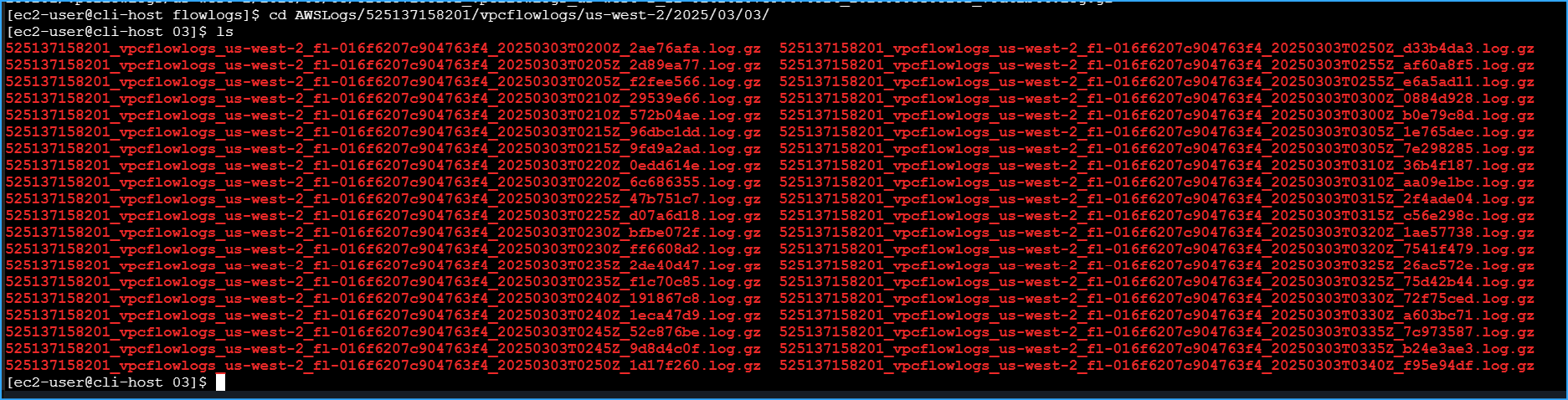 Listed downloaded log files
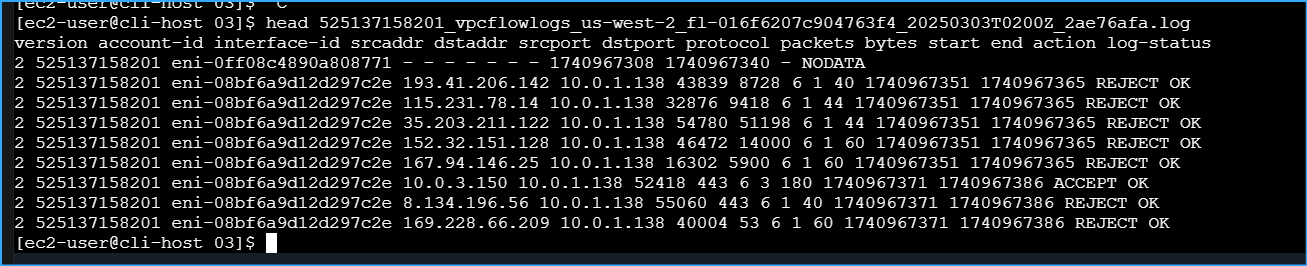 Viewed log file header
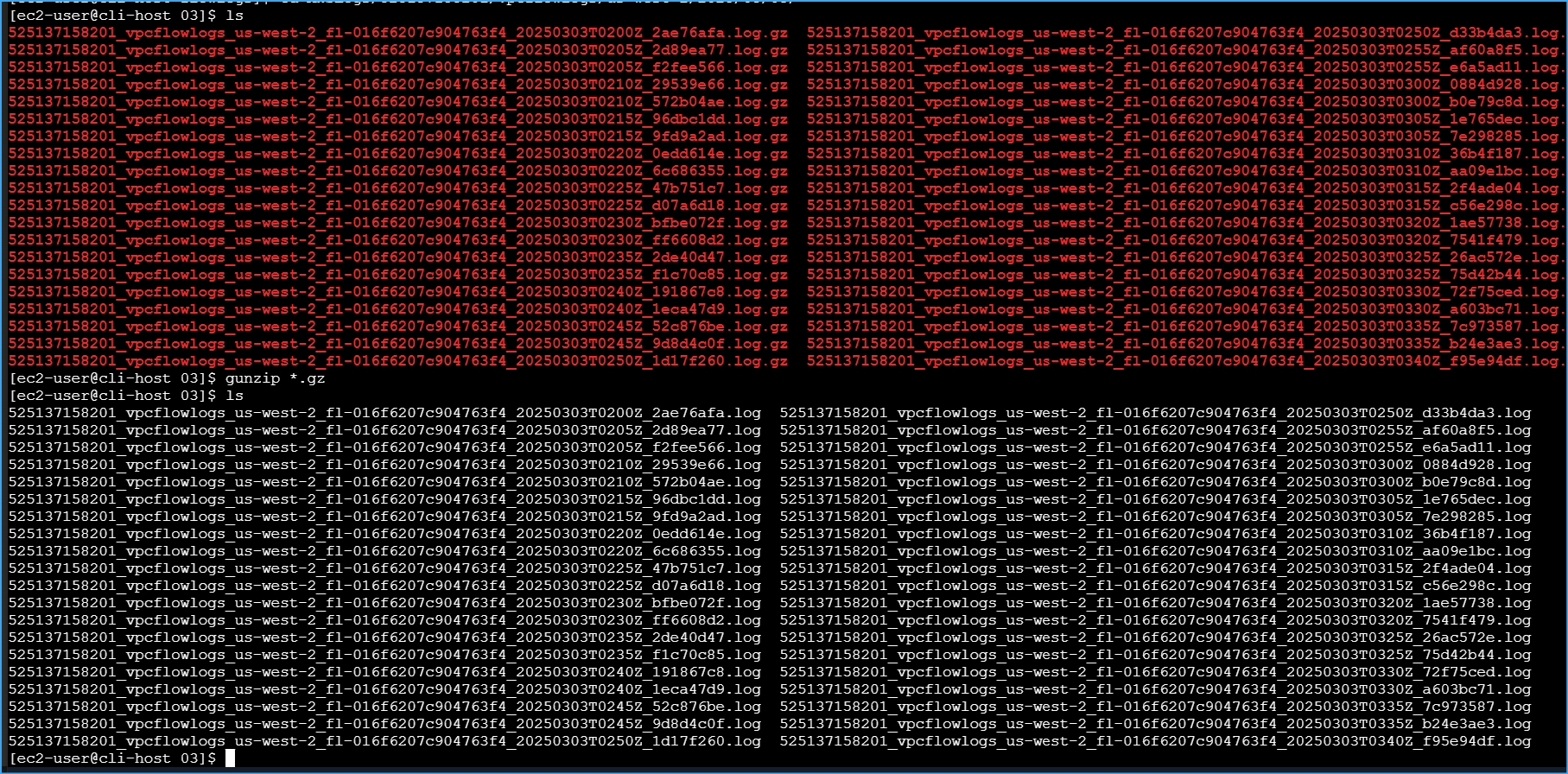 Unzipped and verified logs
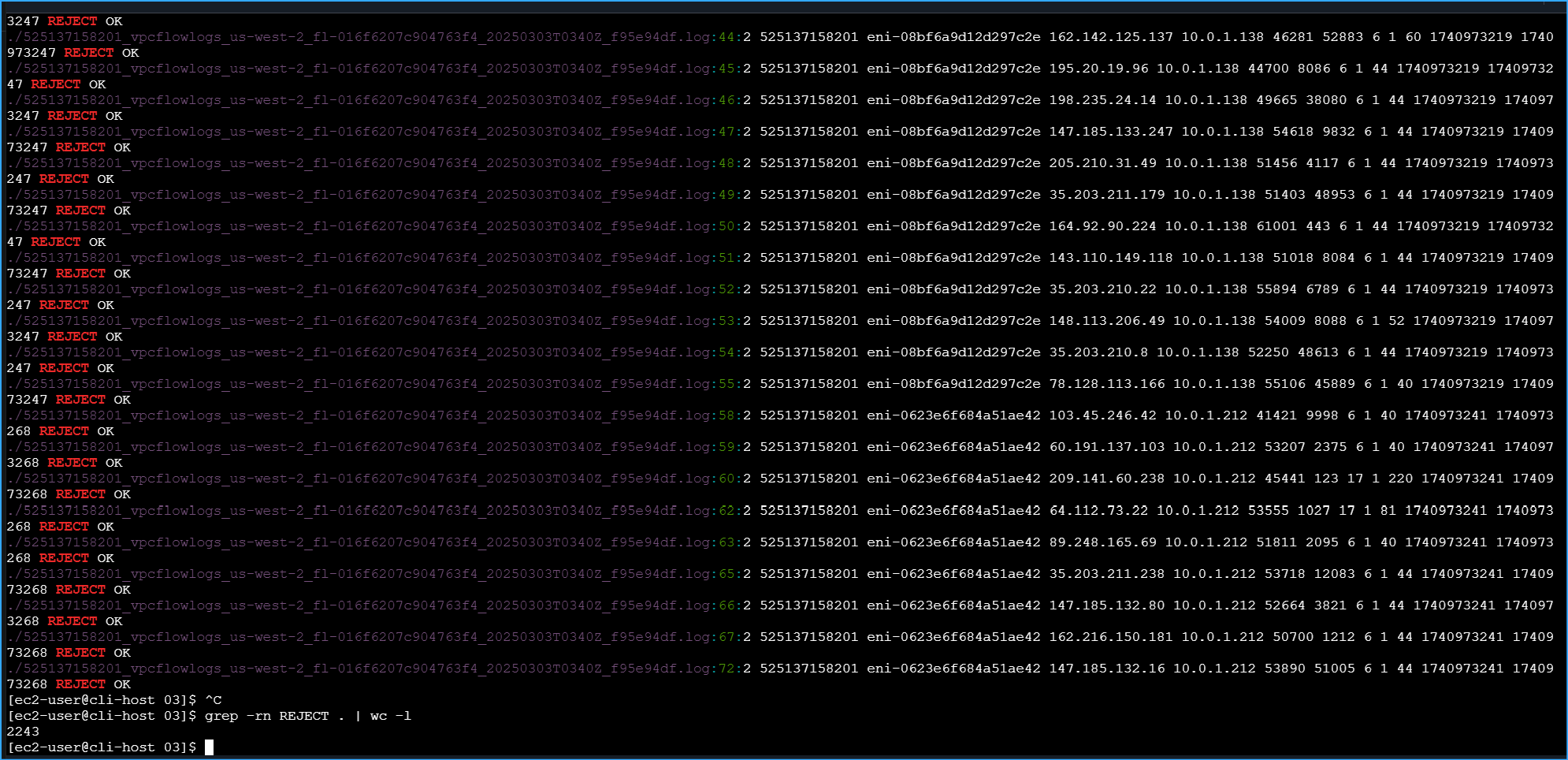 Large dataset results
 Copied IP from CIDR block
 SSH attempt timestamps
 Confirmed network ID match
 Translated timestamps