Overview
Amazon DynamoDB is a fast and flexible NoSQL database service for all
applications that need consistent, single-digit millisecond latency at
any scale. It is a fully managed database and supports both document and
key-value data models. Its flexible data model and reliable performance
make it a great fit for mobile, web, gaming, ad-tech, Internet of Things
(IoT), and many other applications.
I created a table in DynamoDB to store information about a music
library. I queried the music library and then deleted the DynamoDB
table.
Topics Covered
- Create an Amazon DynamoDB table
- Enter data into an Amazon DynamoDB table
- Query an Amazon DynamoDB table
- Delete an Amazon DynamoDB table
Task 2: Add data
In this task, I added data to the Music table. A table is a collection
of data on a particular topic.
Each table contains multiple items. An item is a group of attributes
that is uniquely identifiable among all of the other items. Items in
DynamoDB are similar in many ways to rows in other database systems. In
DynamoDB, there is no limit to the number of items you can store in a
table.
Each item consists of one or more attributes. An attribute is a
fundamental data element, something that does not need to be broken down
any further. For example, an item in a Music table contains attributes
such as song and artist. Attributes in DynamoDB are similar columns in
other database systems, but each item (row) can have different
attributes (columns).
When I wrote an item to a DynamoDB table, only the partition key and
sort key (if used) are required. Other than these fields, the table does
not require a schema. This means that I could add attributes to one item
that may be different than the attributes for other items.
- I chose the Music table.
- I chose Actions, and then chose Create item.
- For the Artist value, I entered Pink Floyd
- For the Song value, I entered Money
These were the only required attributes, but I then added additional
attributes.
- To create an additional attribute, I chose Add new attribute.
- In the dropdown list, I selected String.
- A new attribute row was added.
- For the new attribute, I entered the following:
FIELD: Album
VALUE: The Dark Side of the Moon
- To add another new attribute, I chose Add new attribute.
- In the dropdown list, I chose Number.
- A new number attribute was added.
- For the new attribute, I entered the following:
FIELD: Year
VALUE: 1973
- I chose Create item.
The item was now added to the Music table.
Similarly, to create a second item, I used the following attributes:
Attribute Name: Artist
Attribute Type: String
Attribute Value: John Lennon
Attribute Name: Song
Attribute Type: String
Attribute Value: Imagine
Attribute Name: Album
Attribute Type: String
Attribute Value: Imagine
Attribute Name: Year
Attribute Type: Number
Attribute Value: 1971
Attribute Name: Genre
Attribute Type: String
Attribute Value: Soft rock
This item had an additional attribute called Genre. This was an example
of each item being capable of having different attributes without having
to pre-define a table schema.
To create a third item, I used the following attributes:
Attribute Name: Artist
Attribute Type: String
Attribute Value: Psy
Attribute Name: Song
Attribute Type: String
Attribute Value: Gangnam Style
Attribute Name: Album
Attribute Type: String
Attribute Value: Psy 6 (Six Rules), Part 1
Attribute Name: Year
Attribute Type: Number
Attribute Value: 2011
Attribute Name: LengthSeconds
Attribute Type: Number
Attribute Value: 219
Once again, this item had a new LengthSeconds attribute identifying the
length of the song. This demonstrated the flexibility of a NoSQL
database.
There are also faster ways to load data into DynamoDB, such as using AWS
Command Line Interface, programmatically loading data, or using one of
the free tools available on the internet.
Task 4: Query the table
There are two ways to query a DynamoDB table: query and scan.
A query operation finds items based on the primary key and optionally
the sort key. It is fully indexed, so it runs very fast.
- I expanded Scan/Query items, and chose Query.
-
Fields for the Artist (Partition key) and Song (Sort key) were now
displayed.
- I entered the following details:
Artist (Partition key): Psy
Song (Sort key): Gangnam Style
- I chose Run.
The song quickly appeared in the list. I needed to scroll down to see
this result.
A query is the most efficient way to retrieve data from a DynamoDB
table.
Alternatively, I could scan for an item. This option involves looking
through every item in a table, so it is less efficient and can take
significant time for larger tables.
- I scrolled up on the page, and chose Scan.
- I expanded Filters, and entered the following values:
For Attribute name, enter Year
For Type, choose Number.
For Value, enter 1971
- I chose Run
Only the song released in 1971 was displayed.
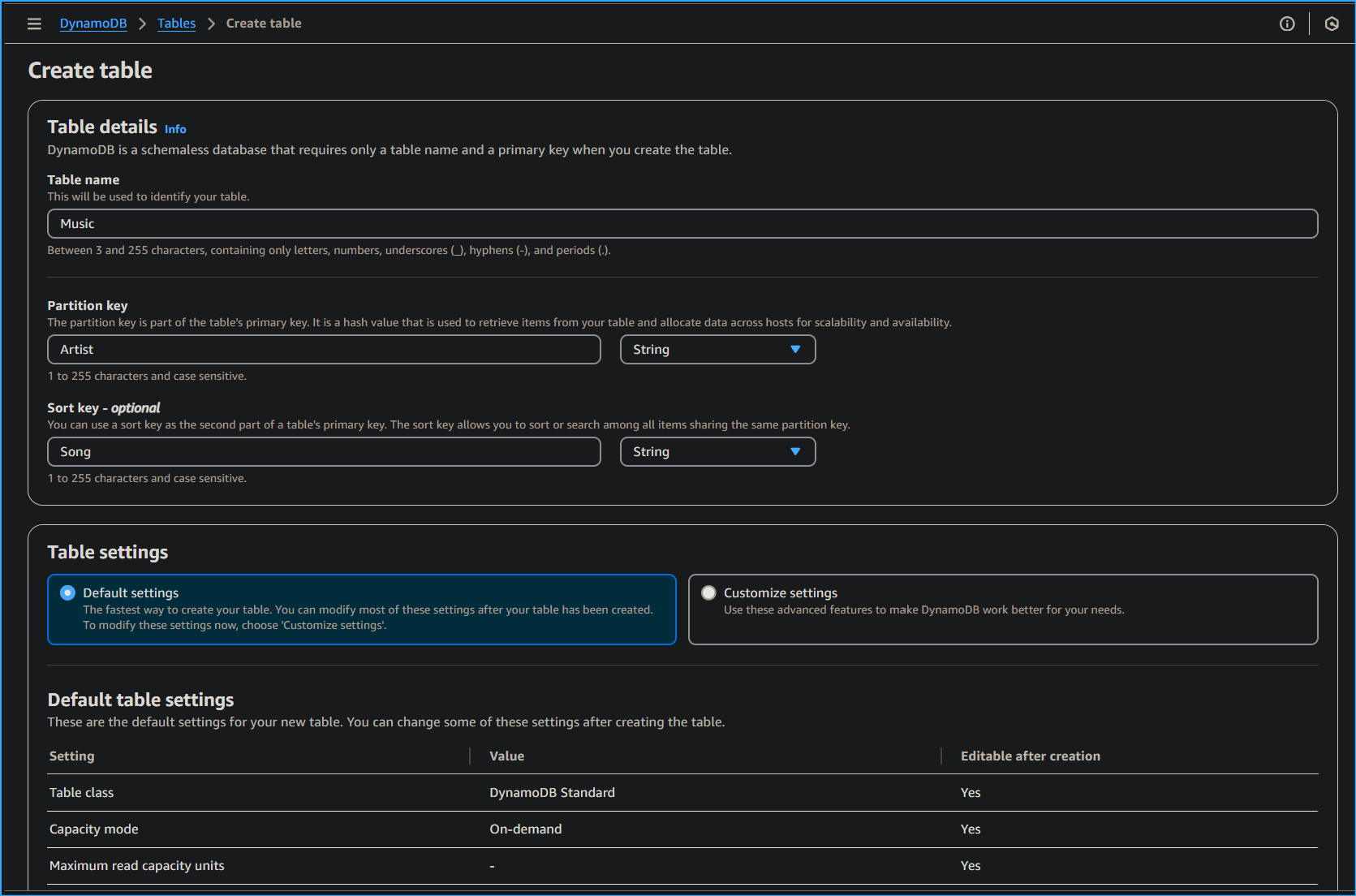 Creating a Table in DynamoDB One
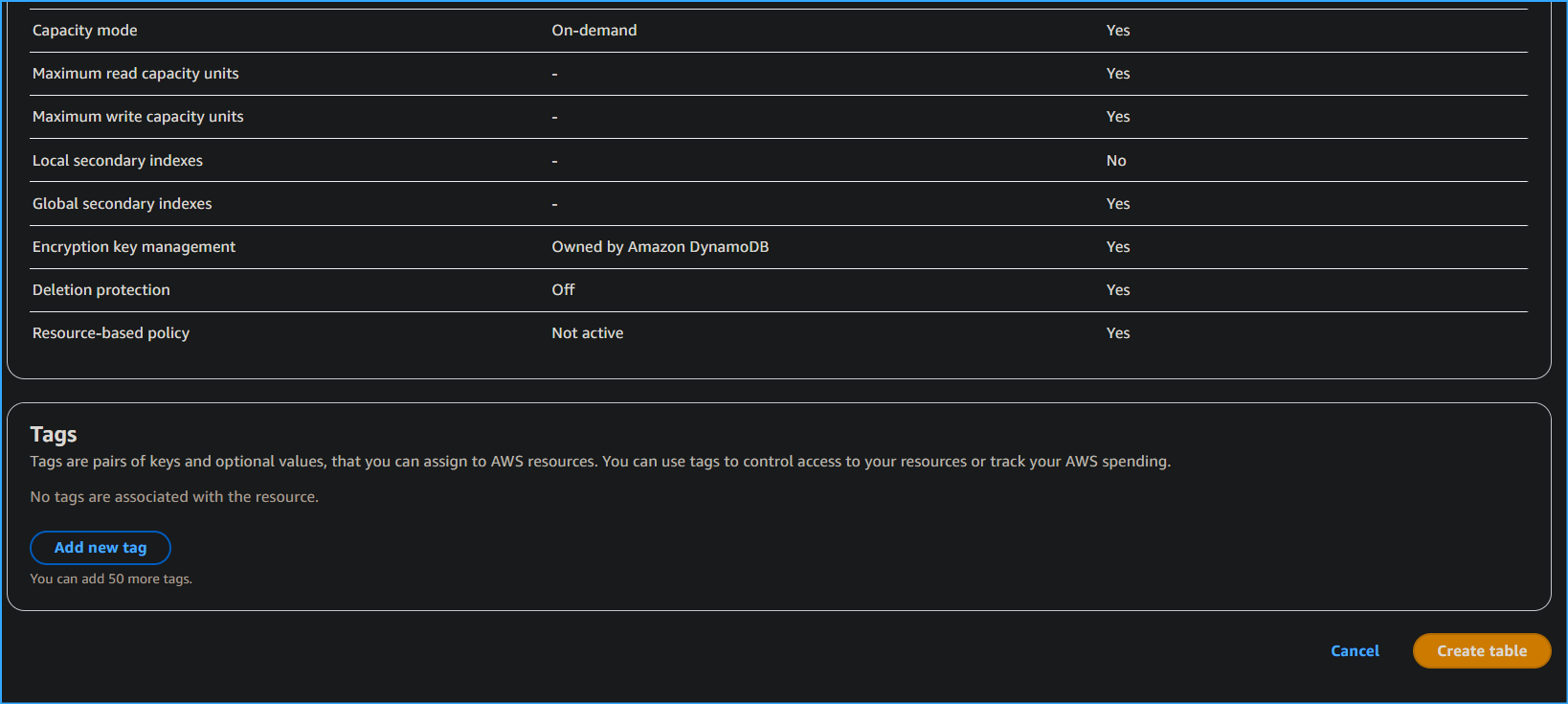 Creating a Table in DynamoDB Two
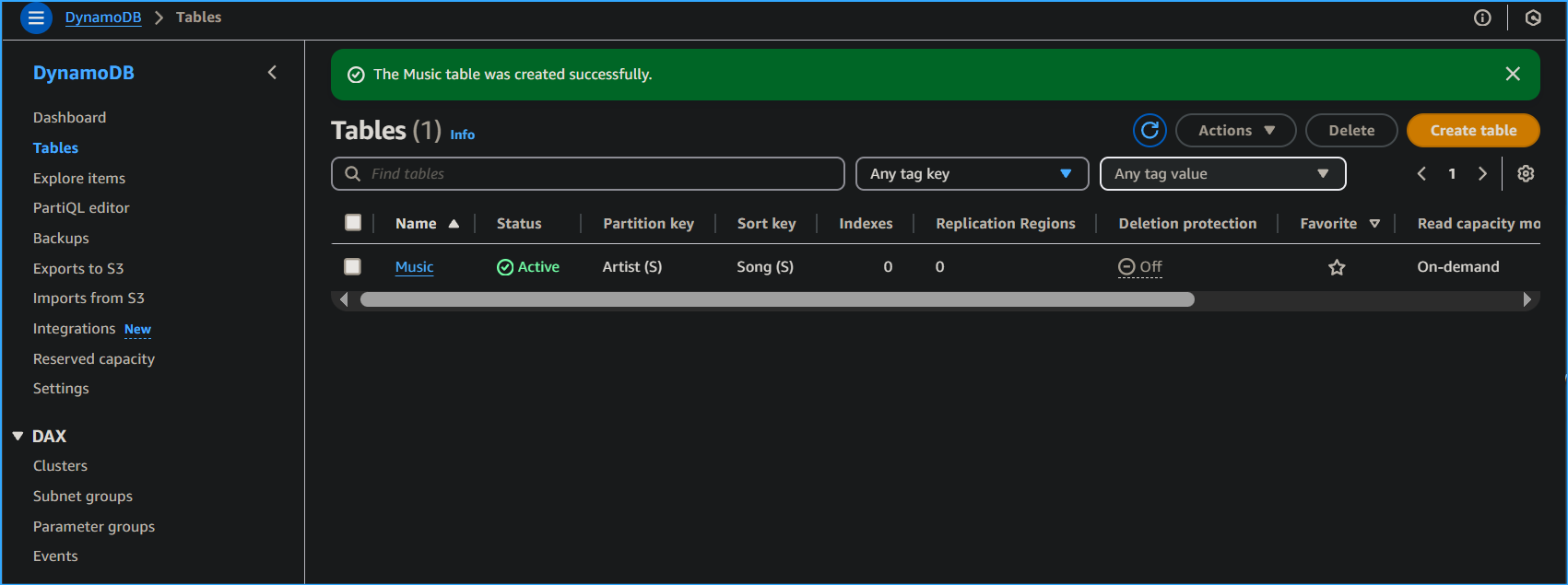 Music Table Active
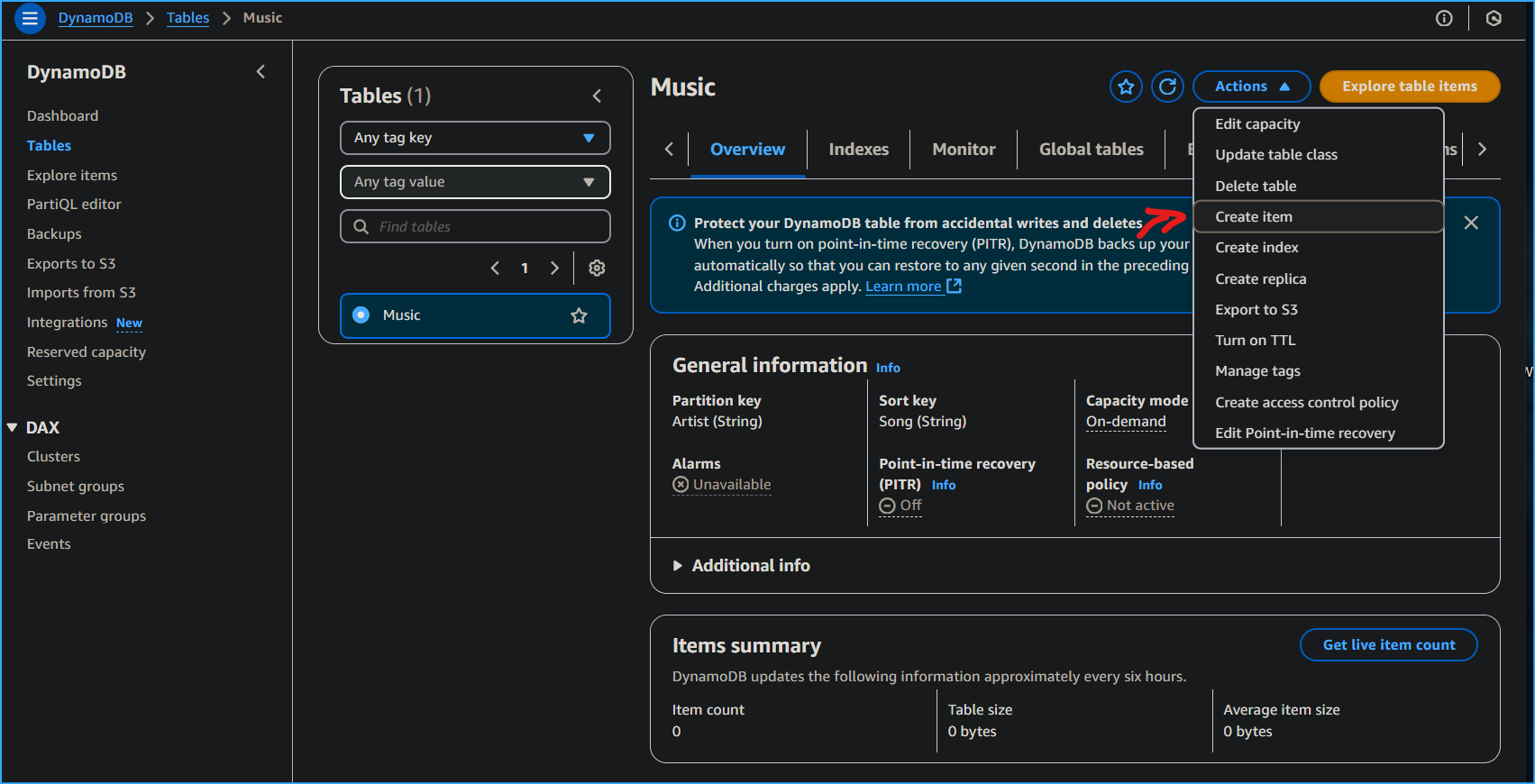 Create Item in Music Table
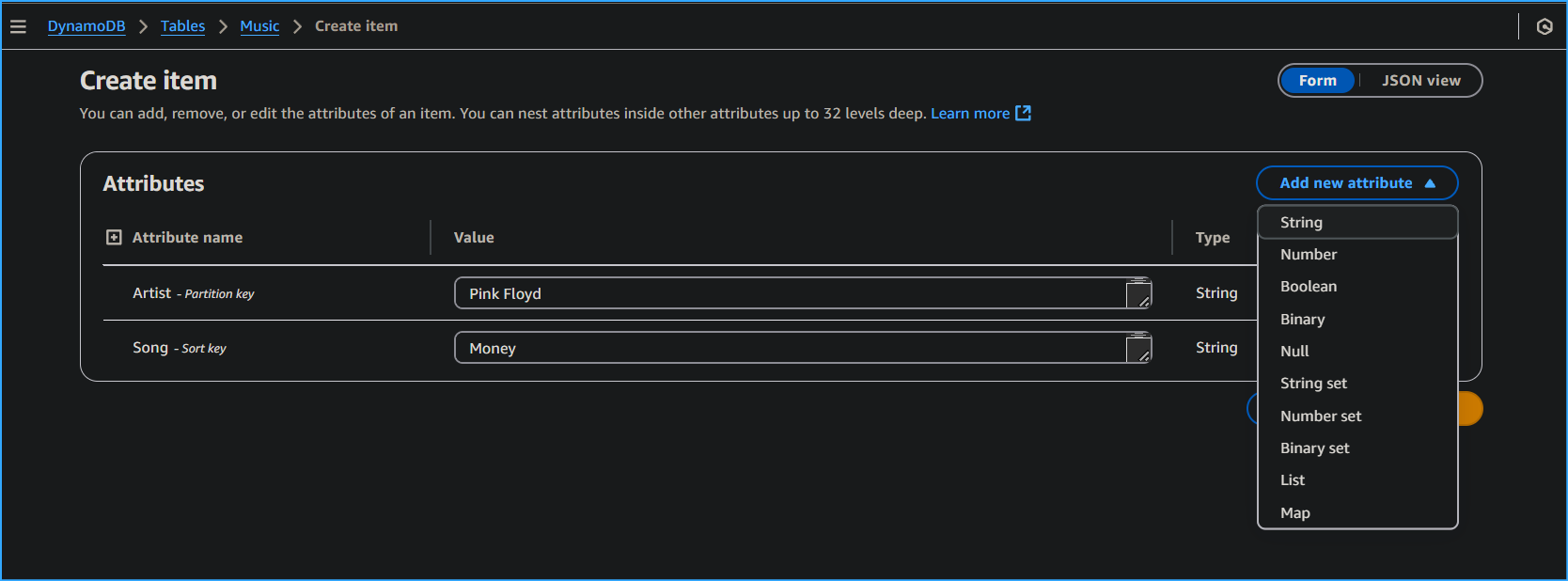 Adding New Attributes
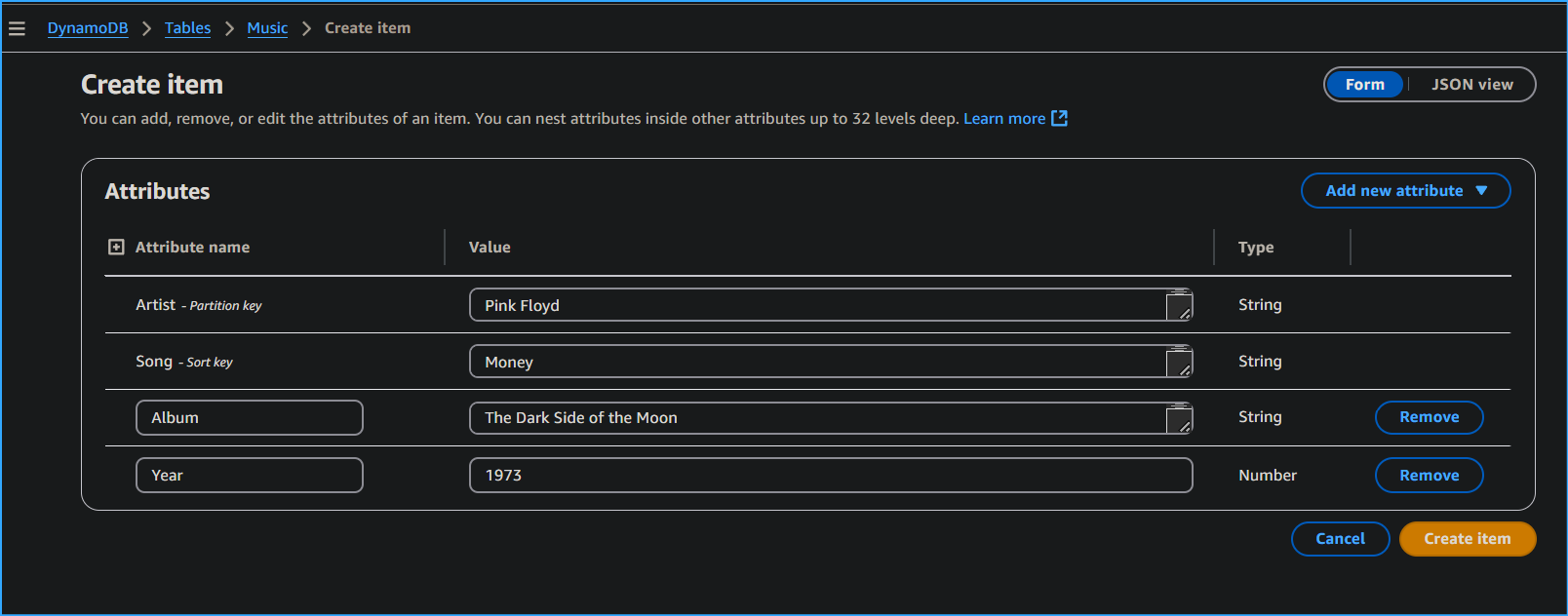 Added Attributes to Item
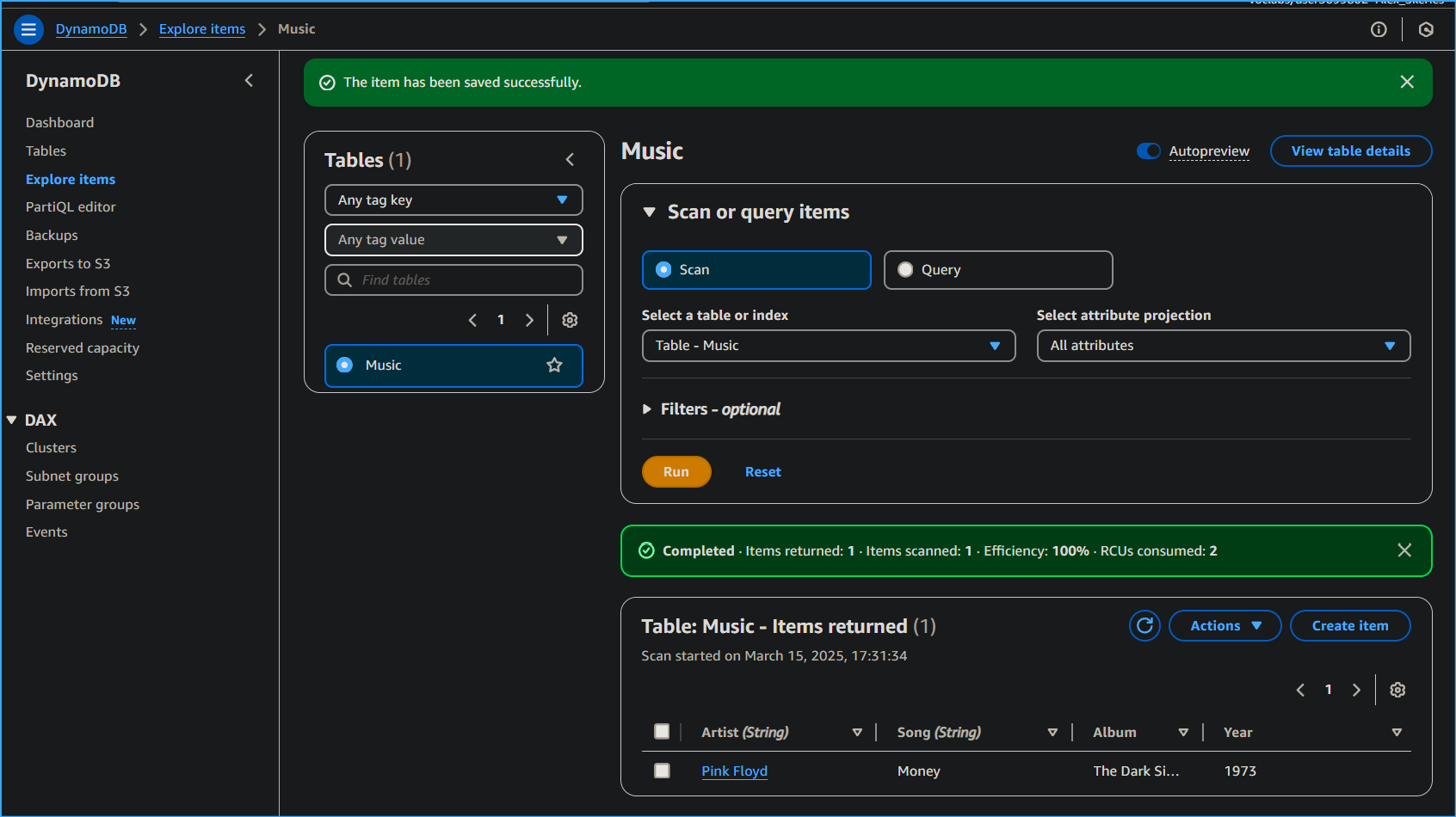 Item Saved Successfully
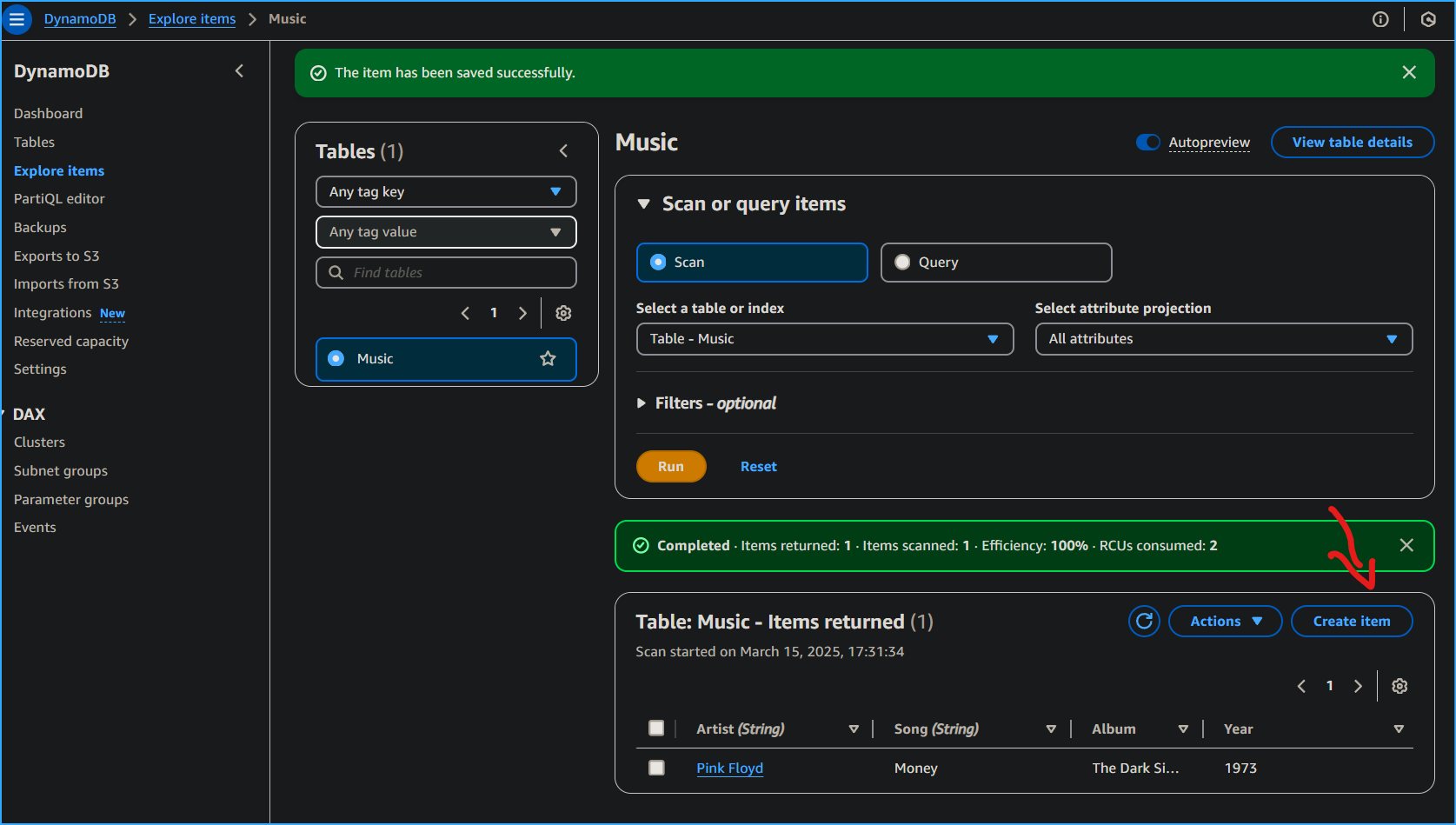 Choosing Create Item Here
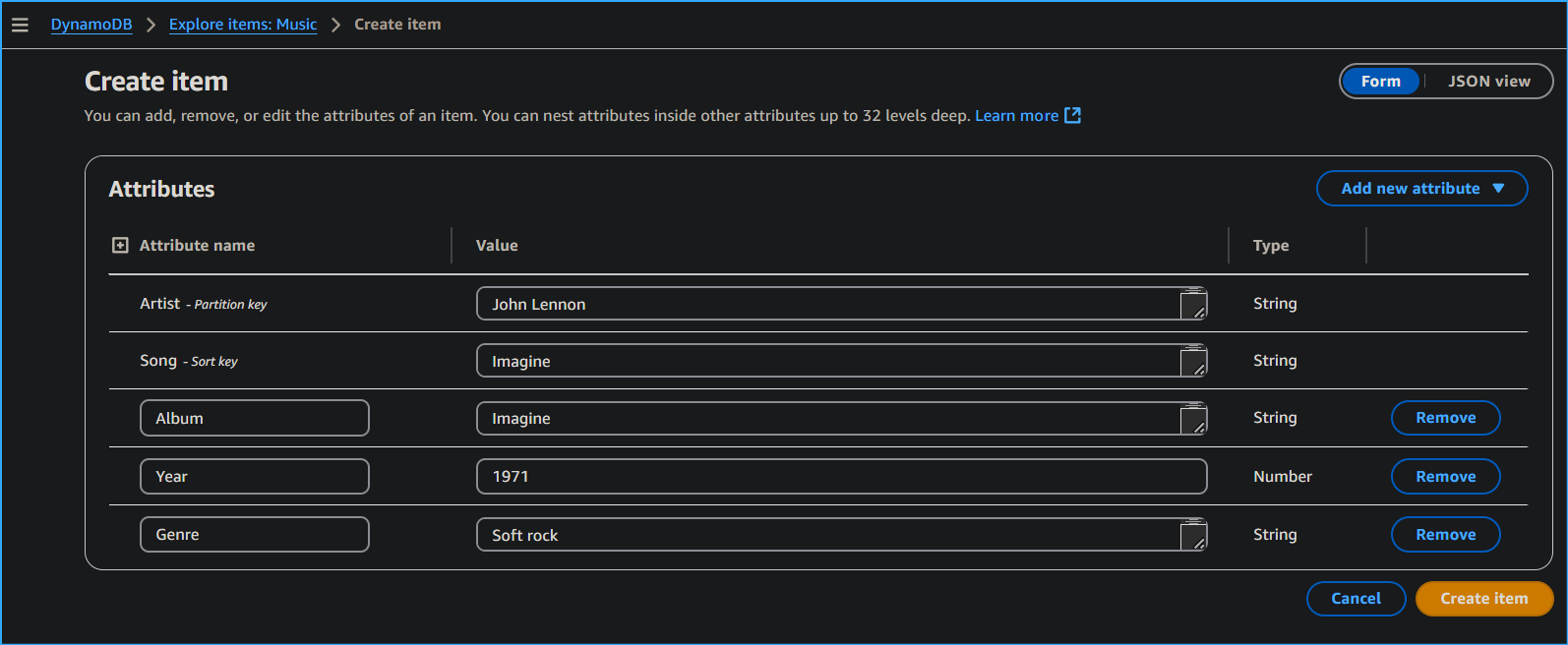 Creating Second Item
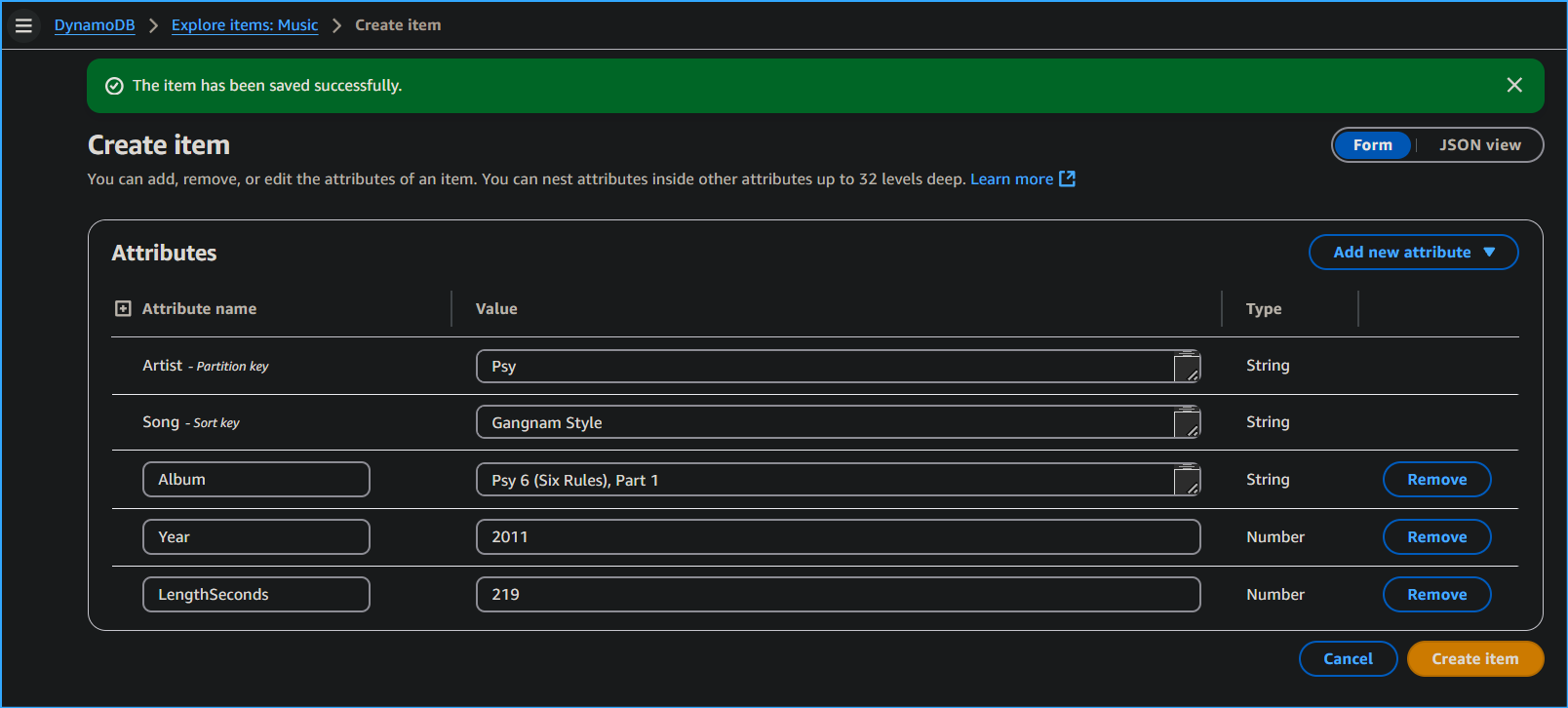 Creating Third Item
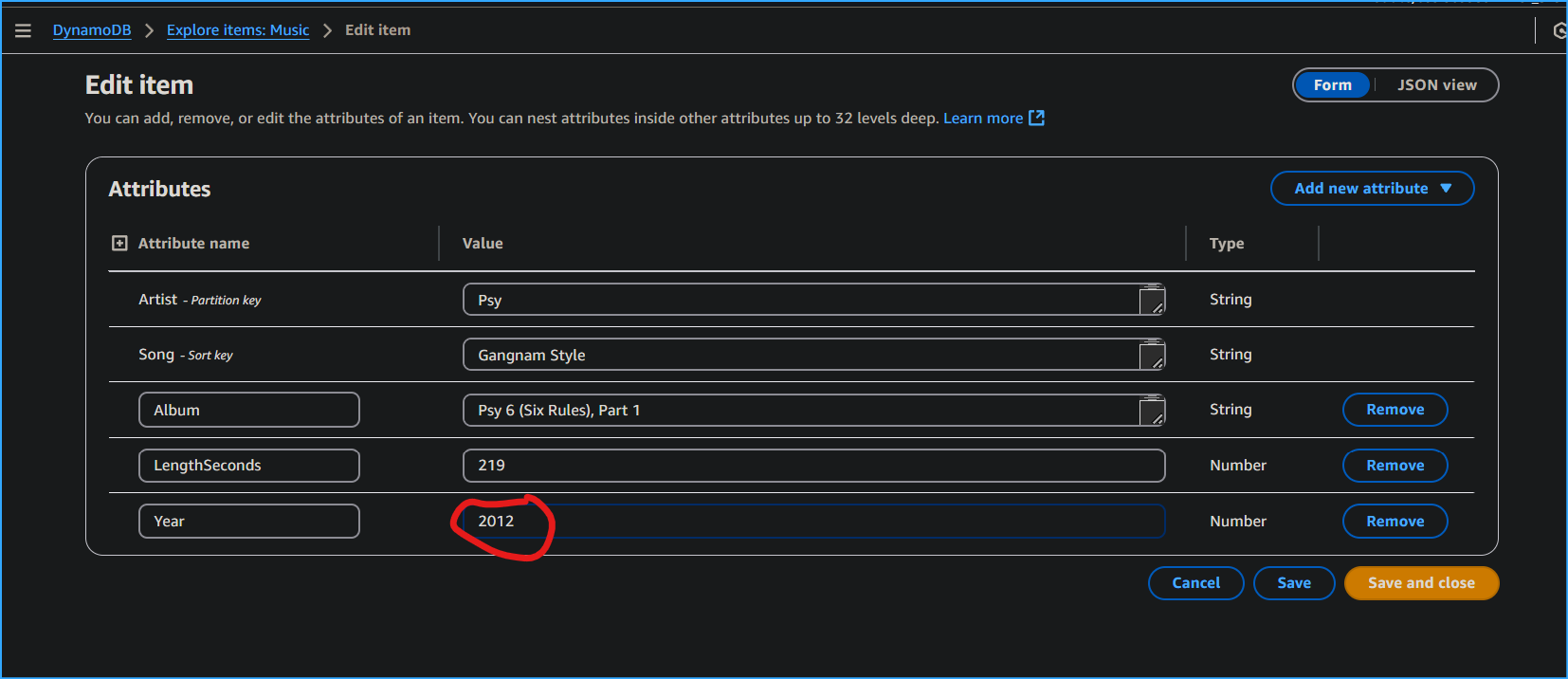 Modifying Item
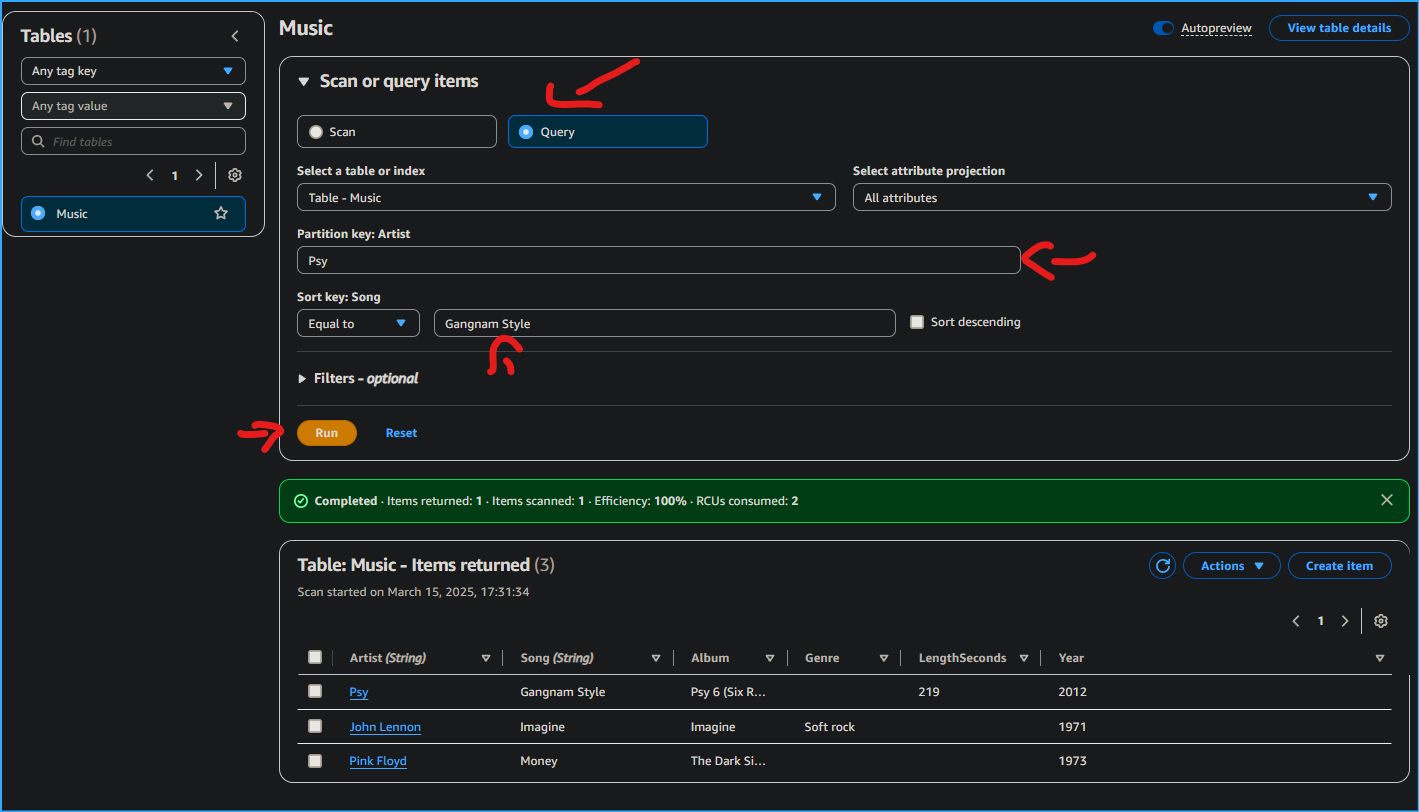 Querying
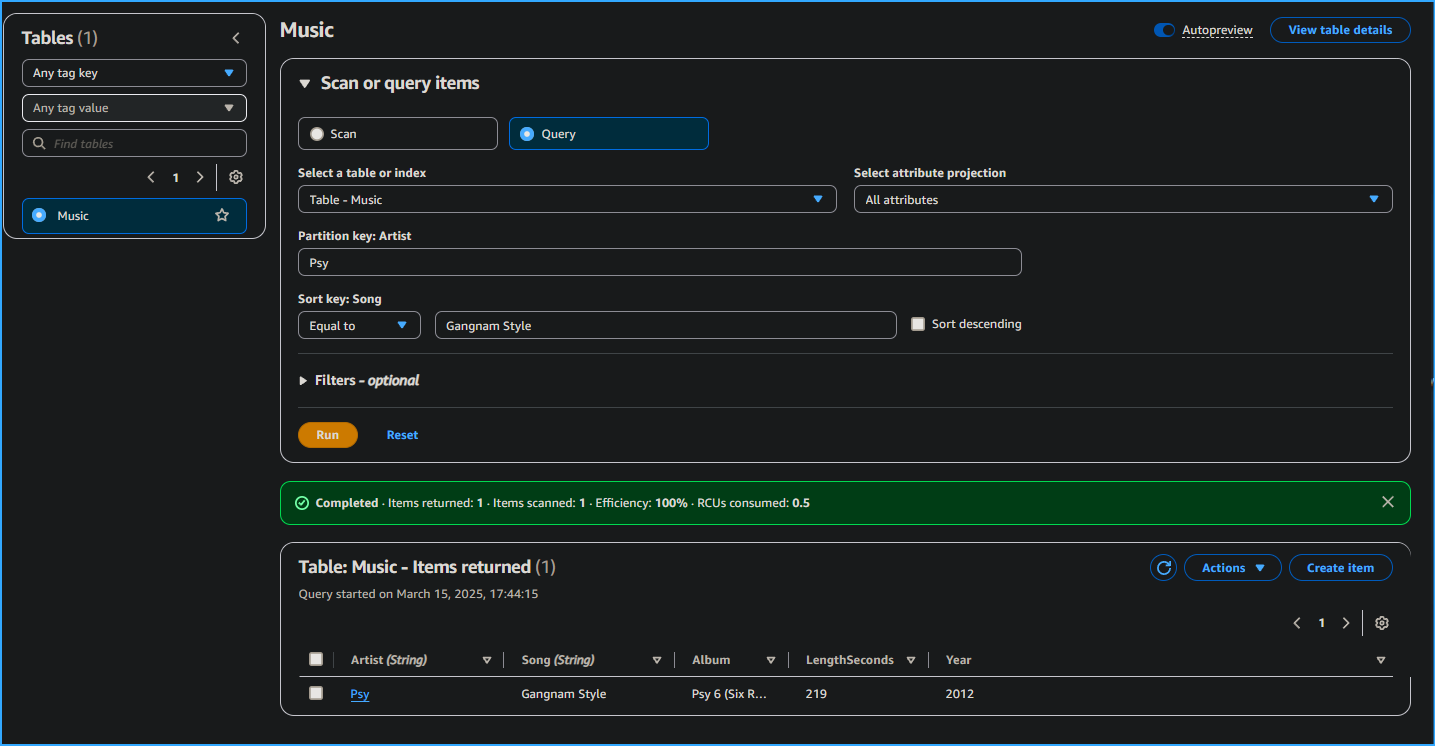 Query Returned
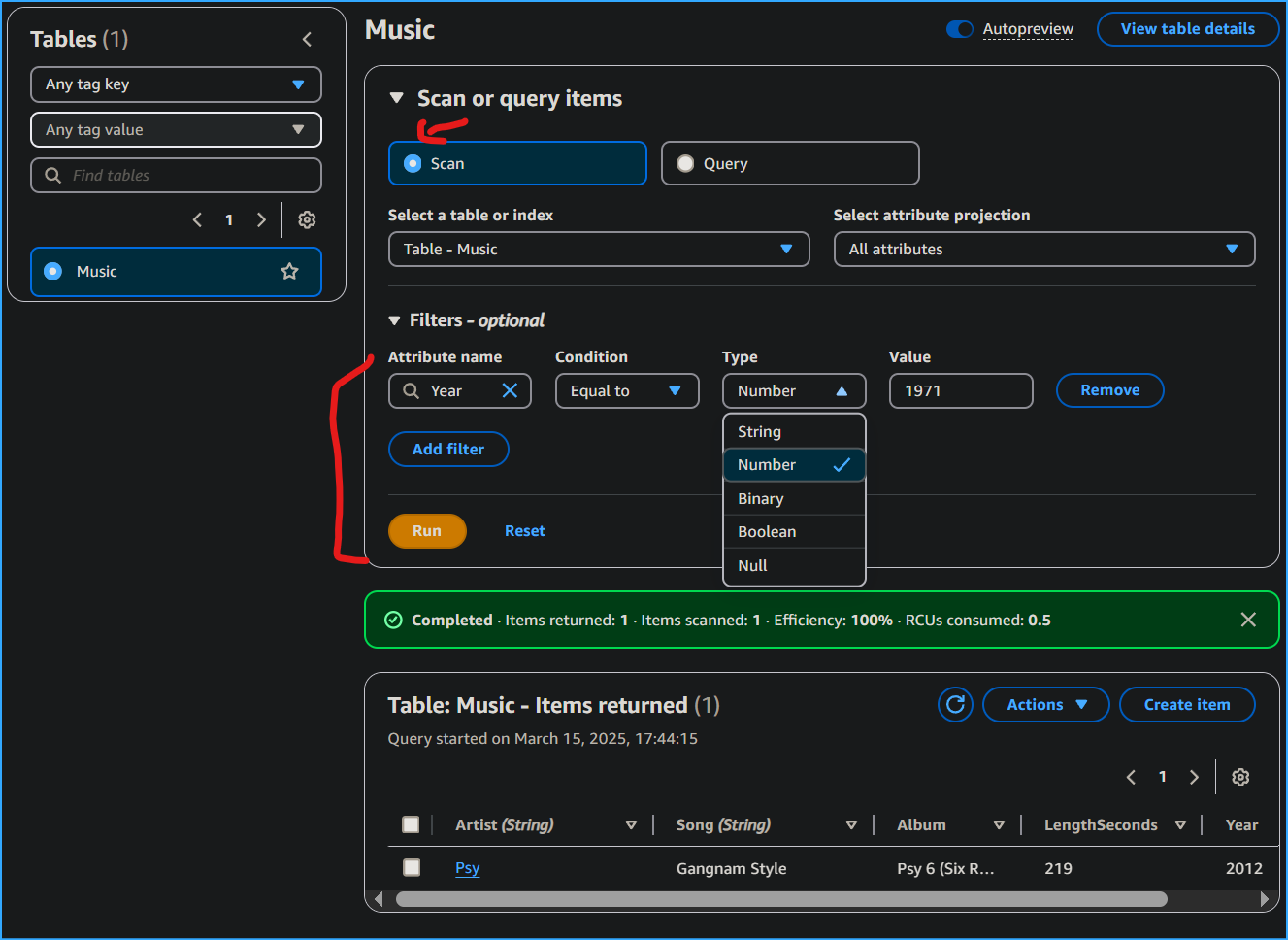 Scan and Expand Filters
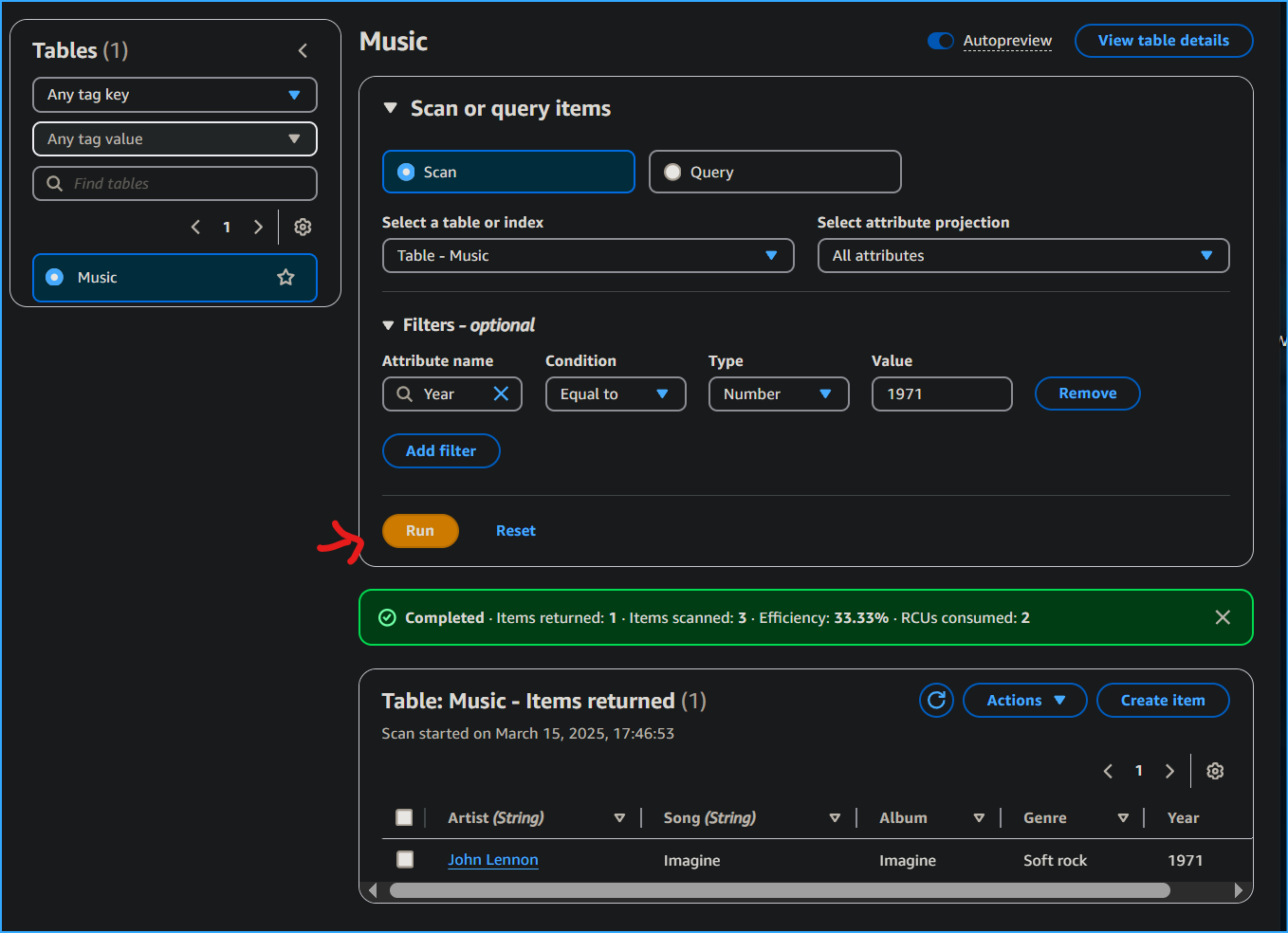 Ran and Results Displayed
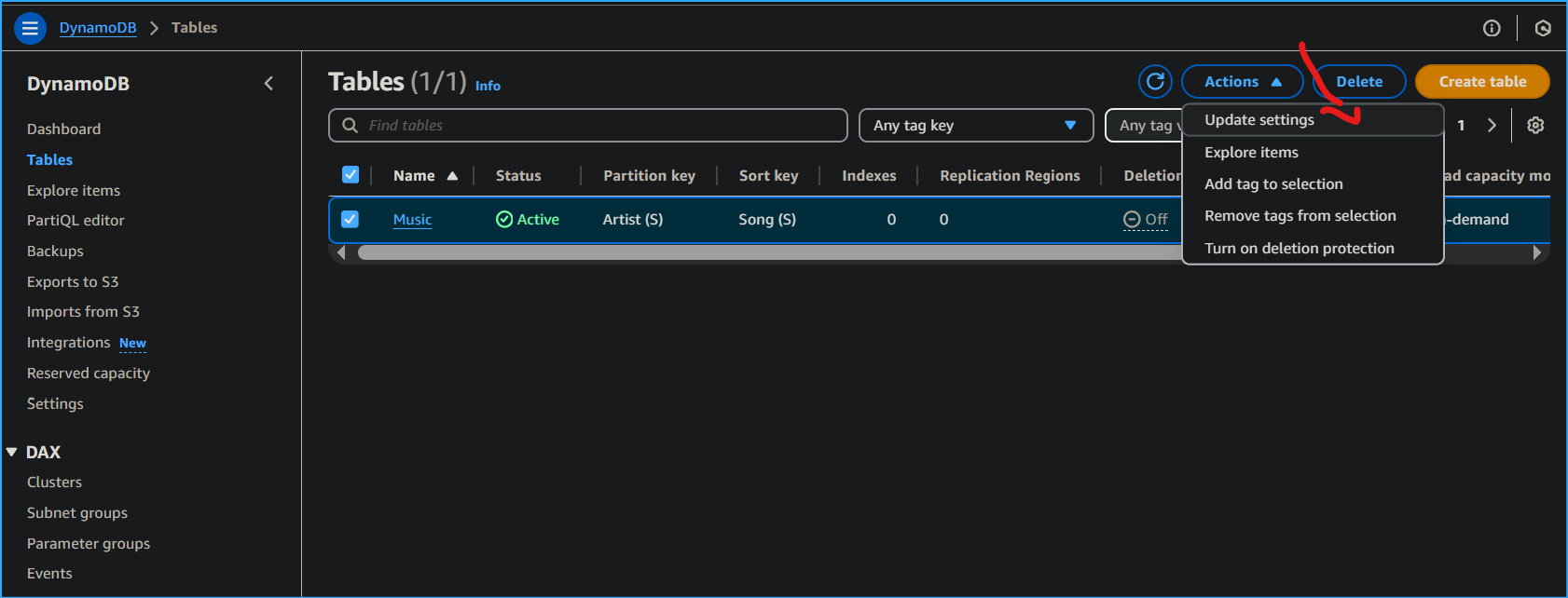 Update Settings in Tables
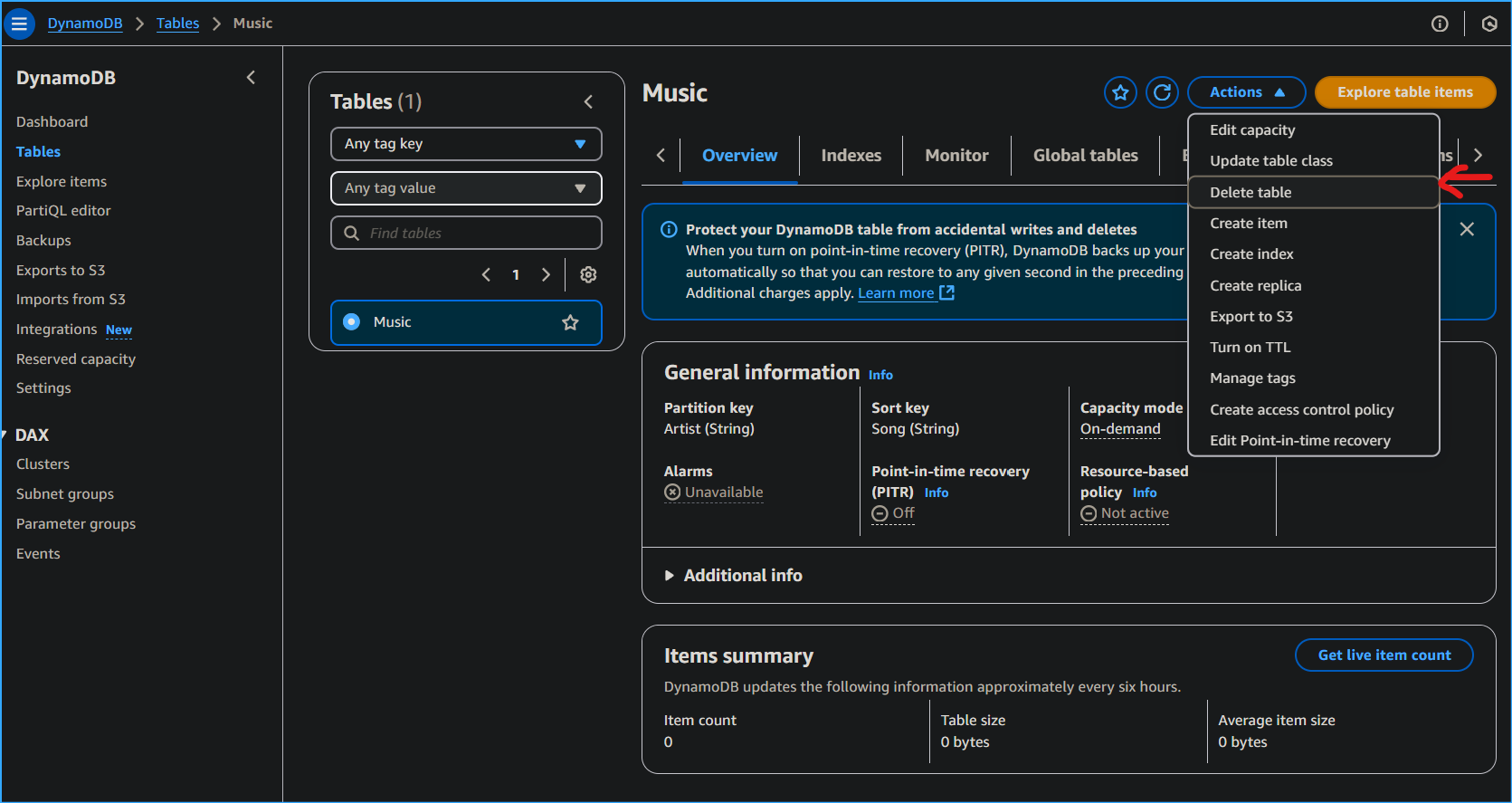 Delete Table
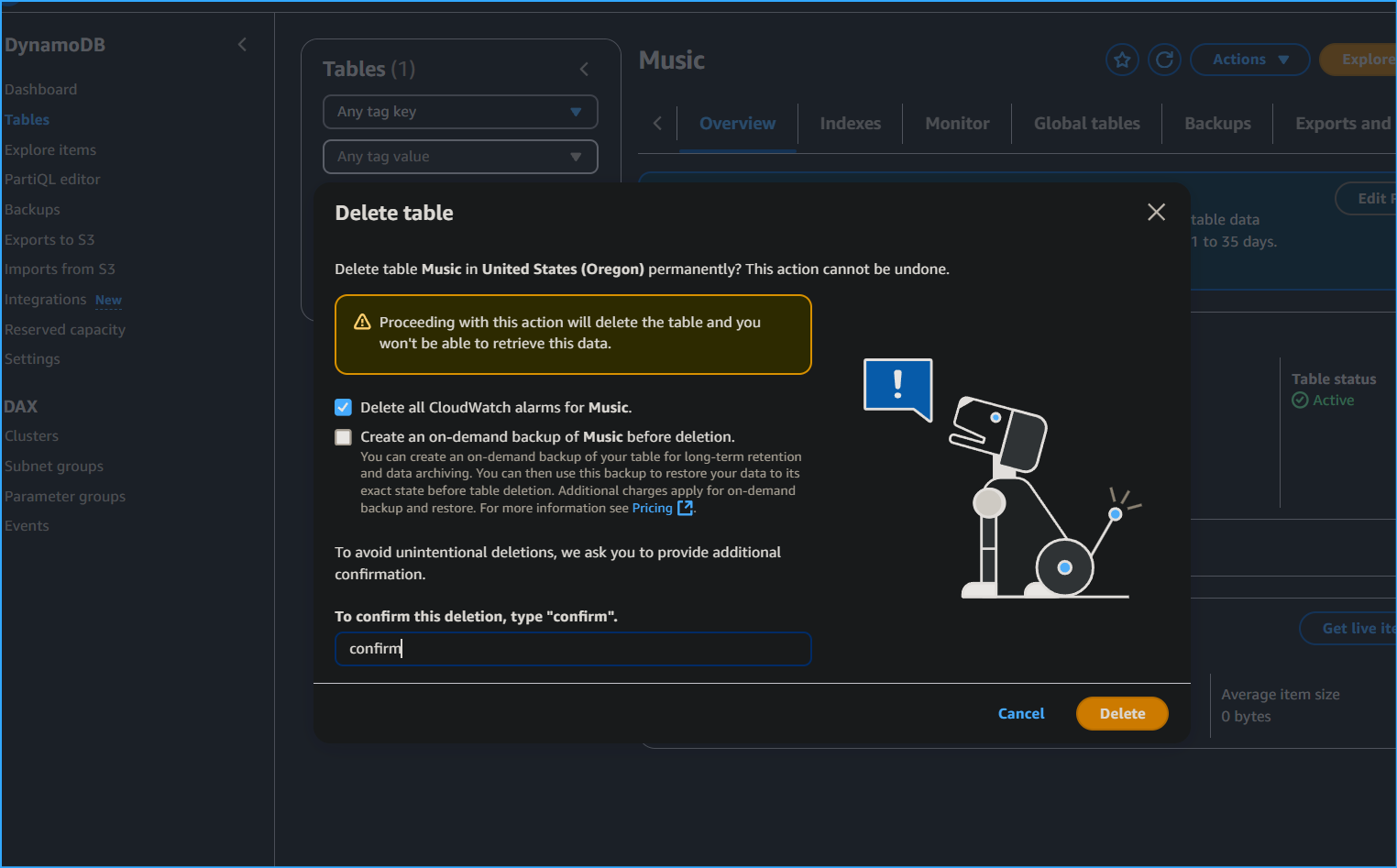 Confirming Deletion
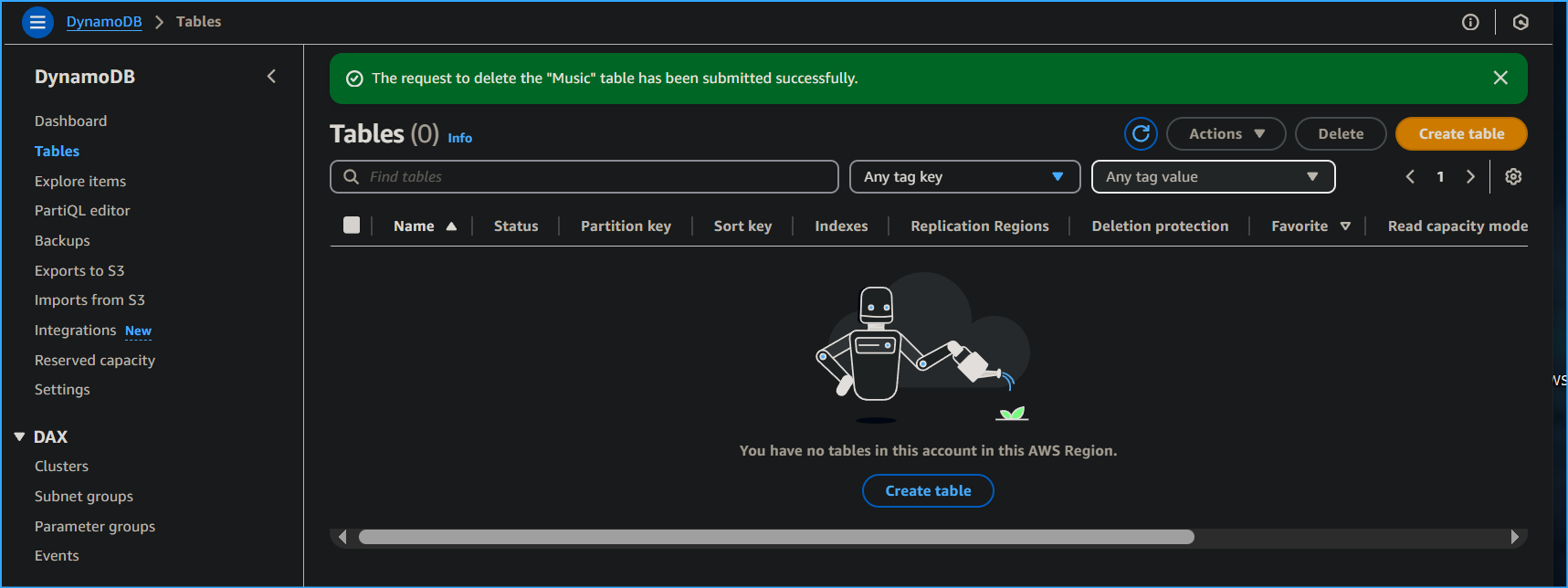 Table Deleted Successfully