Task 2: Running Familiar Commands
Step 1: Using Auto-complete and Basic System Information
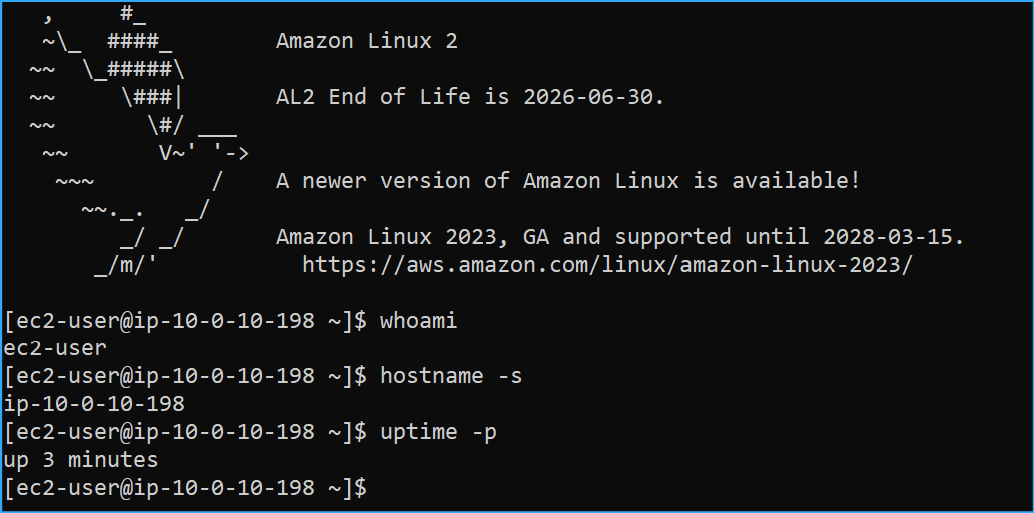
I started by typing "whoa" and pressing Tab, which activated the
auto-complete feature and displayed the full "whoami" command. I pressed
Enter and it displayed my current username: ec2-user.
whoami
Next, I entered "hostname -s" and pressed Enter, which displayed a
shortened version of my computer's host name, showing something like
ip-10.x.x.x.
hostname -s
I then typed "uptime -p" and pressed Enter to see the uptime of my
system in an easily readable format. This showed me how long my Linux
AMI had been running, which is useful for troubleshooting purposes.
uptime -p
I noticed that these basic commands can be really helpful when I need to
find my user, IP address, or how long my system has been running.
Step 2: Viewing User Information
Then I ran "who -H -a" and pressed Enter. This displayed detailed
information about the users logged into the system, including Name,
Line, Time, Idle, PID, Comment, and Exit. I found this useful for seeing
who else might be accessing the system and what they're doing.
who -H -a
Step 3: Working with Dates and Time Zones
I was curious about time zones, so I entered "TZ=America/New_York date"
and pressed Enter, followed by "TZ=America/Los_Angeles date". These
commands showed me the current date and time in both New York and Los
Angeles. The output format included the weekday, month, date, time,
timezone, and year - for Los Angeles
TZ=America/New_York date
TZ=America/Los_Angeles date
If my system time isn't set properly, these commands would show
incorrect times.
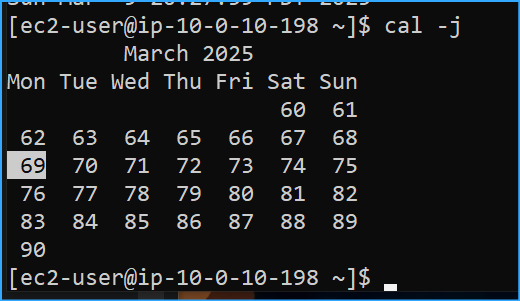
I learned that some professions use the Julian date format, which
continues consecutively throughout the year instead of restarting at the
beginning of each month. To see this in action, I entered "cal -j" in my
terminal, which displayed Julian dates for the current month.
cal -j
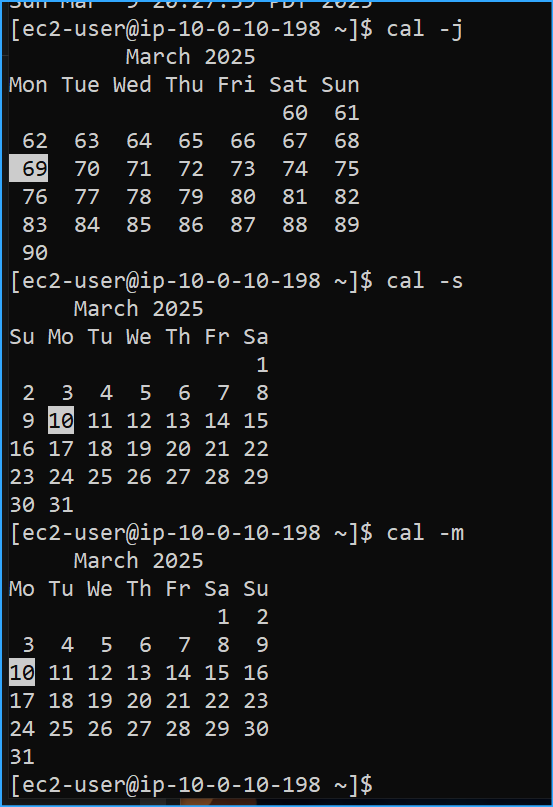
I also tried the "cal -s" and "cal -m" commands to display alternate
views of the calendar. The "cal -s" command showed September from Sunday
through Saturday, while "cal -m" displayed it from Monday through
Sunday.
cal -s
cal -m
I discovered there are many options to display calendars and checked the
cal man page for more details.
Step 4: Viewing User ID and Group Information
For my last command in this task, I entered "id ec2-user" and pressed
Enter to see my unique ID and group information. This showed my user ID,
group ID, and all the groups that I'm a part of as the ec2-user.
id ec2-user
Task 3: Improving Workflow Through History and Search
In this task, I worked on easing my overall workload by reusing commands
through search techniques, manual visualization of the bash history log,
and reuse of the last command.
Step 1: Viewing Command History
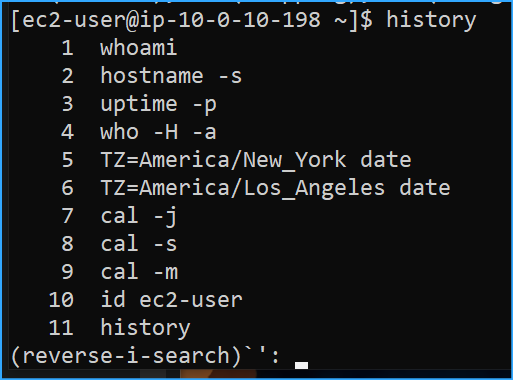
I started by viewing my current bash history. I entered "history" and
pressed Enter. In the output, I could see all the commands I had used in
Task 2, listed in chronological order.
history
Step 2: Using Reverse History Search
To search my previous command history, I pressed CTRL+R to bring up a
reverse history search. In this search feature, I entered "TZ" and
pressed Tab. This brought up my previous use of the date command that I
could then edit. Using the arrow buttons, I was able to edit the command
inline.
CTRL+R
This history searching feature gave me the ability to edit commands that
I had previously run. I needed to use Tab autocomplete to edit and run
the commands.
Step 3: Rerunning the Last Command
Next, I entered "date" into the terminal and pressed Enter. Then I
entered "!!" and pressed Enter. This allowed me to rerun the most recent
command (which was "date") without having to retype it.
date
!!
This exercise taught me valuable techniques for navigating the Linux
command line more efficiently, particularly by leveraging command
history and search functionality to avoid repetitive typing.
 Began Running These Commands
 Command for Additional User Info
 Ran Commands to Discover Times for Alternate Timezones
 Date in Julian Format
 Alternate Views of Calendar
 ID of User and Group Info About My Specific User
 History Then Ctrl+R While Typing Characters Related to Past
Commands
History Then Ctrl+R While Typing Characters Related to Past
Commands
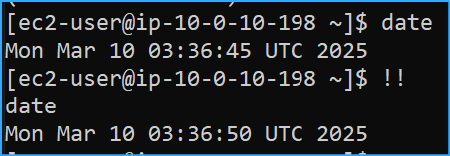 Date Then Ran Next Command to Return Most Recent Command