Related Topics
 Using ls -lar Command Output
 Sudo chmod for File Permissions
 Chown Output
×
![]()
I worked on the following objectives:
In this exercise, I changed the following ownership:
To validate that I was in the /home/ec2-user/companyA folder, I entered pwd and pressed Enter.
Since I was not in this folder, I entered cd companyA and pressed Enter.
To change the ownership of the companyA folder structure to the CEO mjackson and the group ownership to Personnel, I entered sudo chown -R mjackson:Personnel /home/ec2-user/companyA and pressed Enter.
To change the ownership of the HR folder to the HR manager ctee, I entered sudo chown -R ljuan:HR HR and pressed Enter.
To change the ownership of the HR/Finance folder to the finance manager, I entered sudo chown -R mmajor:Finance HR/Finance and pressed Enter.
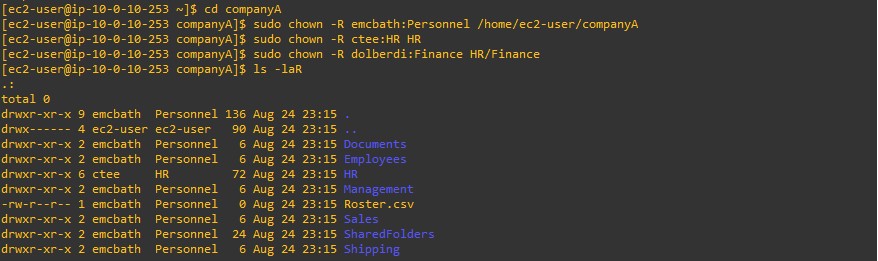
To validate my work by using the recursive feature of the ls command, I entered ls -laR and pressed Enter.
When using the command ls -laR the output shows the ownership permissions of the entire companyA folder structure. This folder structure includes the following: Documents, Employees, HR, Management, Roster.csv, Sales, SharedFolders, and Shipping.
In this task, I changed permission modes. I created and changed permissions using the chomd command.
Recall that the chmod command changes the permissions of your files. There are two modes: symbolic and absolute. Symbolic mode uses both letters and symbols to manipulate permissions, and absolute mode uses only numbers to represent permissions.
To validate that I was in the /home/ec2-uer/companyA folder, I entered pwd and pressed Enter.
I used vim to create a file called symbolic_mode_file. To create this file, I entered sudo vi symbolic_mode_file and pressed Enter.
To save and close the file, I pressed ESC. Then entered :wq and pressed Enter.
To use the symbolic mode for chmod to change the file permissions, I entered sudo chmod g+w symbolic_mode_file and pressed Enter.
I just gave the group owner write permissions to symbolic_mode_file.
I used vim to create a file called absolute_mode_file. To create this file, I entered sudo vi absolute_mode_file and pressed Enter.
To save and close the file, I pressed ESC. Then entered :wq and pressed Enter.
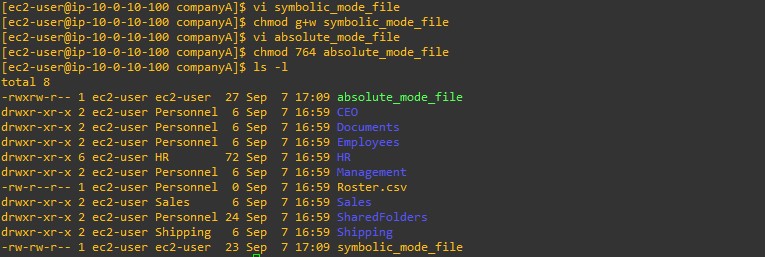
To use the absolute mode for chmod to change the file permissions, I entered sudo chmod 764 absolute_mode_file and pressed Enter.
764 means that the user has read, write, and execute permissions on the absolute_mode_file.
To confirm this information, I entered the ls -l command and pressed Enter. I could see the two files that I created with the correlating read, write, and execute permissions.
When using the command sudo chmod 764 absolute_mode_file, the user in the file will have read, write, and execute permissions for the absolute_mode_file. This is confirmed by running the command ls -l which lists the read, write, and execute permissions of the user.
In this exercise, I assigned the appropriate permissions to the Shipping and Sales folders.
To validate that I was in the /home/ec2-user/companyA folder, I entered pwd and pressed Enter.
To change the ownership of the Shipping folder to eowusu, the current shipping manager, and the group ownership to Shipping, I entered sudo chown -R eowusu:Shipping Shipping and pressed Enter.
To change the ownership of the Sales folder to nwolf, the current sales manager, and the group ownership to Sales, I entered sudo chown -R nwolf:Sales Sales and pressed Enter.
To validate my work, I used the ls command on the folders that I just created.
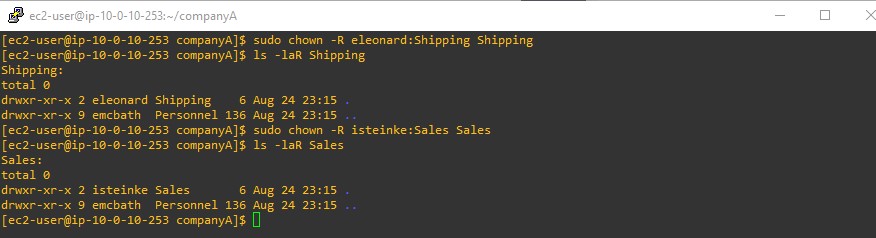
To validate the changes to the Shipping folder, I entered ls -laR Shipping and pressed Enter.
To validate the changes to the Sales folder, I entered ls -laR Sales and pressed Enter.
The command prompt shows the output of changing the ownership of the Shipping folder and its group to the user eleonard. This is confirmed by using the ls command. The same change of ownership is done for the Sales folder and its group to the user isteinke.
I successfully accomplished:
Using ls -lar Command Output
Sudo chmod for File Permissions
Chown Output