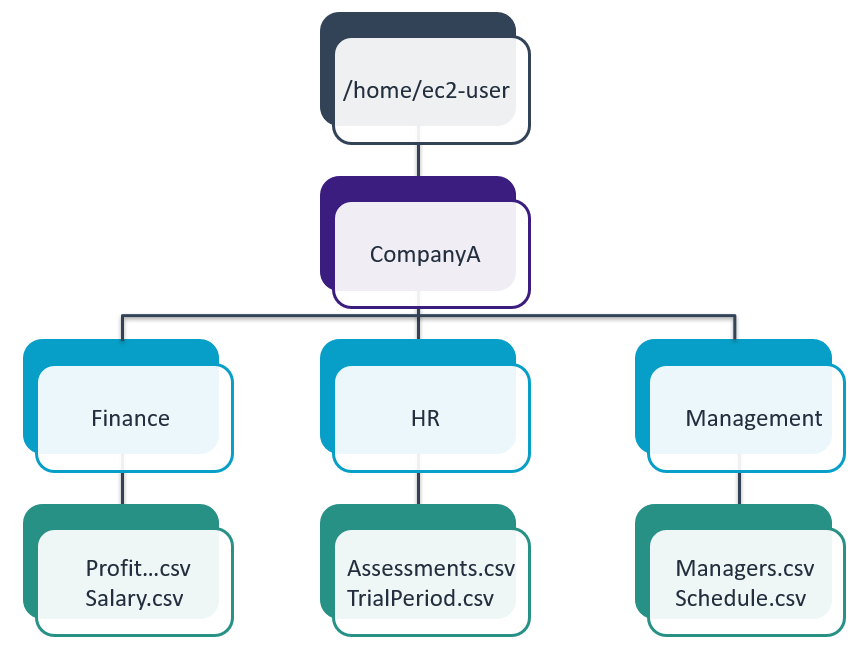
 Folder Structure One
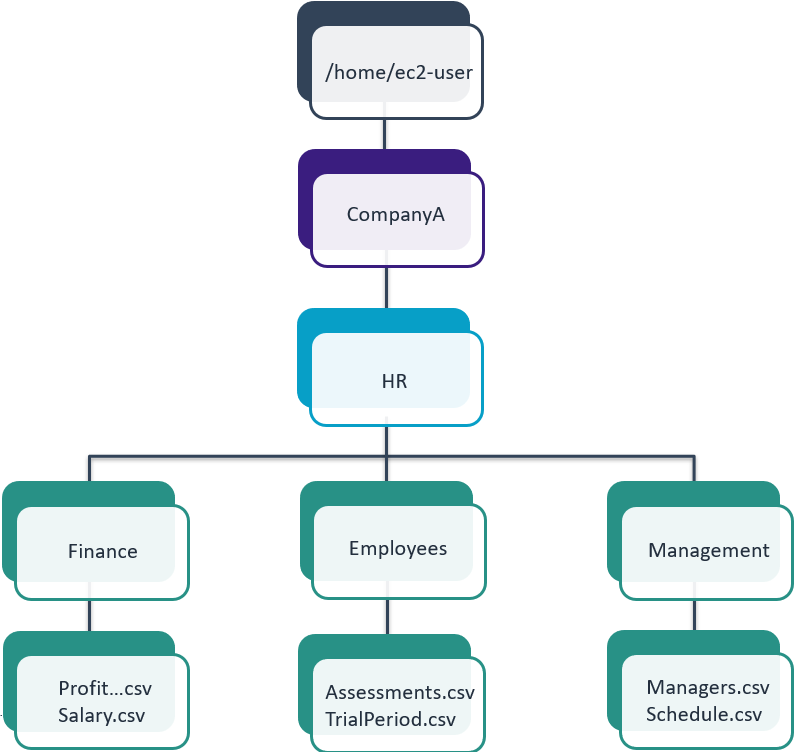 Folder Structure Two
I worked on creating and manipulating files and directories in a Linux environment. My objectives were to:
I needed to recreate a specific folder structure on my Linux machine. The required structure was:
Step 1: First, I made sure I was in the correct home folder by checking my current location.
Since I needed to be in the home folder, I used:
Step 2: I created the top-level CompanyA folder:
Step 3: I moved into the CompanyA folder:
Step 4: I created all the required subdirectories at once:
Step 5: I verified the folders were created correctly:
This showed me:
Step 6: I moved into the HR directory to create files there:
Step 7: I created the empty files inside the HR folder:
Step 8: I verified the files were created:
This showed me:
Step 9: I changed my directory to Finance:
Step 10: I created the empty files inside the Finance folder:
Step 11: I verified the files were created:
This showed me:
Step 12: I went back to the CompanyA folder:
Step 13: I created the files in the Management folder without changing directories:
Step 14: I verified the files were created:
This showed me:
In the previous steps, I used the touch and ls command two ways:
Directly in the working folder: The ls command lists the current
directory, and touch myFile.csv creates myFiles.csv in the current
directory.
By using a path relative to the current folder: ls Management or touch
Management/myFile.csv work in the Management folder inside the current
folder.
cd ../ navigates back to the parent folder and touch
../Management/myFile.csv creates the myFile.csv file in the Management
folder located in the parent folder of the current folder.
Step 15: I validated that all the files and folders were created correctly:
This showed the complete structure:
A few weeks later, I was tasked with reorganizing the content as follows:
Step 1: I made sure I was in the correct directory:
This confirmed I was in the right location:
Step 2: I copied the Finance folder and its content to the HR folder:
Step 3: I verified that the folder and content were copied correctly:
This showed me:
Step 4: I attempted to remove the Finance folder:
But got this error:
rmdir works only on an empty directory.
To remove the folder, I had two options:
Step 5: I chose to remove the files first:
Step 6: I verified that the folder was empty:
This showed an empty result, confirming the folder was empty.
Step 7: I removed the now-empty Finance folder:
Step 8: I verified that the folder was removed:
This showed me:
Step 9: I moved the Management folder inside the HR folder:
Step 10: I verified that the folder and files were moved correctly:
This showed me:
Step 11: I navigated into the HR folder:
Step 12: I created the Employees folder:
Step 13: I moved the files to the Employees folder:
Step 14: I verified that the files were moved correctly:
This showed me:
Folder Structure One
Folder Structure Two