Task 2: Practice troubleshooting commands
I recalled that some layers have commands related to them to help with
troubleshooting.
Step 1: Layer 3 (network): The ping and traceroute commands
I worked through an example of a customer scenario where I can use the
ping command:
The customer has launched an EC2 instance. To test connectivity to and
from it, I ran the ping command. I used this command to test
connectivity and ensure that it allows Internet Control Message Protocol
(ICMP) requests on the security level, such as security groups and
network ACLs.
In the Linux terminal, I ran the following command, and pressed Enter:
ping 8.8.8.8 -c 5
This is the ping command. When I run this command, I can input an IP or
URL followed by options. In this example, the -c stands for count, and 5
stands for how many requests I am requesting.
The ping command showed me IP connectivity to a web server.
I learned I can use the ping command for a few reasons, but the most
common reason is to test connectivity to something such as a server. The
ping command sends ICMP echo requests from my machine to the server that
I am trying to reach (for example, amazon.com). The server sends an echo
reply with a round-trip time. I use the ping command mostly to
troubleshoot connectivity issues and reachability to a specific target.
I can also use it to bring a specific network up if traffic needs to
continuously flow through a network. I can also send a continuous ping.
Next, I worked through an example of a customer scenario where I can use
the traceroute command:
The customer is having latency issues. They say that their connection is
taking a long time, and they are having packet loss. They aren't sure if
it is related to AWS or their internet service provider (ISP). To
investigate, I ran the traceroute command from their AWS resource to the
server that they are trying to reach. If the loss happens toward the
server, the issue is most likely the ISP. If the loss is toward AWS, I
might need to investigate other factors that might be limiting
networking connectivity.
In the Linux terminal, I ran the following command, and pressed Enter:
traceroute 8.8.8.8
This is the traceroute command. I can input an IP or URL followed by
options.
The traceroute command showed me the path taken to the web server and
the latency taken to it.
I observed that packet loss, seen as percentages, can occur at each hop,
and this loss usually occurs because of an issue with the user's local
area network (LAN) or ISP.
I learned that I can pinpoint an issue or error when the hostnames and
IP addresses on either side of a jump have failed. Three asterisks (***)
indicate a failed hop.
The traceroute command reports on the path and latency that the packet
takes to get from my machine to the destination (8.8.8.8). Each server
is called a hop. There can be packet loss, seen as percentages, at each
loss, which is usually due to the user's local area network (LAN) or
ISP; however, if the packet loss occurs toward the end of the route,
then the issue is more than likely the server connection. I can pinpoint
an issue or error when hostnames and IP addresses on either side of a
failed jump, which looks like three asterisks (***).
Step 2: Layer 4 (transport): The netstat and telnet commands
I worked through an example of a customer scenario where I can use the
netstat command:
My company is running a routine security scan and found that one of the
ports on a certain subnet is compromised. To confirm, I ran the netstat
command on a local host on that subnet to confirm if the port is
listening when it shouldn't be.
In the Linux terminal, I ran the following command, and pressed Enter:
netstat -tp
This is the netstat command. I can use the following options:
- netstat -tp: Confirms established connections
- netstat -tlp: Outputs listening services
-
netstat -ntlp: Outputs listening services but does not resolve port
numbers
The result of netstat -tp confirmed established connections.
The netstat command shows the current established TCP connections from
which the host is listening. When troubleshooting networking issues
starting with the host machine and working outward, I can run this
command to understand which ports are listening and which are not.
Because this command gives me a snapshot of my layer 4 connectivity,
using this command will help me save time when trying to narrow down a
large networking issue.
Next, I worked through an example of a customer scenario where I can use
the telnet command:
The customer has a secure web server and has custom security group rules
and network ACL rules configured. However, they are concerned that port
80 is open even though it shows their security settings indicate that
their security group is blocking this port. I ran telnet 192.168.10.5 80
to ensure that the connection is refused.
In the Linux terminal, I ran the following command, and pressed Enter to
install telnet:
sudo yum install telnet -y
In the Linux terminal, I then ran the following command, and pressed
Enter:
telnet www.google.com 80
This is the telnet command. I can input an IP or URL followed by the
port number to connect to that port.
The telnet command confirmed the TCP connection to a web server. It
makes the HTTP request using telnet.
The telnet command confirms the TCP connection to a web server making an
HTTP request if using port 80 to telnet. I can also use this command at
layer 7. If I can successfully connect to the web server, then there is
nothing blocking me or the server from connecting. If the connection
fails with a message like "connection refused," then something is likely
blocking the connection, such as a firewall or security group. If the
connection fails with a message like "connection timed out," then the
issue may be no network route or connectivity.
Step 3: Layer 7 (application): The curl command
I worked through an example of a customer scenario where I can use the
curl command:
The customer has an Apache server running, and they want to test if they
are getting a successful request (200 OK), which indicates that their
website is running successfully. I ran a curl request to see if the
customer's Apache server returns a 200 OK.
In the Linux terminal, I ran the following command, and pressed Enter:
curl -vLo /dev/null https://aws.com
This is the curl command. I can use the following command options:
-
-I: This option provides header information and specifies that the
request method is Head.
- -i: This option specifies that the request method is GET.
- -k: This option tells the command to ignore SSL errors.
-
-v: This option is verbose. It shows what the computer is doing or
what the software is loading during startup.
-
-o /dev/null: This option will send HTML and CSS in response to null.
The results of the curl command: the output tests the connection to a
web service, such as AWS, and submits the HTTP request.
I can use the curl command to transfer data between me and the server.
The curl command can use many different protocols, but the most common
are HTTP and HTTPS. I can use the curl command to troubleshoot
communication from my local device to a server.
Note: These network troubleshooting commands are essential for
diagnosing connectivity issues and are frequently used by network
administrators. I found them very helpful for solving different types of
network problems.
 Result Of Curl Command Output Tests Connection To Web Service Like
AWS And Submits HTTP Request
Result Of Curl Command Output Tests Connection To Web Service Like
AWS And Submits HTTP Request
 Telnet Command Confirms TCP Connection To Web Server Makes HTTP
Request Using Telnet
Telnet Command Confirms TCP Connection To Web Server Makes HTTP
Request Using Telnet
 Result Of Netstat TP Established Connections
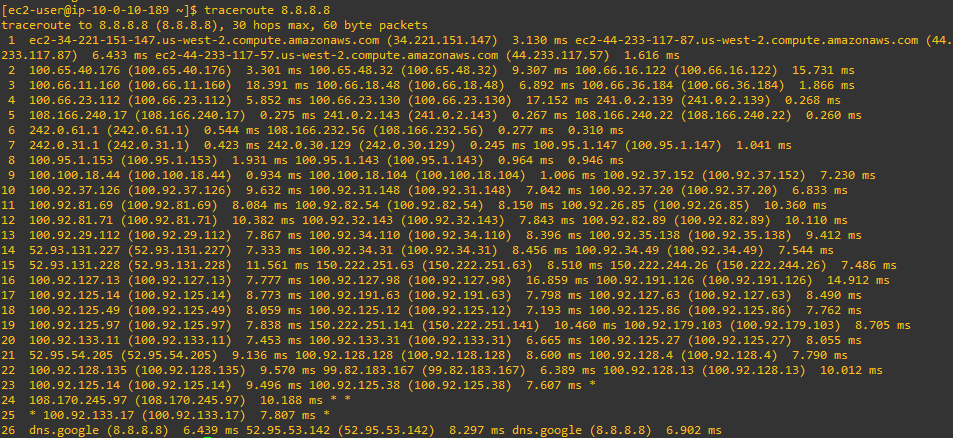 Traceroute Command Shows Path Taken To Web Server And Latency Taken
To It
Traceroute Command Shows Path Taken To Web Server And Latency Taken
To It
 Ping Command Shows IP Connectivity To Web Server
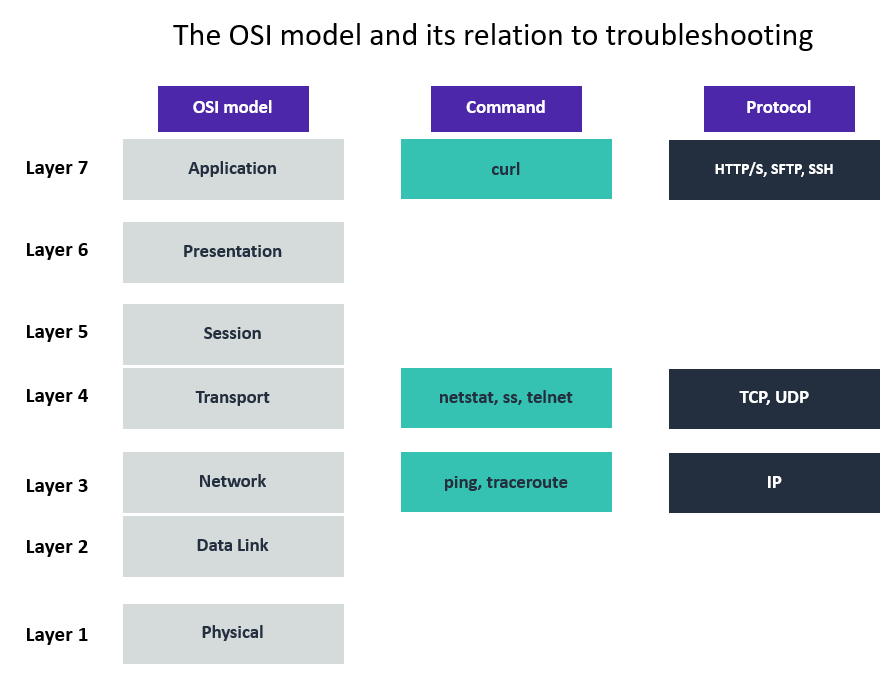 Example Of How Troubleshooting Commands Have Similarities To OSI
Model
Example Of How Troubleshooting Commands Have Similarities To OSI
Model