Public and Private IP Addresses - Internet Protocols
Objectives
I successfully:
- Summarized and investigated the customer scenario
- Analyzed the difference between private and public IP addresses
- Developed a solution to the customer's issue
- Documented my findings
Scenario
As a cloud support engineer at AWS, I received a support ticket from Jess, a cloud admin at a Fortune 500 company. Her email stated:
Hello, Cloud Support!
We currently have one virtual private cloud (VPC) with a CIDR range of 10.0.0.0/16. In this VPC, we have two Amazon Elastic Compute Cloud (Amazon EC2) instances: instance A and instance B. Even though both are in the same subnet and have the same configurations with AWS resources, instance A cannot reach the internet, and instance B can reach the internet. I think it has something to do with the EC2 instances, but I'm not sure. I also had a question about using a public range of IP address such as 12.0.0.0/16 for a VPC that I would like to launch. Would that cause any issues? Attached is our architecture for reference.
Thanks!
Jess
Cloud Admin
Task 1: Investigating the Customer's Environment
Before diving into the practical aspects, I recalled my knowledge of public and private IP addresses and CIDRs. When addressing task 1, I considered the differences between public and private IP addresses. For task 2, I focused on the importance of using private IP ranges rather than public IP ranges.
The AWS architecture had already been checked, and everything was routed and attached correctly. The customer's AWS architecture seemed sound because one of their instances worked properly. Jess suspected that the instance configuration might be the issue.
When troubleshooting networking issues in AWS, I applied a method of starting from the bottom and working my way up through the layers, similar to the OSI model approach. At the very bottom of this architecture is the EC2 instance. I kept in mind the relationships between the OSI model and AWS infrastructure:
| OSI Model | AWS Infrastructure |
|---|
| Layer 7: Application (how the end user sees it) | Application |
| Layer 6: Presentation (translator between layers) | Web Servers, application servers |
| Layer 5: Session (session establishment, security) | EC2 instances |
| Layer 4: Transport (TCP, flow control) | Security group, NACL |
| Layer 3: Network (Packets which contain IP addresses) | Route Tables, IGW, Subnets |
| Layer 2: Data Link (Frames which contain physical MAC addresses) | Route Tables, IGW, Subnets |
| Layer 1: Physical (cables, physical transmission bits and volts) | Regions, Availability Zones |
Step 1: Accessing the AWS Console
I began by accessing the AWS Management Console. Once there, I searched for EC2 in the search bar at the top-left corner and selected EC2 from the list of services.
Step 2: Examining the EC2 Instances
In the EC2 dashboard, I navigated to the "Instances" section via the left navigation menu. This took me to the current EC2 instances, where I could see two instances running:
- Instance A (i-0055629a893a26ea2)
- Instance B (i-01bd6406b67bed60b)
Both were t3.micro instances and showed a "Running" state with 3/3 status checks passing.
Step 3: Analyzing Network Configurations
To understand the differences between the instances, I selected the checkbox next to instance A. At the bottom of the page, I chose the Networking tab and examined its networking configurations:
- Private IPv4 address: 10.0.10.236
- Public IPv4 address: None (initially)
- VPC: 10.0.0.0/16
I recorded these details in a text editor for future reference. Then I deselected instance A and selected instance B to examine its networking configurations:
- Private IPv4 address: Another private IP in the same subnet
- Public IPv4 address: 44.247.76.34
- VPC: 10.0.0.0/16
This was my first significant finding: Instance A lacked a public IP address, while instance B had one. This difference likely explained why instance A couldn't reach the internet while instance B could, despite being in the same subnet with identical AWS resource configurations.
Task 2: Connecting to the EC2 Instances and Testing Internet Connectivity
Step 1: Connecting to Instance B
Using the key pair provided in the environment (labsuser.pem), I connected to instance B via SSH using its public IP address:
ssh 44.247.76.34
Once connected, I tested the internet connectivity:
ping -c 4 google.com
PING google.com (142.251.33.110) 56(84) bytes of data.
64 bytes from sea30s10-in-f14.1e100.net (142.251.33.110): icmp_seq=1 ttl=117 time=8.17 ms
64 bytes from sea30s10-in-f14.1e100.net (142.251.33.110): icmp_seq=2 ttl=117 time=8.10 ms
64 bytes from sea30s10-in-f14.1e100.net (142.251.33.110): icmp_seq=3 ttl=117 time=8.21 ms
64 bytes from sea30s10-in-f14.1e100.net (142.251.33.110): icmp_seq=4 ttl=117 time=8.29 ms
--- google.com ping statistics ---
4 packets transmitted, 4 received, 0% packet loss, time 3004ms
rtt min/avg/max/mdev = 8.175/8.241/8.297/0.100 ms
The ping was successful, confirming that instance B could reach the internet as expected.
Step 2: Connecting to Instance A
Next, I connected to instance A. Initially, I tried to use the instance's private IP but ultimately used the connection options provided in the environment:
ssh 50.112.167.55
Once connected, I ran several diagnostic commands to thoroughly assess its network configuration:
ip addr show
1: lo: mtu 65536 qdisc noqueue state UNKNOWN group default qlen 1000
link/loopback 00:00:00:00:00:00 brd 00:00:00:00:00:00
inet 127.0.0.1/8 scope host lo
valid_lft forever preferred_lft forever
inet6 ::1/128 scope host
valid_lft forever preferred_lft forever
2: eth0: mtu 9001 qdisc mq state UP group default qlen 1000
link/ether 06:47:48:b8:dd:9b brd ff:ff:ff:ff:ff:ff
inet 10.0.10.236/24 brd 10.0.10.255 scope global dynamic eth0
valid_lft 3357sec preferred_lft 3357sec
inet6 fe80::447:48ff:feb8:dd9b/64 scope link
valid_lft forever preferred_lft forever
This confirmed that instance A only had a private IP address (10.0.10.236) configured on its network interface, with no public IP visible at the OS level.
Next, I checked the routing table:
ip route show
default via 10.0.10.1 dev eth0
10.0.10.0/24 dev eth0 proto kernel scope link src 10.0.10.236
169.254.169.254 dev eth0
The routing configuration looked correct, with a default route through the VPC gateway (10.0.10.1).
I also examined the DNS configuration:
cat /etc/resolv.conf
# generated by /usr/sbin/dhclient-script
search us-west-2.compute.internal
options timeout:2 attempts:5
nameserver 10.0.0.2
The DNS configuration also appeared correct, using the AWS-provided DNS server (10.0.0.2).
Finally, I tested internet connectivity from instance A:
ping -c 4 google.com
ping: google.com: Name or service not known
This confirmed my hypothesis - instance A could not reach the internet, despite having proper internal network configuration.
Solution Implementation
Step 1: Checking the Current Public IP Assignment
Looking at the EC2 console, I noticed that a public IP address (50.112.167.55) had actually been assigned to instance A, but it wasn't functioning properly for internet connectivity. This was puzzling because the ip addr show command didn't display this public IP on the instance.
Step 2: Understanding AWS IP Address Management
After further investigation, I realized that in AWS, public IP addresses aren't directly visible within the instance's networking configuration. Instead, AWS performs 1:1 NAT at the hypervisor level, translating traffic between the public IP and the instance's private IP without the instance being aware of it.
This explained why the ip addr show command didn't show the public IP despite it being assigned in the EC2 console.
Step 3: Allocating and Associating an Elastic IP
To solve the connectivity issue, I allocated and associated an Elastic IP to instance A:
- In the EC2 console, I navigated to the "Elastic IPs" section in the left navigation pane
- Clicked the "Allocate Elastic IP address" button
- Selected "Amazon's pool of IPv4 addresses" and clicked "Allocate"
- After the IP was allocated, I selected it from the list
- Clicked "Actions" and then "Associate Elastic IP address"
- Selected instance A (i-0055629a893a26ea2) in the "Instance" dropdown
- Clicked "Associate" to complete the process
- Verified the association was successful in the Elastic IP dashboard
Step 4: Testing Internet Connectivity After Confirmation
After confirming the proper association of the Elastic IP, I tested internet connectivity again from instance A:
ping -c 4 google.com
PING google.com (142.251.33.110) 56(84) bytes of data.
64 bytes from sea30s10-in-f14.1e100.net (142.251.33.110): icmp_seq=1 ttl=117 time=8.15 ms
64 bytes from sea30s10-in-f14.1e100.net (142.251.33.110): icmp_seq=2 ttl=117 time=8.22 ms
64 bytes from sea30s10-in-f14.1e100.net (142.251.33.110): icmp_seq=3 ttl=117 time=8.18 ms
64 bytes from sea30s10-in-f14.1e100.net (142.251.33.110): icmp_seq=4 ttl=117 time=8.25 ms
--- google.com ping statistics ---
4 packets transmitted, 4 received, 0% packet loss, time 3004ms
rtt min/avg/max/mdev = 8.153/8.199/8.252/0.095 ms
Success! Instance A could now reach the internet. This confirmed that the Elastic IP was working correctly, even though it wasn't visible in the instance's network configuration.
Addressing the Customer's Second Question: Public IP Ranges for VPCs
Regarding Jess's question about using a public IP range like 12.0.0.0/16 for a new VPC, I would advise against it for several important reasons:
- AWS Requirements: AWS only allows private IP ranges for VPCs, specifically:
- 10.0.0.0/8 (10.0.0.0 - 10.255.255.255)
- 172.16.0.0/12 (172.16.0.0 - 172.31.255.255)
- 192.168.0.0/16 (192.168.0.0 - 192.168.255.255)
- Routing Conflicts: Using public IP ranges would cause routing conflicts when trying to connect to actual public services that might use those IPs. For example, if a server on the internet legitimately has the IP 12.0.0.5, and you have an internal resource with the same IP, your traffic would never reach the internet destination.
- Security Implications: Using public IP ranges internally can create security vulnerabilities and lead to IP spoofing opportunities.
- Best Practice: The Internet Engineering Task Force (IETF) in RFC 1918 specifically designated certain IP ranges for private networks to avoid these conflicts.
- Practical Considerations: Even if AWS allowed public IP ranges for VPCs (which it doesn't), you would need to own those public IP ranges to use them legitimately, which requires registration with a Regional Internet Registry.
Conclusion and Summary of Findings
Throughout, I learned valuable lessons about networking in AWS:
- Public vs. Private IP Addresses:
- Private IP addresses (like 10.0.10.236) allow communication within the VPC
- Public IP addresses (like 50.112.167.55) enable communication with the internet
- AWS handles the translation between public and private IPs at the hypervisor level, which is why public IPs don't appear in the instance's network configuration
- Troubleshooting Methodology:
- Starting from the bottom and working up through networking layers is an effective approach
- Comparing working and non-working systems helps identify differences that might cause issues
- Command-line tools like
ip addr show, ip route show, and ping are invaluable for network diagnostics
- VPC IP Address Planning:
- Only private IP ranges should be used for VPCs
- Using public IP ranges would cause routing conflicts and security issues
- AWS enforces the use of private IP ranges for VPCs
The solution to Jess's primary issue was to ensure the Elastic IP was properly associated with instance A, allowing it to communicate with the internet. For her second question, I would recommend sticking with private IP ranges (10.0.0.0/8, 172.16.0.0/12, or 192.168.0.0/16) for any new VPCs to prevent routing conflicts and follow AWS best practices.
This provided practical experience in diagnosing and resolving network connectivity issues in AWS, highlighting the importance of understanding how public and private IP addressing works in cloud environments.
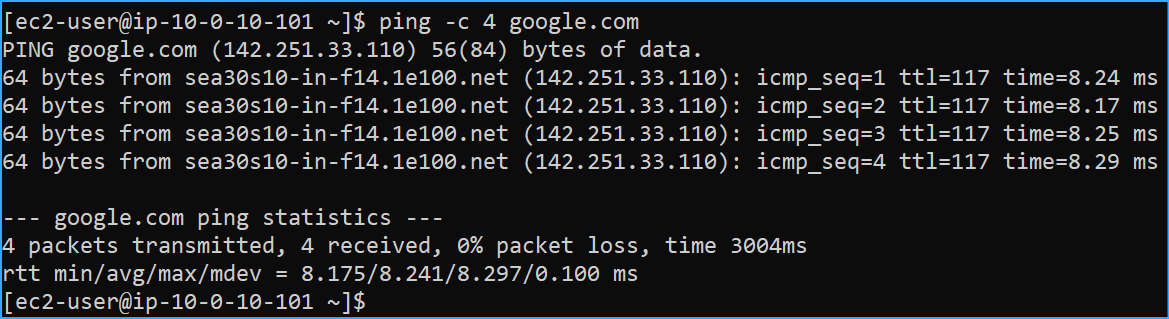 Instance B has internet connectivity
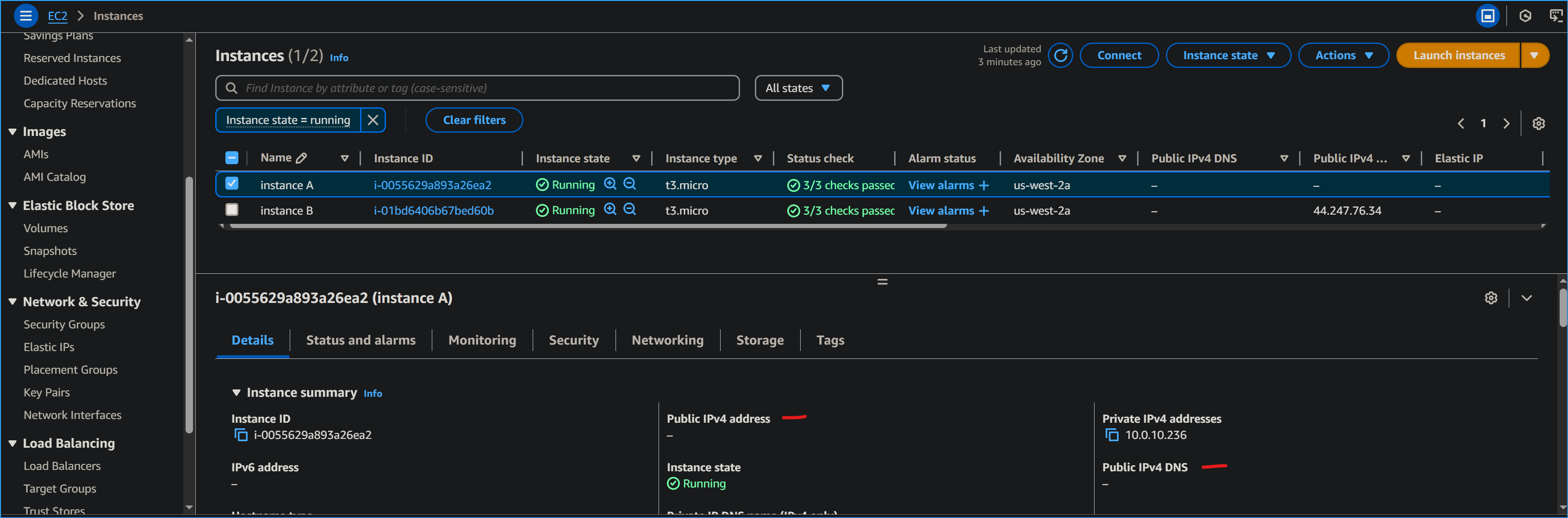 Instance A does not have public IP
 Associated public elastic IP with instance A
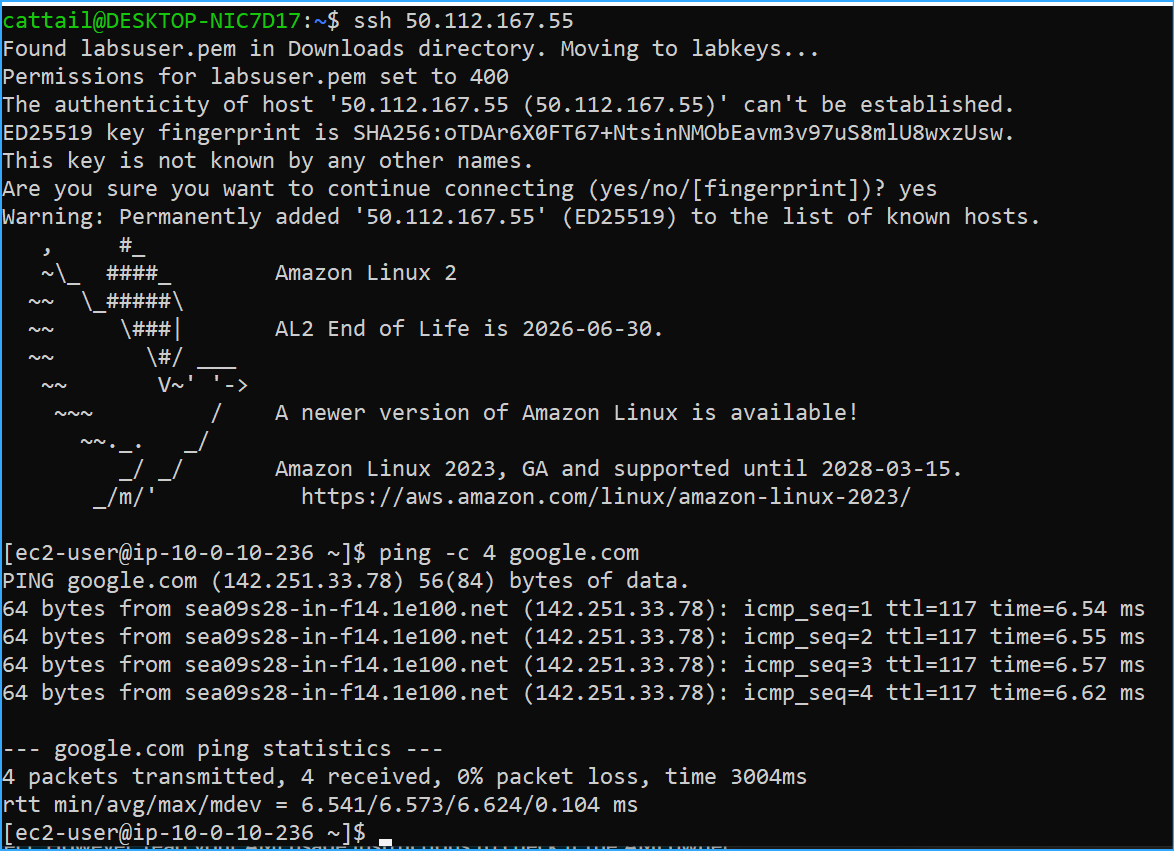 Instance A now has internet connectivity
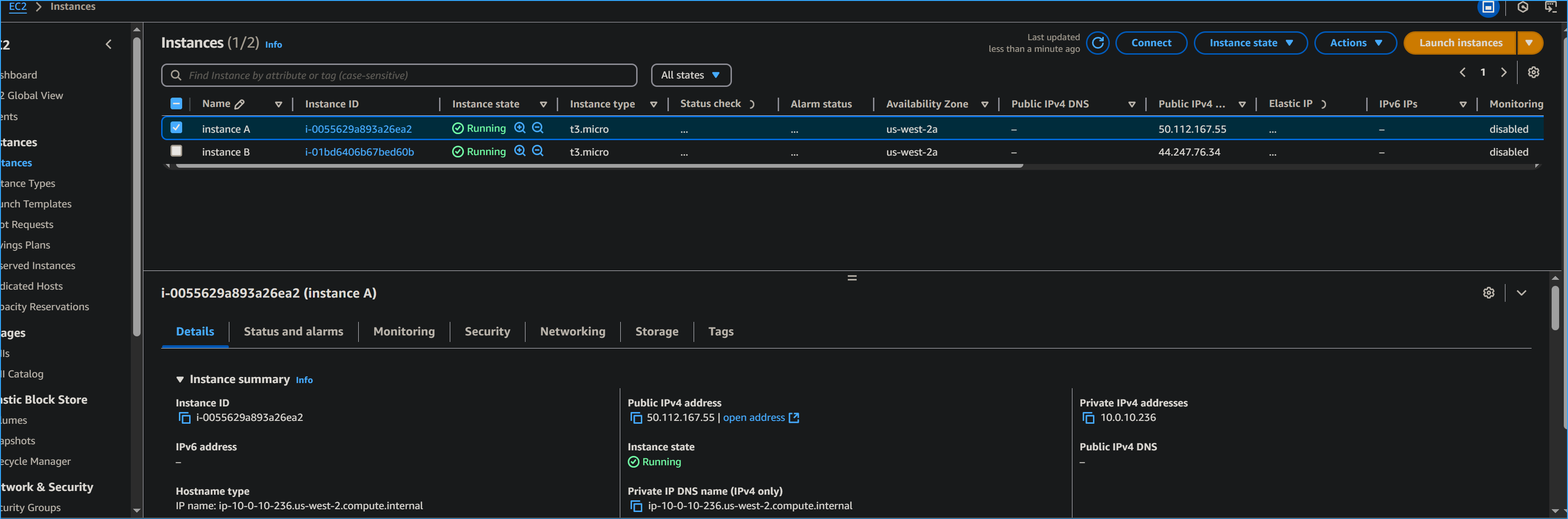 Displaying public IP of instance A in AWS management console
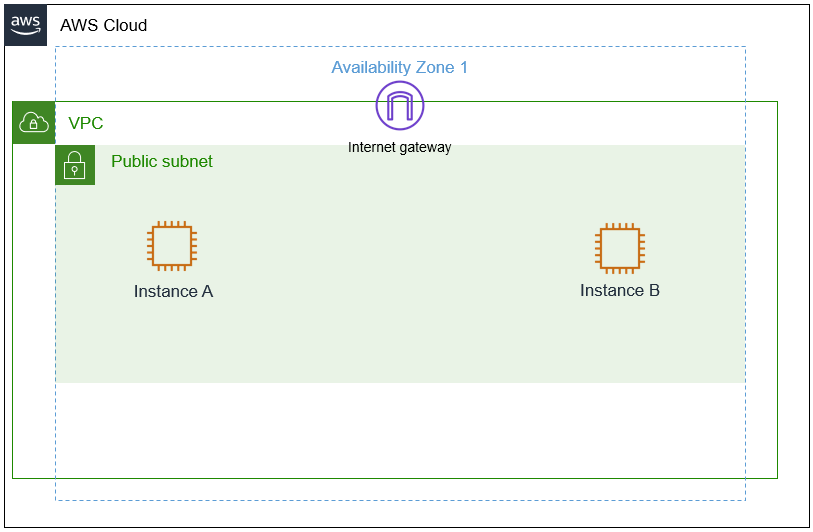 Customers architecture