Static and Dynamic IP Addresses - Internet Protocols
Project Overview
I took on the role of a cloud support engineer at Amazon Web Services
(AWS). During my shift, I received a ticket from a customer at a Fortune
500 company requesting assistance with a networking issue in their AWS
infrastructure.
Ticket from the customer
Hello Cloud Support!
We are having issues with one of our EC2 instances. The IP changes
every time we start and stop this instance called Public Instance.
This causes everything to break since it needs a static IP address. We
are not sure why the IP changes on this instance to a random IP every
time. Can you please investigate? Attached is our architecture. Please
let me know if you have any questions.
Thanks!
Bob, Cloud Admin
My Objectives
- Summarize the customer scenario
-
Analyze the difference between statically and dynamically assigned IP
addresses using EC2 instances
- Assign a persistent (static) IP to an EC2 instance
- Develop a solution to the customer's issue
Task 1: Investigating the Customer's Environment
I began by recalling what I've learned about static and dynamic IP
addresses. Based on Bob's description that his EC2 instance's IP changes
every time he stops and starts it again, I suspected he was using a
dynamic IP address. To test this theory, I decided to launch an EC2
instance in the AWS environment to replicate and troubleshoot the issue.
In the scenario, Bob was having issues with his EC2 instance constantly
changing IP addresses every time he stopped and started his instance. He
couldn't leave his instance running because it was very expensive, and
he required a static IP address to prevent breaking other resources
attached to it.
Creating an EC2 Instance to Test
I navigated to the Amazon EC2 dashboard and followed these steps to
create a new instance:
-
Choose an Amazon Machine Image (AMI):
- I selected the first entry for Amazon Linux 2 AMI (HVM)
-
This AMI provided the OS and configuration template for the EC2
instance
-
Choose an Instance Type:
- I selected t3.micro
-
Then navigated to the bottom of the window and clicked "Next:
Configure Instance Details"
-
Configure Instance Details:
- Network: I chose vpc-xxxxxxxx | Lab VPC
- Subnet: I chose subnet-xxxxxx | Public Subnet 1
- Auto-assign Public IP: I set this to enable
-
I left everything else as default and selected "Next: Add Storage"
-
Add Storage:
- I left this as default
- Selected "Next: Add Tags"
-
Add Tags:
- I clicked "Add Tag"
- Under Key, I entered "Name"
- Under Value, I entered "test instance"
- Then selected "Next: Configure Security Group"
-
Configure Security Group:
-
Under "Assign a security group", I selected the "Select an
existing security group" radio button
- I chose the security group named "Linux Instance SG"
- Then clicked "Review and Launch"
-
Review Instance Launch:
- I clicked "Launch"
-
In the key pair pop-up window, I kept "Choose an existing key
pair" in the first dropdown
-
In the second dropdown, I selected the key pair "vockey | RSA"
- I checked the acknowledgment box
- Finally, I clicked "Launch Instances"
Testing IP Address Behavior
Once my instance was created, I waited until the status changed to "2/2"
before continuing. I selected the checkbox of my test instance and
viewed the Networking tab at the bottom of the screen. Here, I observed
and noted both the Public IPv4 address and the Private IPv4 address.
To test the IP address behavior, I performed the following steps:
-
I selected the "Instance state" dropdown button and chose "Stop
instance"
-
Once the status changed to "Stopped", I observed the Public and
Private IPv4 addresses
- I noticed the Public IPv4 address was no longer present
-
I restarted the instance by selecting "Instance state" and "Start
instance"
-
After the status changed to "Running", I observed both addresses again
I noticed that when I stopped and started the EC2 instance, the Public
IPv4 address changed to a completely new IP address, while the Private
IPv4 address remained the same. This confirmed that the Public IP was
indeed a dynamic IP address, while the Private IP was static within the
VPC.
This test successfully replicated the exact issue Bob was experiencing -
the public IP address changed every time the instance was stopped and
started again.
Implementing a Solution: Elastic IP Address
Now that I had confirmed the issue, I needed to implement a solution.
Bob needed a permanent Public IP address that wouldn't change when he
stopped and restarted his instance. AWS offers a solution called Elastic
IP (EIP) specifically for this purpose.
-
From the EC2 dashboard, I navigated to "Network and Security" on the
left navigation menu
- I selected "Elastic IPs"
- I noticed there were no EIPs already allocated
-
I clicked the "Allocate Elastic IP address" button in the top right
- I kept all settings as default and clicked "Allocate"
- I made note of the new EIP address that was created
Next, I needed to associate this EIP with my EC2 instance:
- I selected the checkbox for the newly created EIP
- I clicked "Actions" and selected "Associate Elastic IP address"
- I left the resource type as "Instance"
-
From the "Choose an Instance" dropdown, I selected my "test instance"
-
Under "Private IP address", I selected the empty box and the
associated Private IP was automatically selected
- I clicked the "Associate" button to complete the process
To verify the solution was working correctly:
- I navigated back to the Instances page
- I selected my "test instance" and viewed the Networking tab
-
I confirmed that the Public IPv4 address was now the same as my
allocated EIP
- I stopped and started the instance again
- After it restarted, I checked the Public IPv4 address again
I observed that even after stopping and starting the instance, the
Public IPv4 address remained the same - it was now a static IP address
thanks to the EIP allocation. This successfully solved the issue that
Bob was experiencing!
Summary of Findings
Through my investigation, I discovered that:
-
By default, EC2 instances are assigned dynamic public IP addresses
that change when instances are stopped and started
-
Private IP addresses within a VPC remain static, even when instances
are stopped and started
-
For applications requiring a persistent public IP address, an Elastic
IP (EIP) is the appropriate AWS solution
-
Once an EIP is allocated and associated with an instance, the public
IP address remains constant regardless of instance state changes
My recommendation to Bob would be to:
- Allocate an Elastic IP address for his Public Instance
- Associate the EIP with the instance
-
Update any related resources or configurations to use this new static
IP address
This solution allows Bob to stop and start his instance as needed to
save costs while maintaining a consistent public IP address for his
applications.
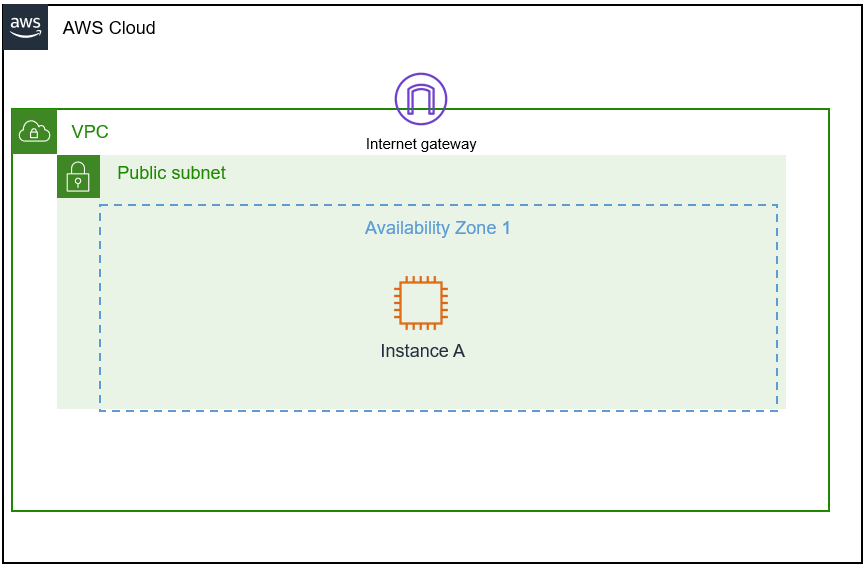 Customer Architecture
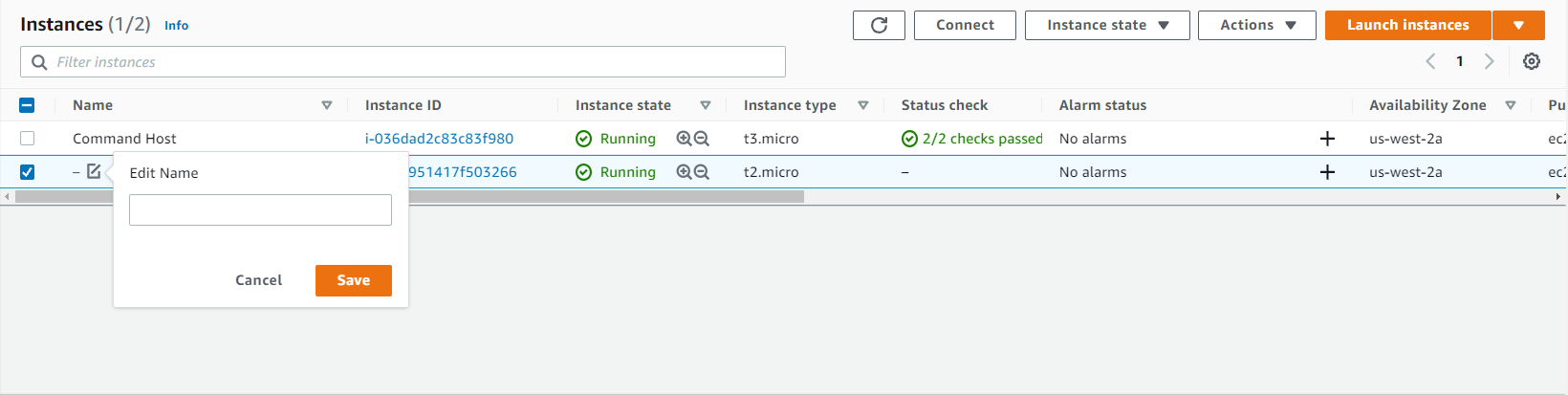 Instance Dashboard
 Launching Instance in Upper Right Corner
 Test Instance Initializing Soon to be Running
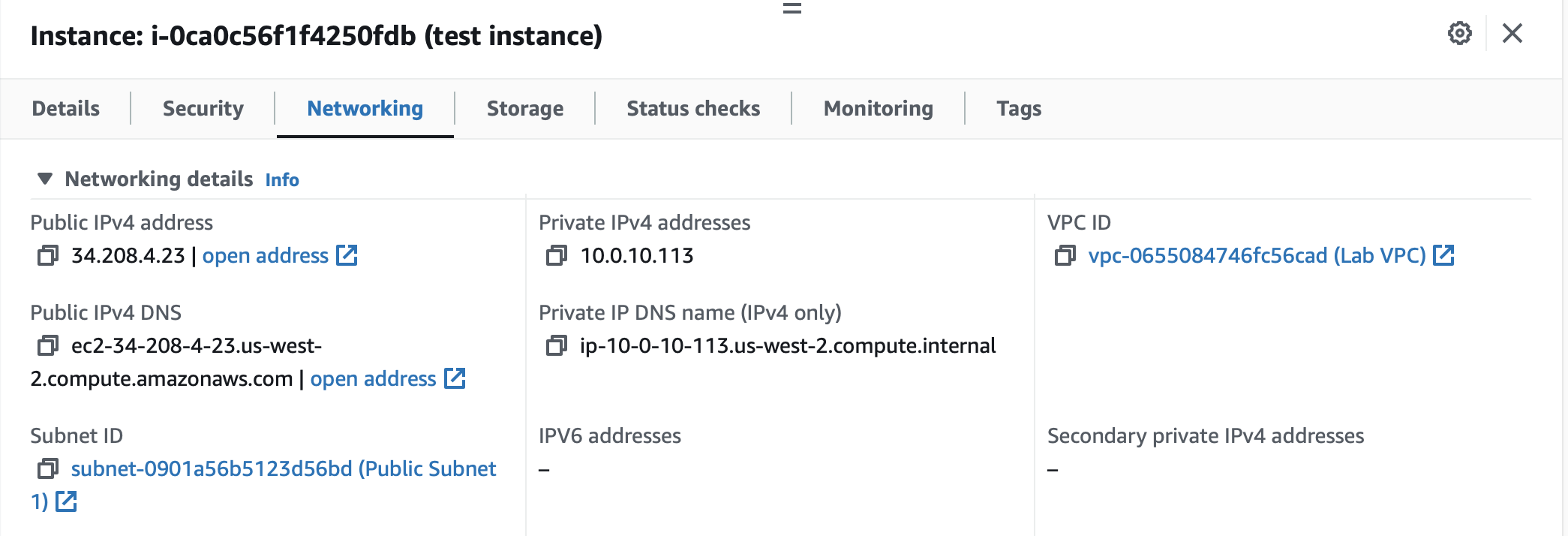 Networking Tab for Test Instance
 Instance State Button
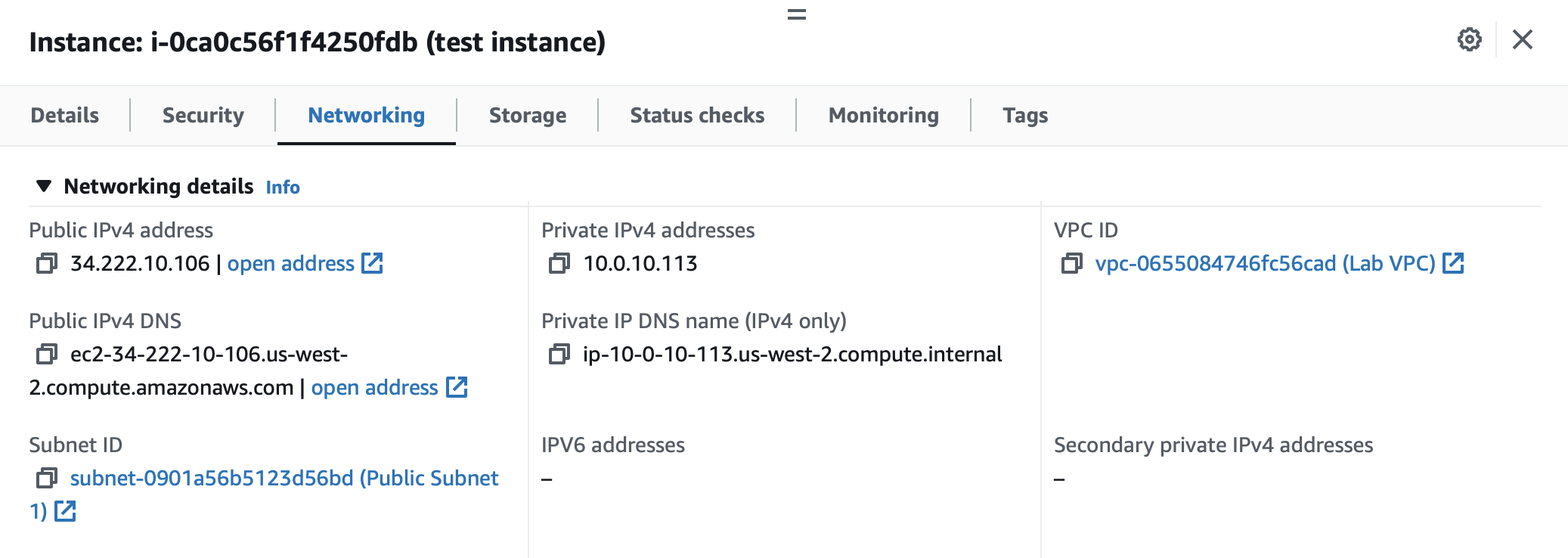 Starting Instance Populates Networking Tab
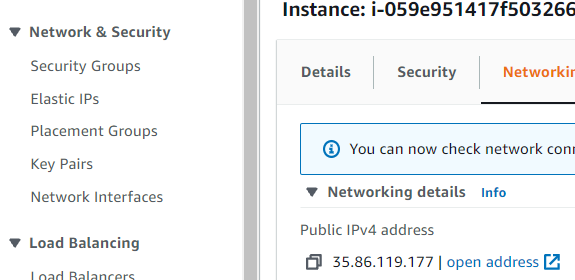 Elastic IPs Under Network and Security
 Allocate EIP
 Associate EIP
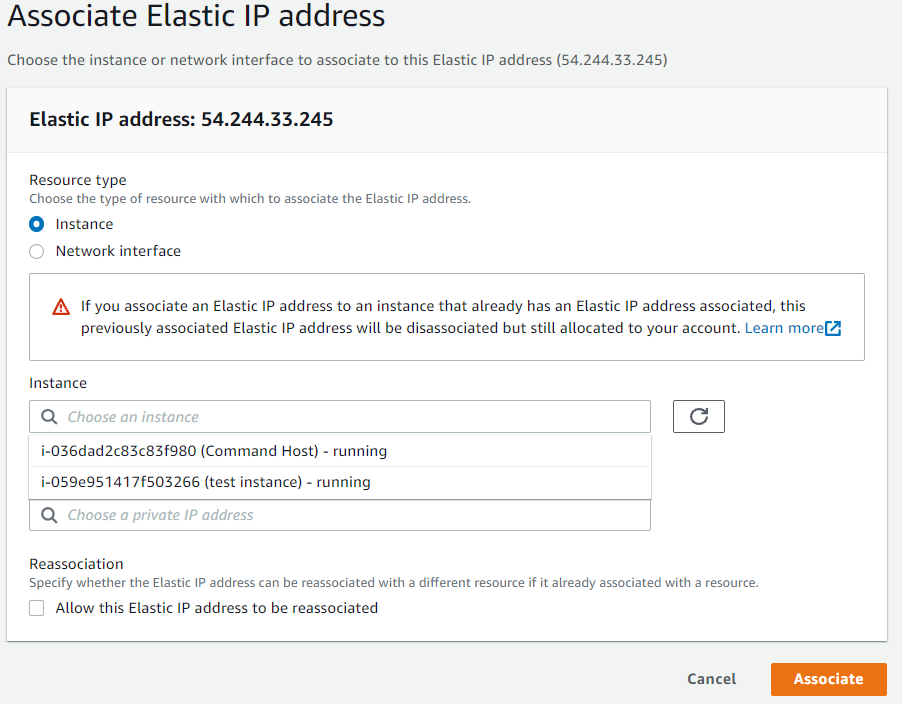 Associate EIP to Test Instance