Systems Manager
Overview
I worked with AWS Systems Manager to tackle the challenge of keeping
operating systems and applications up to date across multiple
workstations. In organizations with hundreds or thousands of
workstations, maintaining current software versions can be logistically
challenging. While OS updates can often be applied automatically via
network, having a clear security policy and baseline plan is essential
to ensure all workstations run a minimum software version.
In this project, I used Patch Manager (a capability of AWS Systems
Manager) to create a patch baseline. I then used this baseline to scan
pre-created Amazon EC2 instances for Windows. I also utilized default
patch baselines to patch EC2 Linux instances.
Objectives I Accomplished
After completion, I successfully:
- Patched Linux instances using default baselines
- Created custom patch baselines
-
Used patch groups to patch Windows instances using custom patch
baselines
- Verified patch compliance
Task 1: Patching Linux Instances Using Default Baselines
In this task, I patched Linux EC2 instances using the default baselines
available for the OS.
I learned that Patch Manager provides predefined patch baselines for
each supported operating system. These can be used as currently
configured (without customization), or custom patch baselines can be
created for greater control over which patches are approved or rejected.
Here's what I did:
-
In the AWS Management Console, I searched for "Systems Manager" and
selected it to access the Systems Manager console.
-
In the left navigation pane, under Node Management, I chose Fleet
Manager.
-
I observed the pre-configured EC2 instances - three Linux instances
and three Windows instances. These had a specific IAM role associated
with them that allowed management via Systems Manager, which is why I
could view them in Fleet Manager. This was part of the setup.
-
I selected the check box next to Linux-1, then chose the Node actions
dropdown list and selected "View details."
-
I viewed details about this specific instance, including Platform
type, Node type, OS name, and the IAM role enabling Systems Manager
management.
-
I navigated back to the Systems Manager homepage by clicking "AWS
Systems Manager" at the top of the page.
-
In the left navigation pane, under Node Management, I selected Patch
Manager.
-
I clicked "Start with an overview" (or proceeded to the next step if
this option didn't appear).
-
I chose "Patch now" to patch the Linux instances with
AWS-AmazonLinux2DefaultPatchBaseline.
Under Basic configuration, I set the following:
- Patching operation: Scan and install
- Reboot option: Reboot if needed
- Instances to patch: Patch only the target instances I specify
- Target selection: Specify instance tags
- Tag key: Patch Group
- Tag value: LinuxProd
- I clicked "Add" and then "Patch now."
-
I monitored the patching status. A new page displayed with an
AWS-PatchNowAssociation panel showing that three instances would be
affected and tracking progress.
-
I watched the Scan/Install operation summary panel that displayed the
status of affected EC2 instances visually. I continued monitoring
until the patch operation completed on all three instances.
Task 2: Creating a Custom Patch Baseline for Windows Instances
For this task, I created a custom patch baseline for Windows instances.
Although Windows has default patch baselines, for this use case, I
needed to set up a baseline specifically for Windows security updates.
Here's my process:
-
I returned to the Systems Manager console by searching for "Systems
Manager" at the top and selecting it.
-
In the left navigation pane, under Node Management, I selected Patch
Manager.
-
I chose "Start with an overview" (or proceeded to the next step if
this option didn't appear).
- I clicked the "Patch baselines" tab.
- I selected the "Create patch baseline" button.
For Patch baseline details, I configured:
- Name: WindowsServerSecurityUpdates
- Description: Windows security baseline patch
- Operating system: Windows
- Left the "Default patch baseline" checkbox unselected
In the Approval rules for operating systems section, I configured the
first rule:
- Products: Selected WindowsServer2019 from the dropdown and deselected
"All"
- Severity: Selected "Critical" to ensure all service packs were
included
- Classification: Selected "SecurityUpdates"
- Auto-approval: Entered 3 days
- Compliance reporting: Selected "Critical"
- I clicked "Add rule" to add a second rule with these settings:
- Products: Selected WindowsServer2019 and deselected "All"
- Severity: Selected "Important"
- Classification: Selected "SecurityUpdates"
- Auto-approval: Entered 3 days
- Compliance reporting: Selected "High"
- I clicked "Create patch baseline."
-
Next, I modified a patch group for the Windows patch baseline I just
created to associate it with a patch group:
- In the Patch baselines section, I selected the button for my
WindowsServerSecurityUpdates baseline
- I noted that my baseline might be on the second page of the list or
could be found using the search bar
- I chose the Actions dropdown list, then "Modify patch groups"
- In the Modify patch groups section under Patch groups, I entered
"WindowsProd"
- I clicked the "Add" button, then "Close"
Task 3: Patching the Windows Instances
For this task, I patched the Windows instances using the Patch now
feature based on the tags associated with them.
I learned that after configuration, Patch Manager uses the Run Command
to call the RunPatchBaseline document. This evaluates which patches
should be installed on target instances according to each instance's
operating system type, either directly or during a defined schedule
(maintenance window).
Task 3.1: Tagging Windows Instances
First, I tagged my Windows instances. The Linux instances were
pre-configured during setup with LinuxProd tags and didn't need
additional tags.
Here's what I did:
-
In the AWS Management Console search bar, I entered "EC2" and selected
it.
-
I chose Instances, selected the check box next to the Windows-1
instance, and clicked the Tags tab.
-
I clicked the "Manage tags" button, chose "Add new tag", and
configured:
- Key: Patch Group
- Value: WindowsProd
- I clicked "Save."
-
I repeated these steps to tag the Windows-2 and Windows-3 instances
with the same tag.
Task 3.2: Patching Windows Instances
Next, I patched the Windows instances:
- I returned to the Systems Manager console via the search bar.
- I selected Patch Manager.
-
I chose "Start with an overview" (or proceeded if this option didn't
appear).
- I clicked "Patch now" and configured:
- Patching operation: Scan and install
- Reboot option: Reboot if needed
- Instances to patch: Patch only the target instances I specify
- Target selection: Specify instance tags
- Tag key: Patch Group
- Tag value: WindowsProd
- I clicked "Add" and then "Patch now."
-
When available on the new page that displayed, I clicked the link to
the Execution ID.
-
This opened a page in the State Manager part of Systems Manager.
-
I clicked the Output link for one of the managed instances showing
"InProgress" status.
- A page in the Run Command part of Systems Manager opened.
- I expanded the Output panel to observe the details.
Behind the scenes, Patch Manager was using Run Command to execute
PatchBaselineOperations. By scrolling through the output, I could see
the PatchGroup: WindowsProd details.
I learned that a Systems Manager document (SSM document) defines the
actions that Systems Manager performs on managed instances.
Task 4: Verifying Compliance
Finally, I verified compliance:
-
In the left navigation pane, under Node Management, I selected Patch
Manager.
-
I clicked the Dashboard tab. Under Compliance summary, I saw
"Compliant: 6," confirming all Windows and Linux instances were
compliant.
-
I selected the Compliance reporting tab, which provides an overview of
all running instances with SSM. I verified that the Compliance status
of all Linux and Windows instances was listed as Compliant.
-
I confirmed all six instances (three Linux and three Windows) showed
as compliant.
I scrolled right in the Node patching details panel to find for each
instance:
- Critical noncompliant count
- Security noncompliant count
- Other noncompliant count
- Last operation date
- Baseline ID
- I selected the Node ID for one of the Windows nodes.
- On the Node ID page that opened, I clicked the Patch tab.
-
I scrolled down to observe what patches were applied to this instance
and checked the Installed Time.
Conclusion
I successfully completed all objectives:
- Patched Linux instances using default baselines
- Created custom patch baselines
-
Used patch groups to patch Windows instances using custom baselines
- Verified patch compliance
This hands-on experience gave me practical knowledge of how to maintain
system security through efficient patch management in AWS environments.
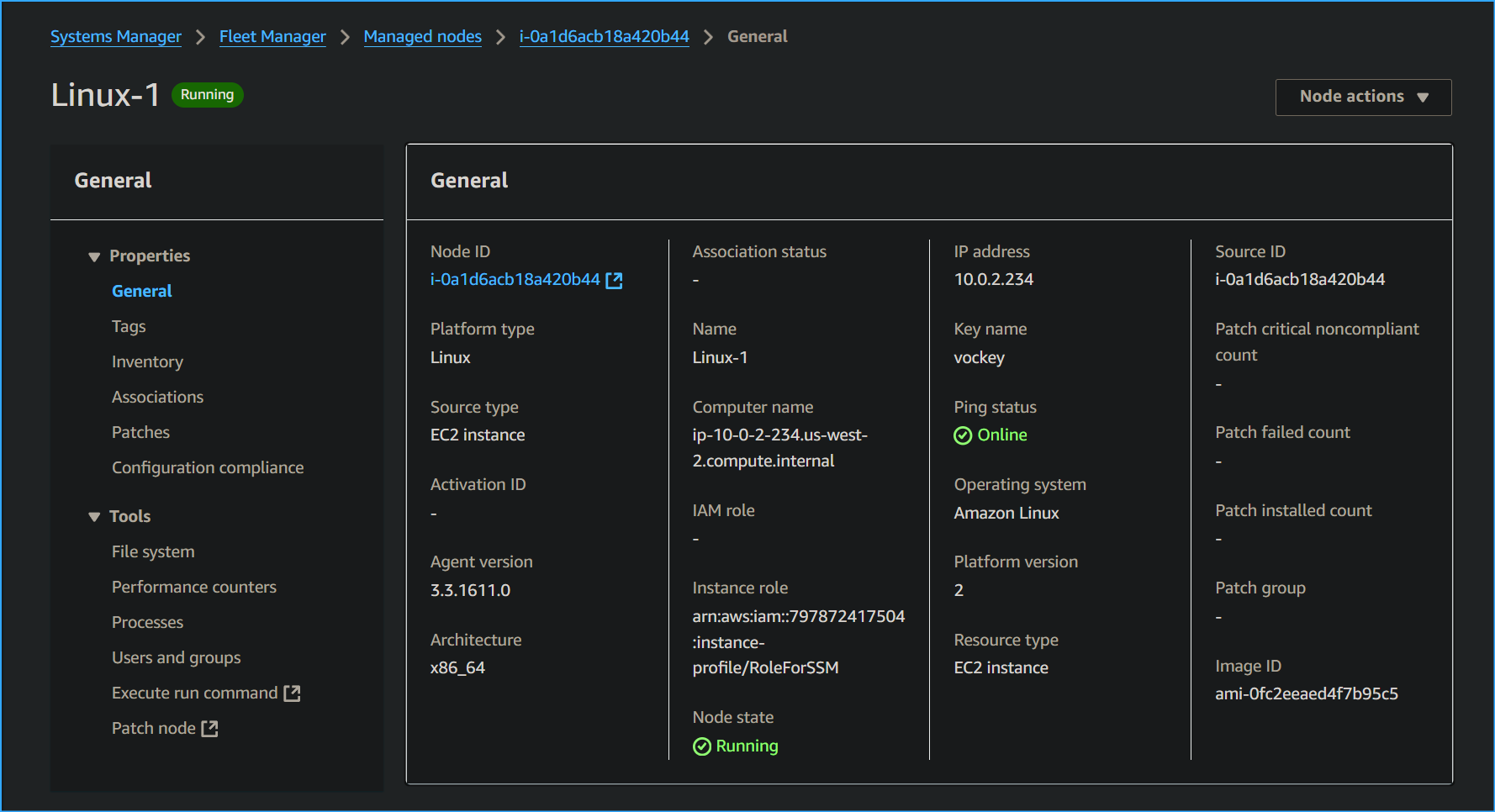 Node Details
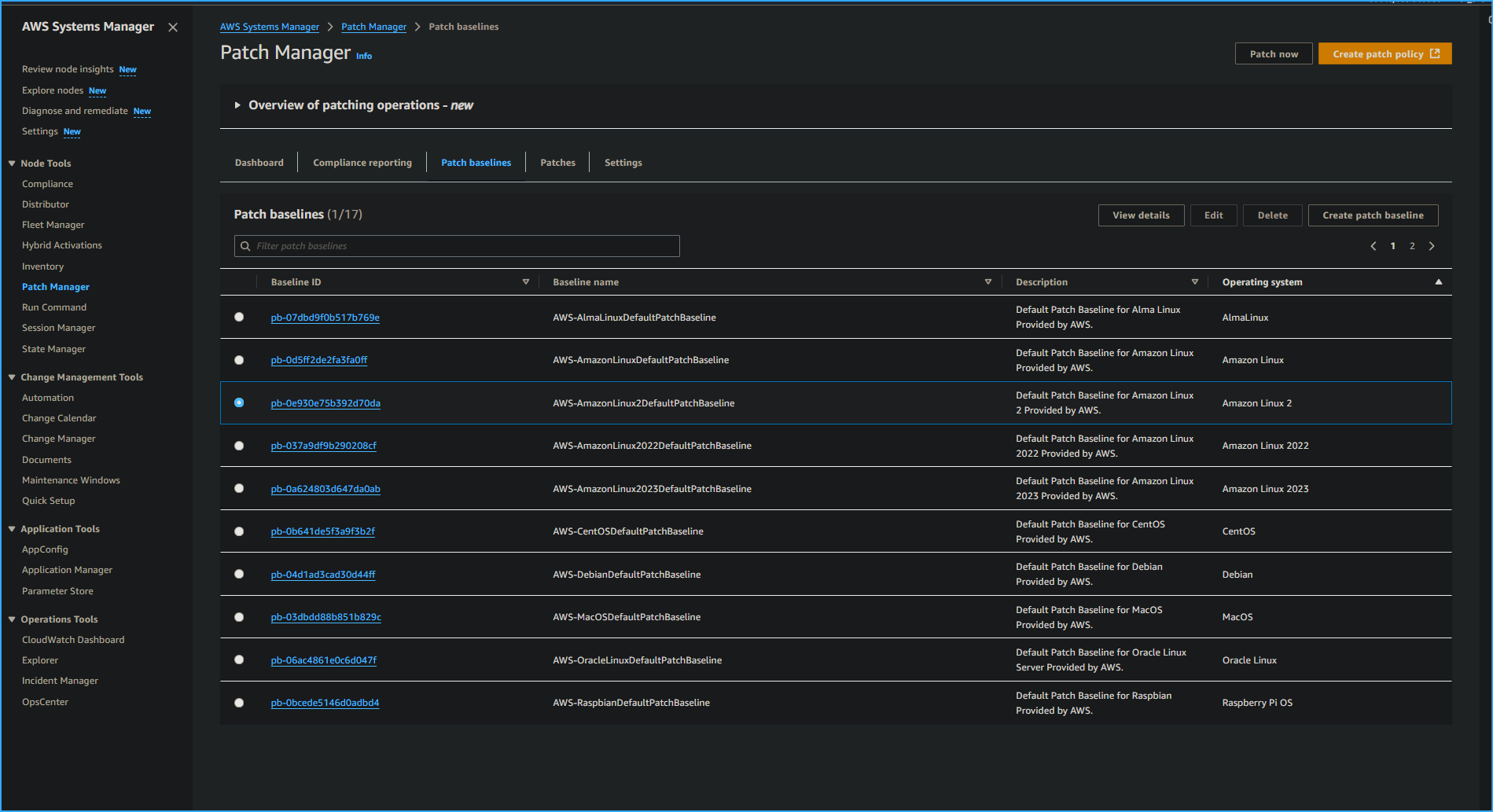 Beginning to Patch Required Systems
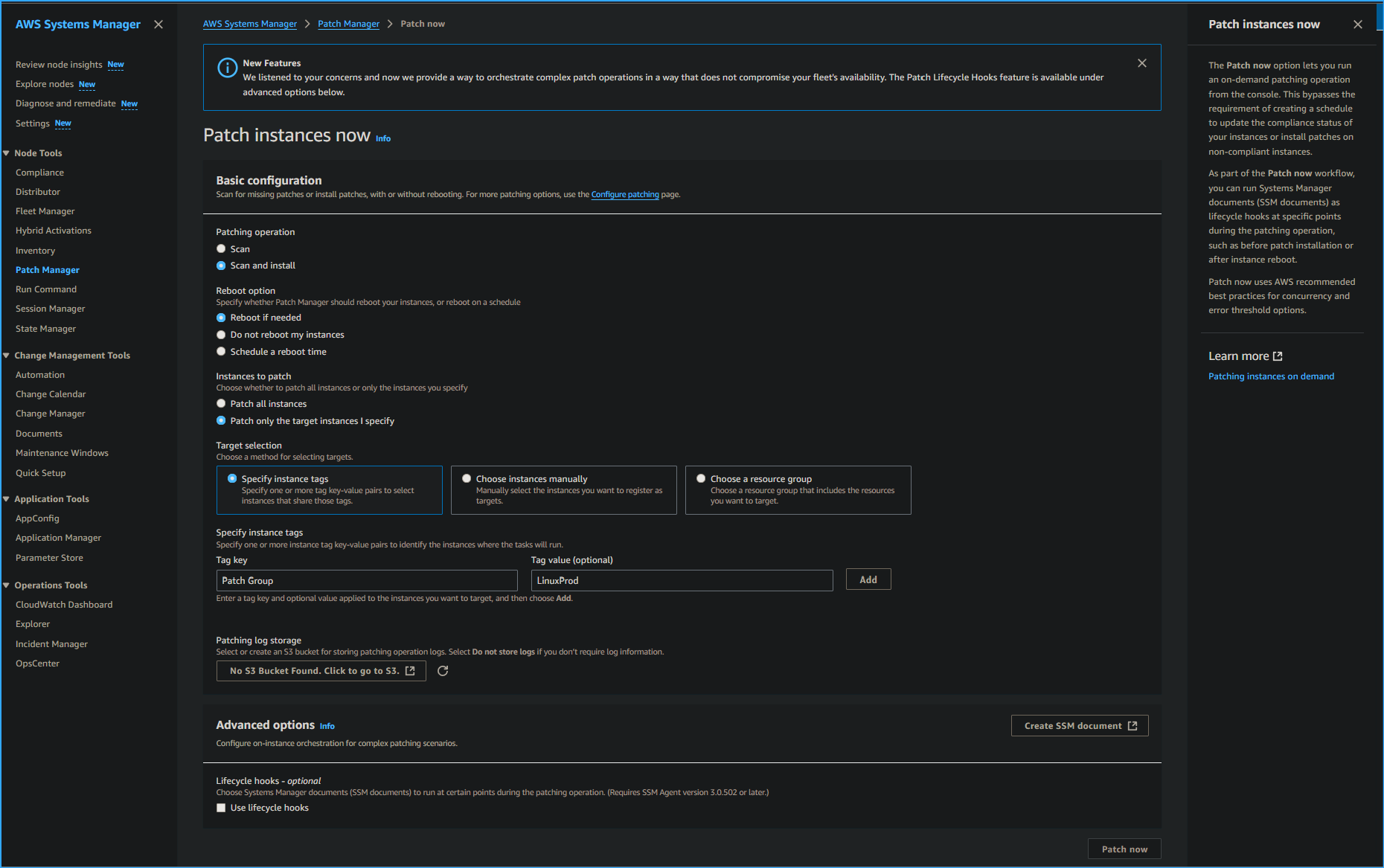 Configuring Patch Specs
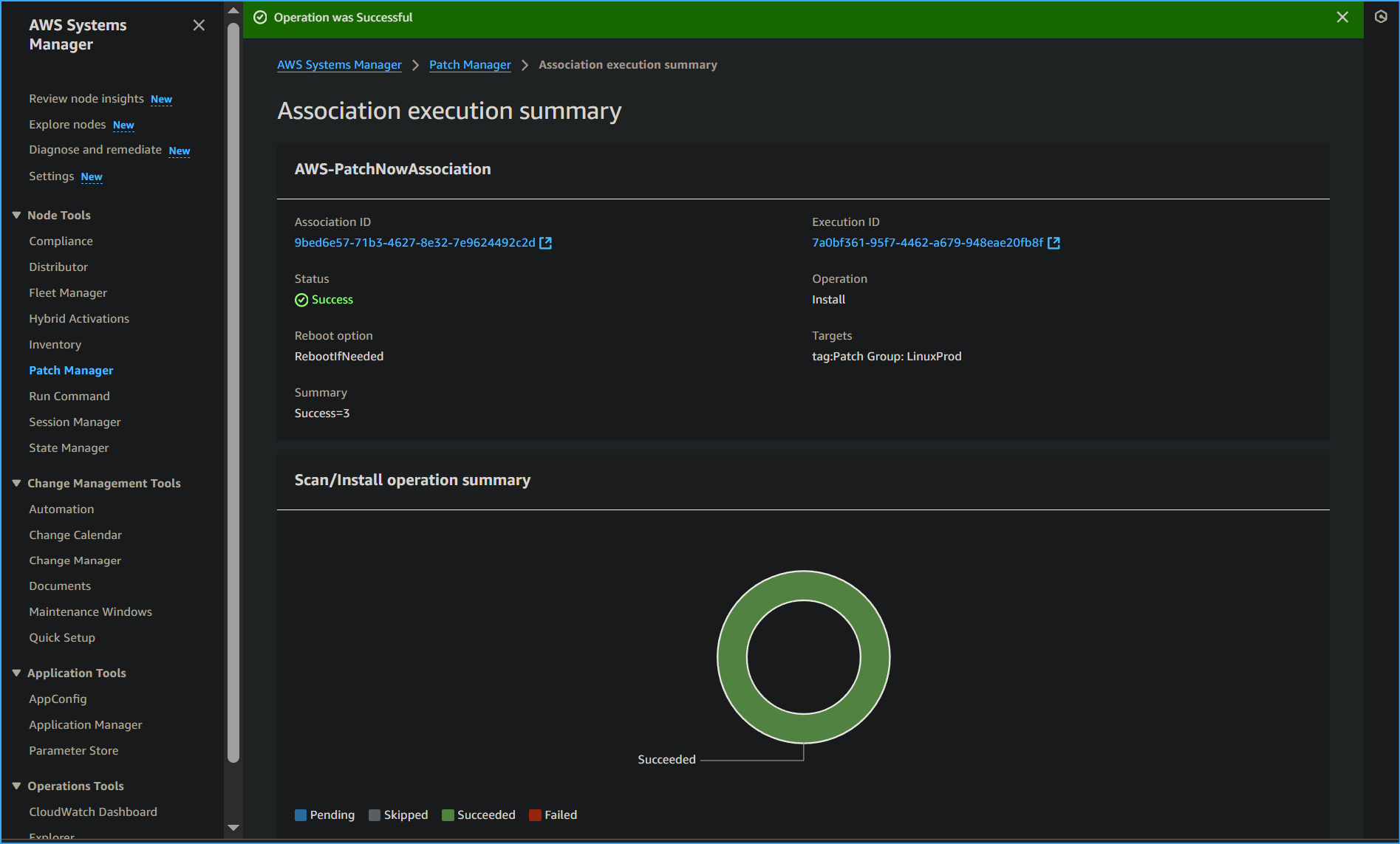 Association Execution Summary
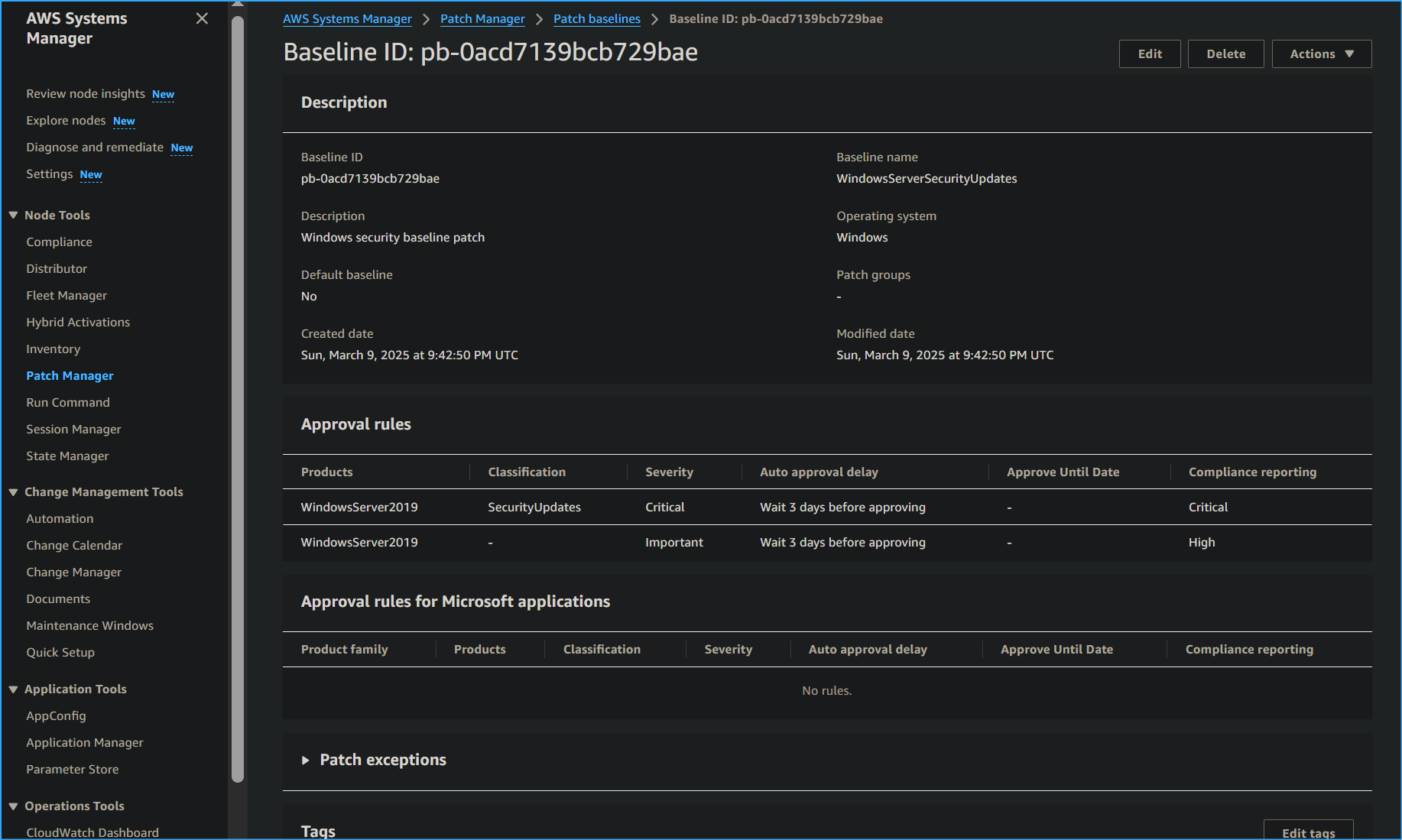 Created New Patch Baselines
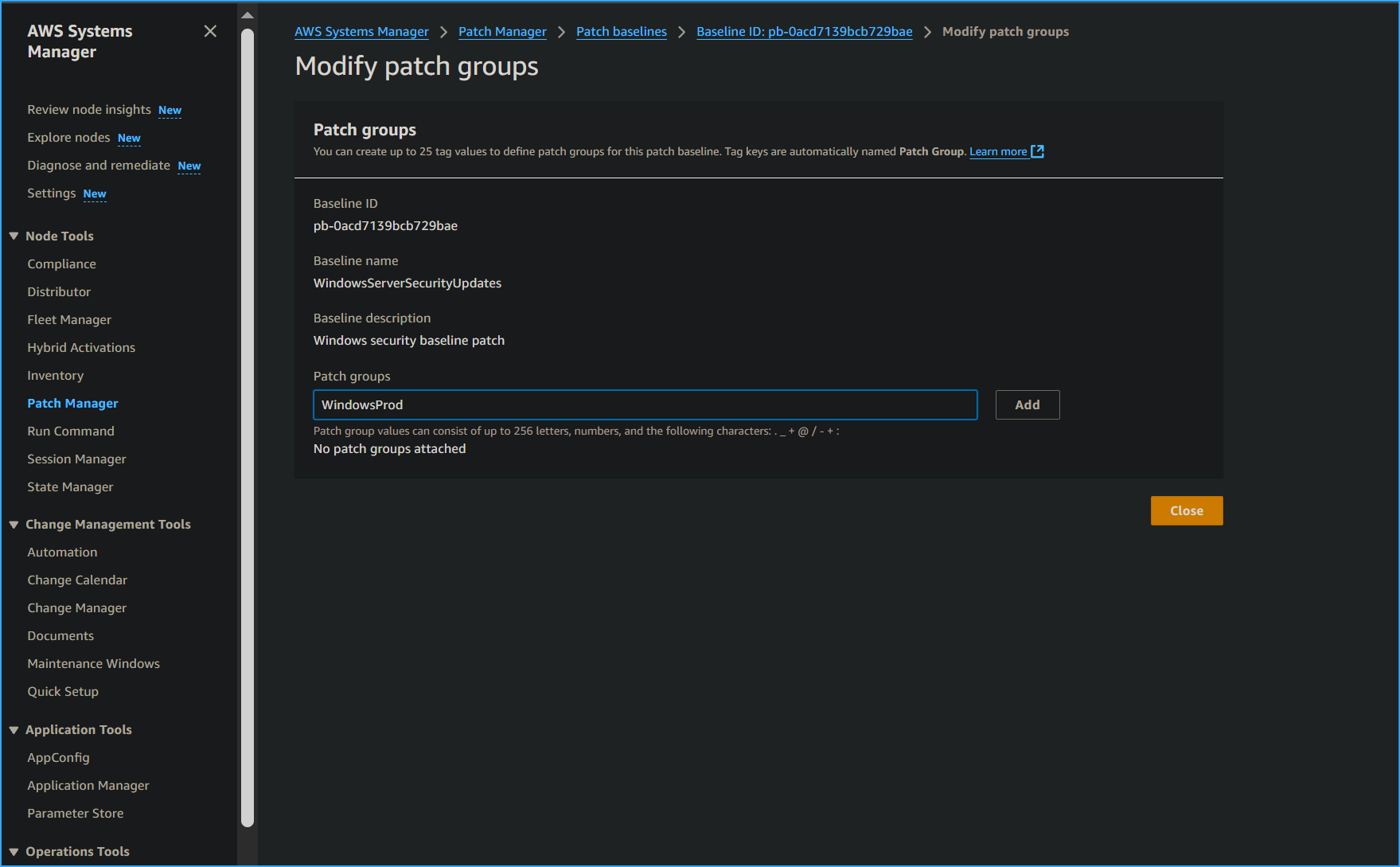 Modified New Patch Group Name
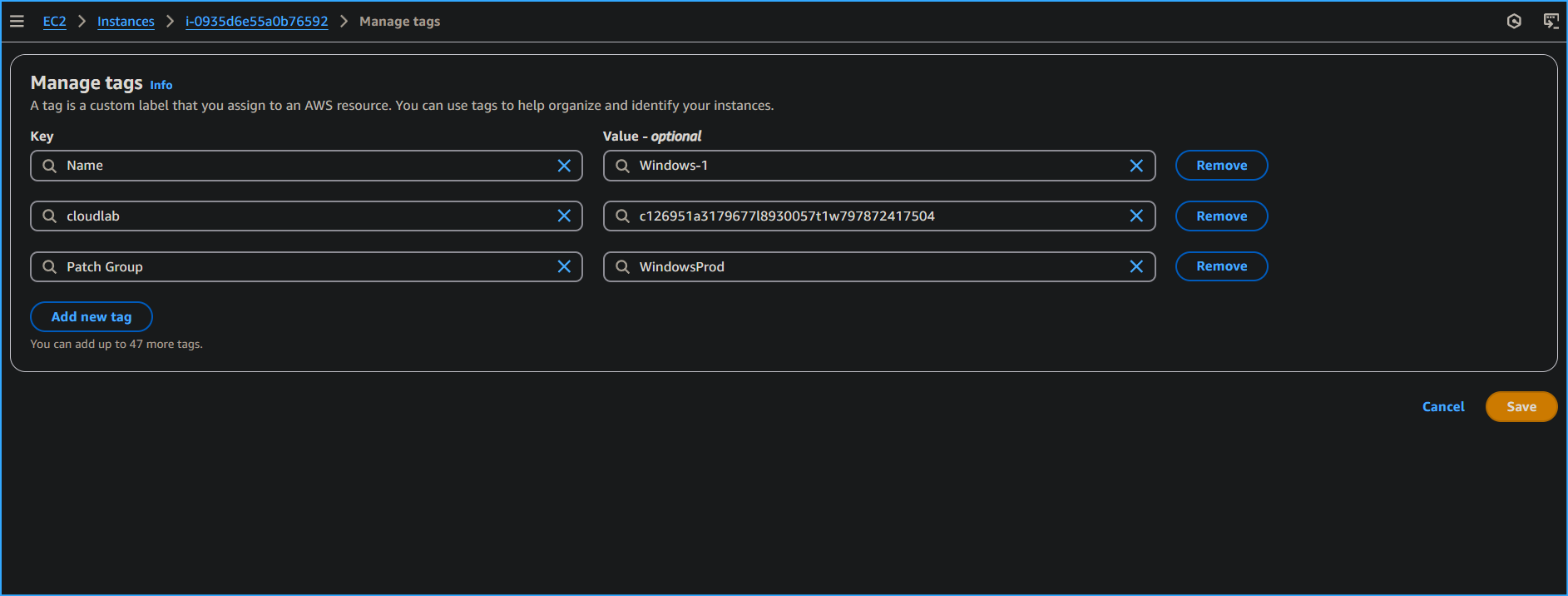 Beginning to Add Tag Names to Instances Windows One Two Three
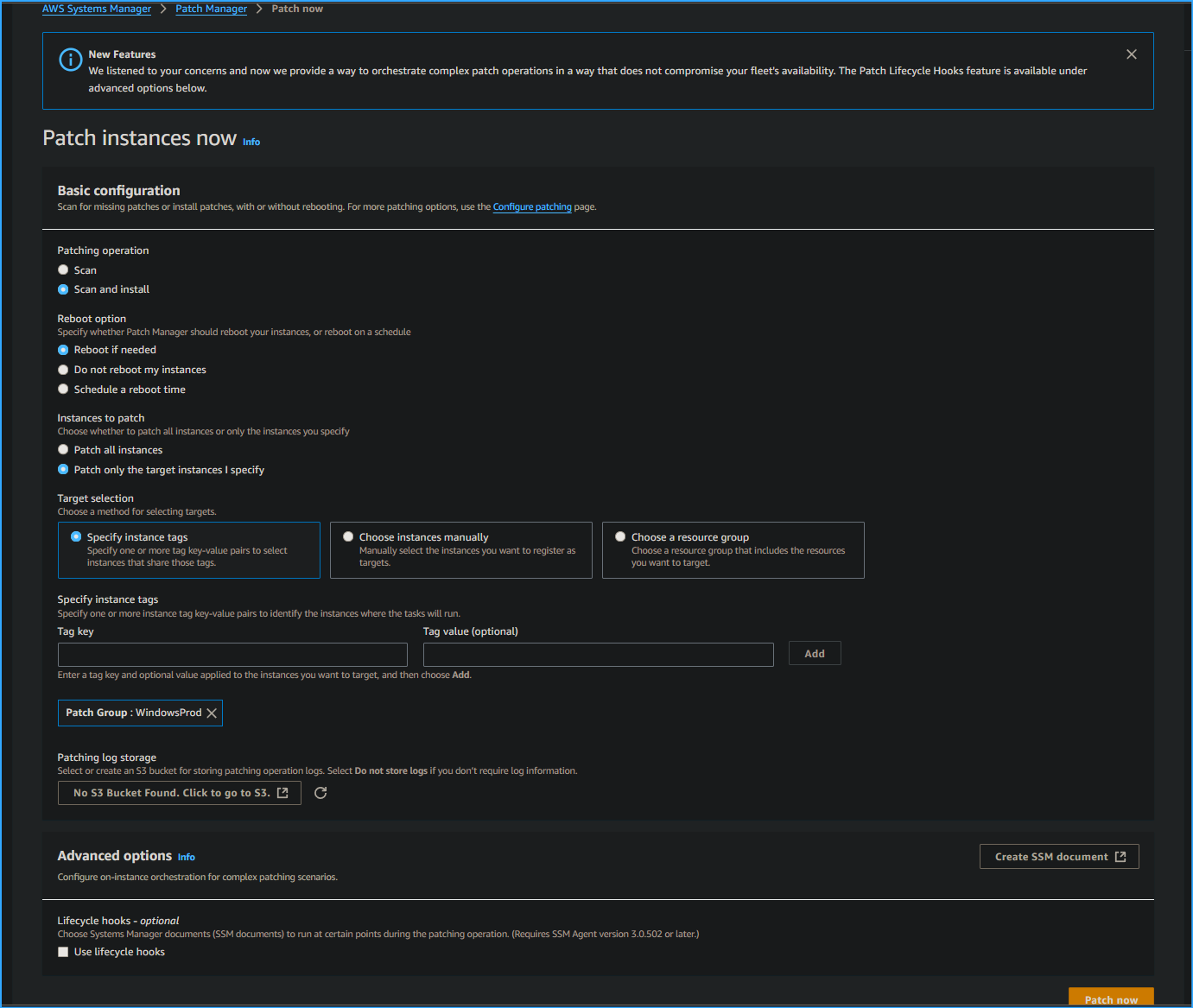 Patching Newly Tagged Instances
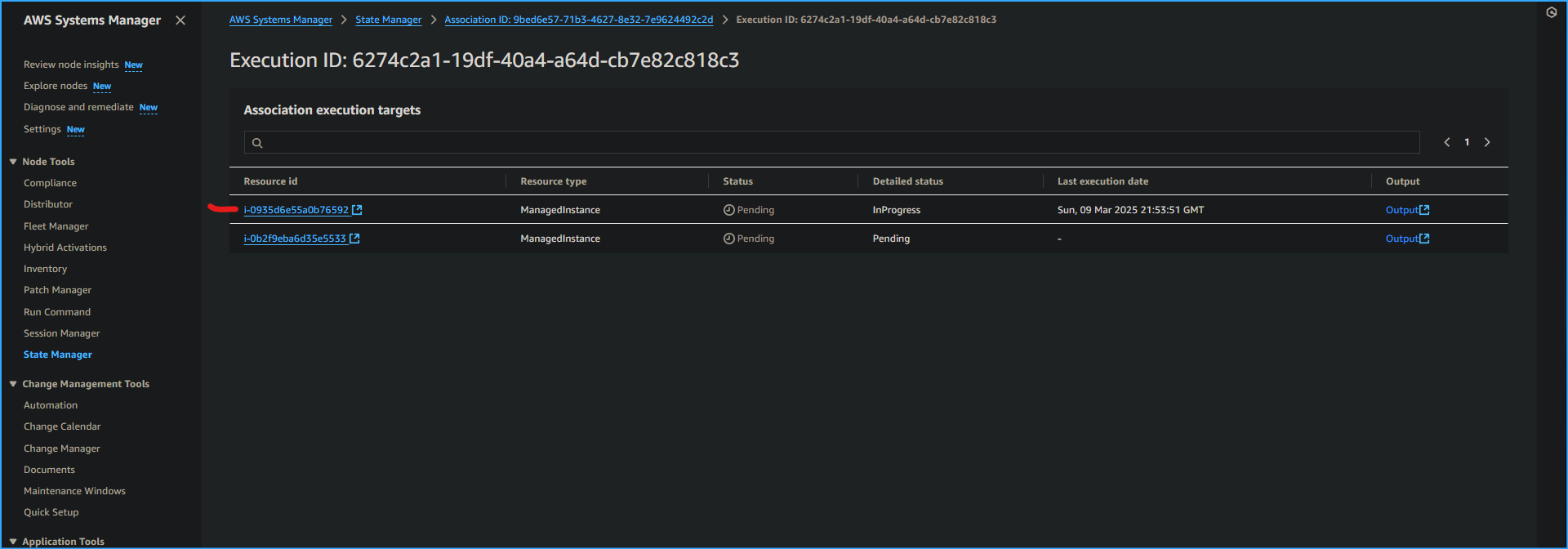 Execution ID Page I Will Be Selecting That One
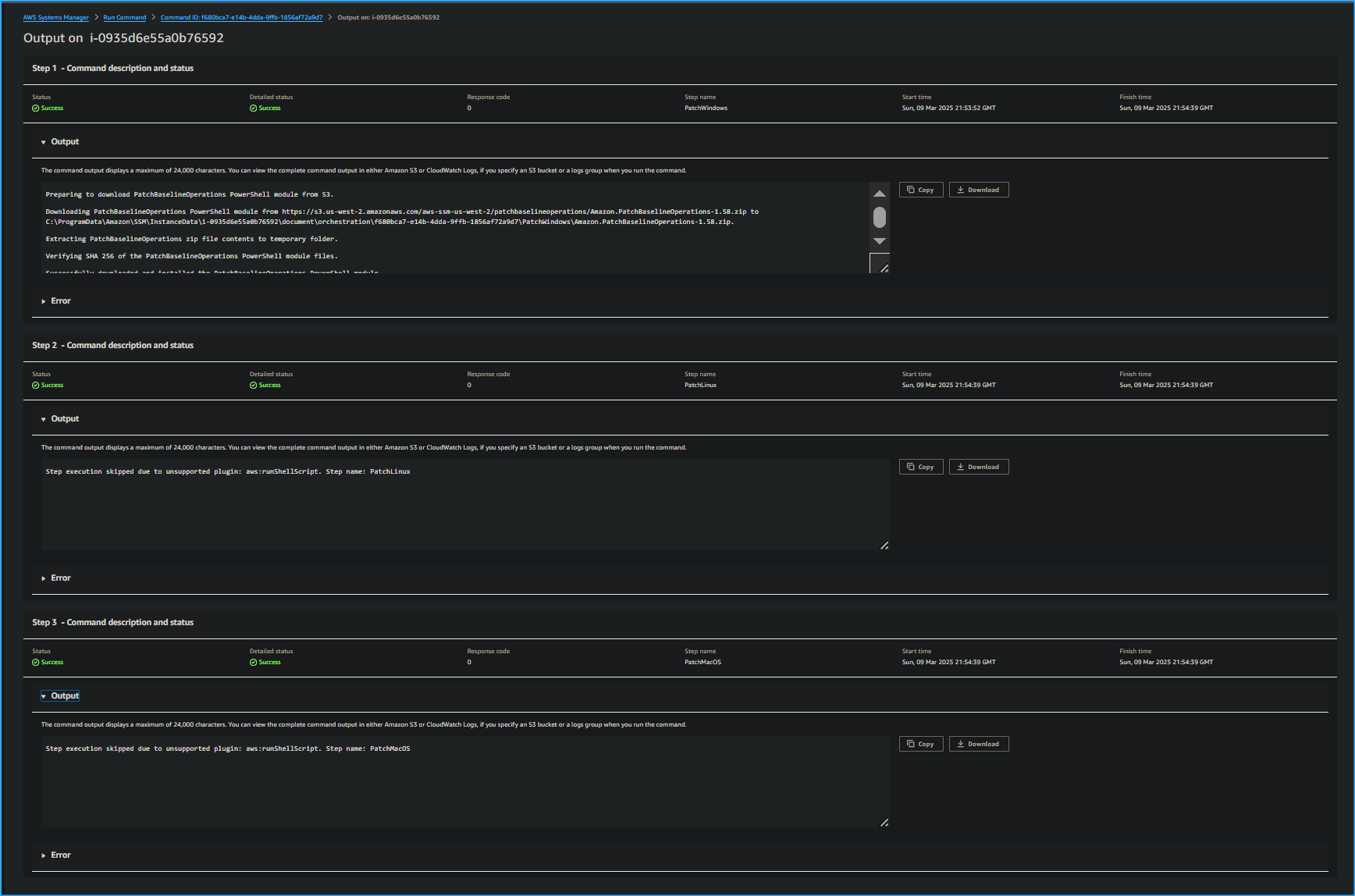 After Selecting Output on Execution ID Page I Expanded Output Dropdown Menus
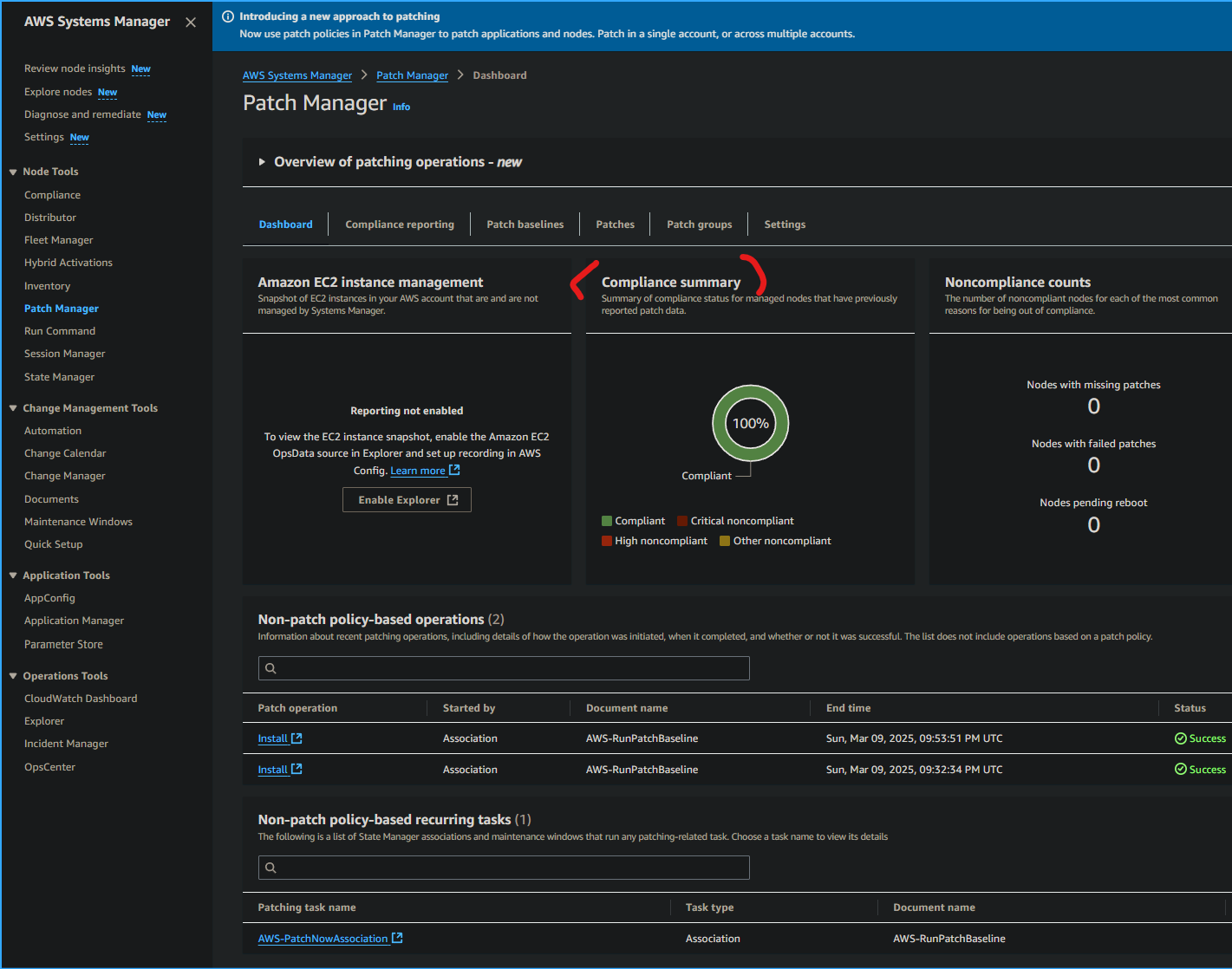 Viewing Compliance Summary in Patch Manager Dashboard
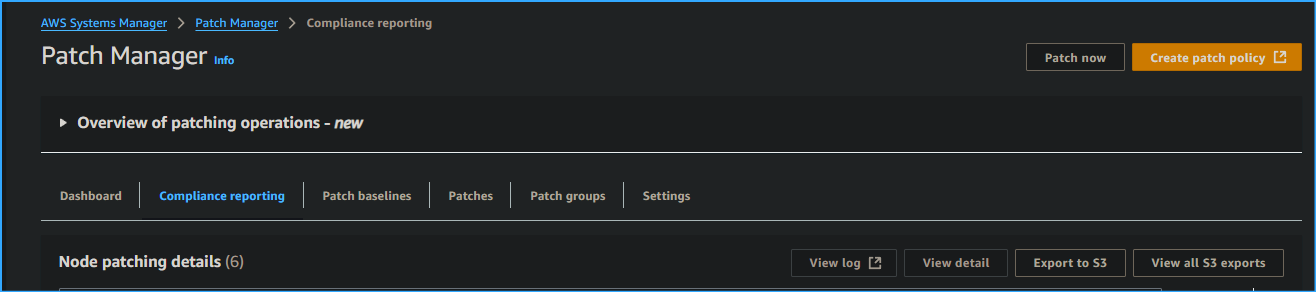 Confirmed All Nodes Were Compliant in Reporting Tab
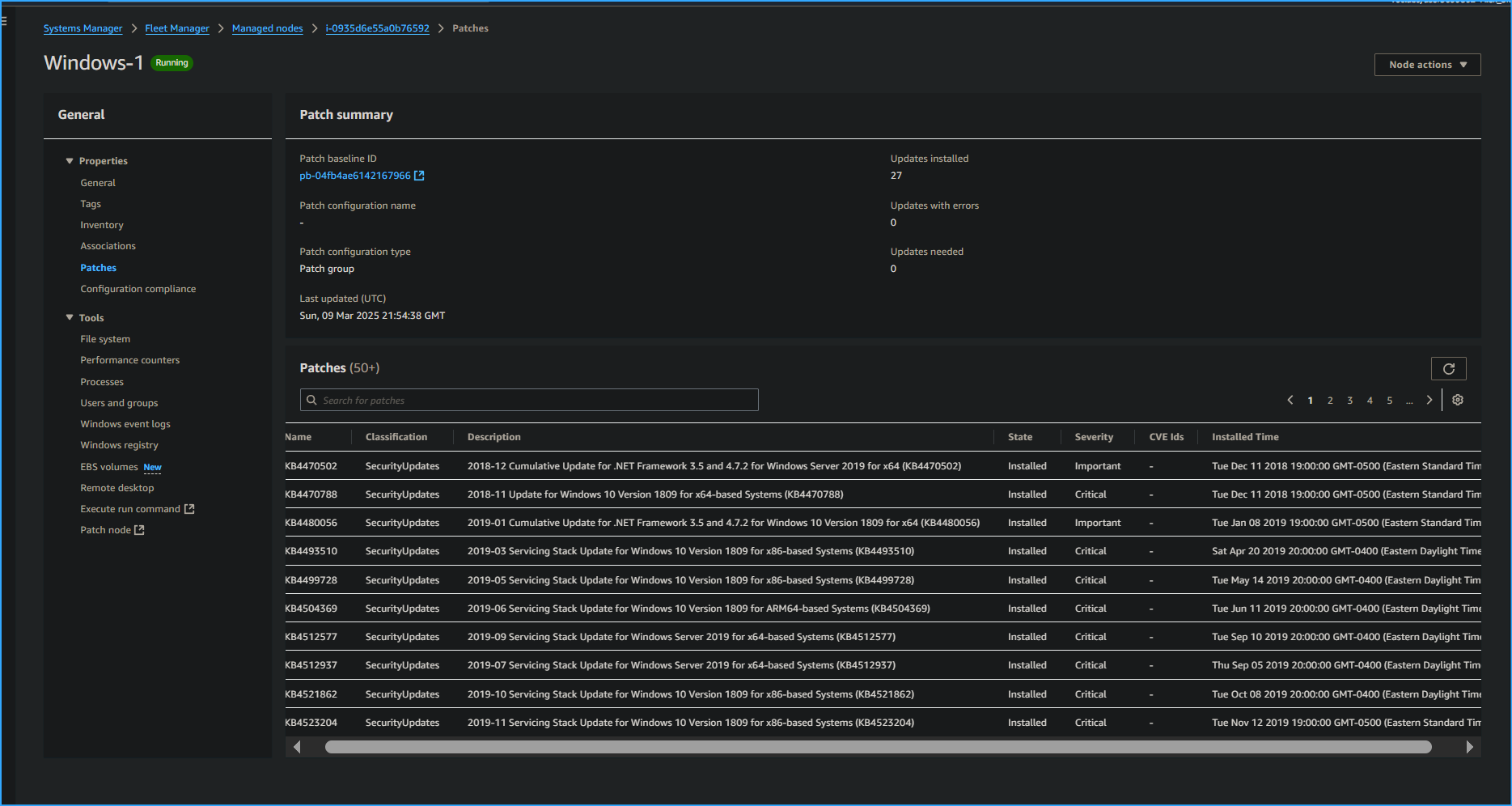 Opened a Node Then Checked Patching Details