Troubleshoot Create Instance
Project Overview
This report provides a detailed account of creating an EC2 instance,
configuring it, and deploying a website using AWS services. The process
involved setting up security groups, configuring key pairs, running EC2
instances, and troubleshooting various issues.
Task 1: Connecting to the CLI Host Instance
I began by connecting to the CLI Host EC2 instance that was provisioned
when the lab started. This instance would serve as my command center for
running AWS CLI commands.
-
I opened the AWS Management Console and searched for "EC2" in the
search bar
- In the navigation pane, I selected "Instances"
-
From the list of instances, I located and selected the CLI Host
instance
- I clicked on the "Connect" button above the list
- On the EC2 Instance Connect tab, I clicked "Connect" again
-
The connection was successful, giving me terminal access to the CLI
Host
Task 2: Configuring the AWS CLI
Now that I was connected to the CLI Host, I needed to configure the AWS
CLI with my credentials:
-
I verified that the AWS CLI was already pre-installed on the Amazon
Linux AMI
- I ran the aws configure command
-
When prompted, I entered the following information:
- AWS Access Key ID: I copied this from the lab details
- AWS Secret Access Key: I copied this from the lab details
-
Default region name: I used the LabRegion value from the lab
instructions
- Default output format: I specified "json"
Task 3: Creating an EC2 Instance using the AWS CLI
This task involved working with a shell script that contained
intentional issues. My challenge was to identify and resolve these
issues.
Task 3.1: Observing the Script Details
First, I created a backup of the script:
-
I changed to the directory containing the script:
cd ~/sysops-activity-files/starters
-
I created a backup:
cp create-lamp-instance-v2.sh create-lamp-instance.backup
-
I opened the script file using VI:
view create-lamp-instance-v2.sh
While analyzing the script, I noticed several key sections:
-
Line 1 contained the shebang
#!/bin/bash
- Lines 7-11 set the instance size to t3.small
- Lines 16-29 used AWS CLI to find a VPC named "Cafe VPC"
-
Lines 31-55 looked up subnet ID, key pair name, and AMI ID values
- Lines 57-122 checked for and cleaned up existing resources
-
Lines 124-152 created a new security group with ports 22 and 80 open
-
Lines 154-168 created a new EC2 instance with the collected values
-
Lines 179-188 extracted the instance ID and checked for a public IP
address
I also examined the user data script by running:
cat create-lamp-instance-userdata-v2.txt
This script contained commands to install a web server, PHP, and a
database server on the launched instance.
Task 3.2: Attempting to Run the Script
I tried to run the script:
./create-lamp-instance-v2.sh
As expected, the script failed without completing successfully.
Task 3.3: Troubleshooting Issues
Issue #1: Invalid AMI ID
The terminal displayed an error message: "An error occurred
(InvalidAMIID.NotFound) when calling the RunInstances operation: The
image id '[ami-xxxxxxxxxx]' does not exist".
I identified that the script was using the wrong region value for the
run-instances command. The AMI ID that was being used didn't exist in
the specified region. I fixed this by ensuring the correct region was
used:
# Hard-coded values instanceType="t3.small" profile="default"
region="us-west-2" # I confirmed this was the correct region
I then modified the script to use this region consistently throughout.
After fixing this issue, I ran the script again (responding "Y" when
prompted to delete existing resources), and the run-instances command
succeeded. The instance was created and assigned a public IPv4 address.
Issue #2: Unable to Access the Webpage
Even though the instance was created successfully, I couldn't access the
webpage by navigating to http://<public-ip> in a browser.
I connected to the LAMP instance using EC2 Instance Connect to
investigate further. I realized I needed to check:
- Whether port 80 was open in the security group
- If the web server service was running
To check the open ports, I first installed nmap on the CLI Host:
sudo yum install -y nmap
Then I scanned the LAMP instance:
nmap -Pn <public-ip>
The results showed that port 22 (SSH) was open, but port 80 (HTTP) was
closed. This indicated that the security group wasn't properly
configured to allow web traffic.
I fixed this by adding an inbound rule to open port 80:
aws ec2 authorize-security-group-ingress \ --group-id
sg-0109b96ee89dcb50d \ --protocol tcp \ --port 80 \ --cidr 0.0.0.0/0 \
--region us-west-2 \ --profile default
After applying this fix, I was able to access the webpage at
http://<public-ip>, which displayed Cafe website content.
To verify that the user data script ran correctly, I examined the
cloud-init log on the LAMP instance:
sudo tail -f /var/log/cloud-init-output.log
The log showed successful installation of MariaDB, PHP, and the Café Web
Application files, with no error messages. I observed messages related
to the Café Web Application files being downloaded and extracted,
including the "Create Database script completed" message. When I
finished reviewing the logs, I exited the tail utility using Ctrl-C. I
could have viewed the entire log file using
sudo cat /var/log/cloud-init-output.log if
needed.
Task 4: Verifying Website Functionality
With the issues resolved, I verified the full functionality of the
website:
-
I navigated to http://<public-ip>/cafe and successfully accessed
the café website home page
-
I tested the ordering functionality by:
-
Clicking on the Menu link, which loaded
http://<public-ip>/cafe/menu.php
- Selecting several desserts and submitting the order
-
Confirming the order appeared on the Order Confirmation page
- I placed another order with different items
-
I checked the Order History page and verified that both orders were
captured in the database
The order details were successfully captured and stored in the database
running on the LAMP instance I launched.
Script Development Details
Here's a detailed breakdown of all the scripting work I did:
Step 1: Initial Setup
I began by hard-coding specific values in my script to ensure
consistency and simplify the process. These values included the instance
type (t3.small) and the AWS profile (default). The script file I edited
was named create-instance.sh.
# Hard coded values instanceType="t3.small" profile="default"
Step 2: Defining the AWS Region
I defined the AWS region as us-west-2 to ensure all operations were
performed within the specified region.
# Define region region="us-west-2"
Step 3: Deleting Existing Security Group
I added a prompt to ask for user input on whether to delete the existing
security group. This ensured that no redundant security groups were left
in the account. The security group in question was sg-0109b96ee89dcb50d.
# Check for existing security group validResp=0 while [[ $validResp -eq
0 ]]; do read -p "Delete the existing security group? (Y/N): " answer if
[[ "$answer" == "Y" || "$answer" == "y" ]]; then echo "Deleting the
existing security group..." aws ec2 delete-security-group --group-id
$existingMpSg --region $region --profile $profile validResp=1 elif [[
"$answer" == "N" || "$answer" == "n" ]]; then validResp=1 fi done
Step 4: Retrieving AWS Resources
4.1 Retrieving VPC ID
I used the describe-vpcs command to get the VPC ID associated with the
"Cafe VPC" tag.
# Get VPC ID vpc=$(aws ec2 describe-vpcs \ --filters
"Name=tag:Name,Values='Cafe VPC'" \ --region $region \ --profile
$profile | grep VpcId | cut -d '\"' -f4 | sed -n 1p) echo "VPC:
$vpc"
4.2 Retrieving Subnet ID
I retrieved the subnet ID for the "Cafe Public Subnet 1" tag using the
describe-subnets command.
# Get Subnet ID subnetId=$(aws ec2 describe-subnets \ --filters
"Name=tag:Name,Values='Cafe Public Subnet 1'" \ --region $region \
--profile $profile \ --query "Subnets[*].SubnetId" \ --output text) echo
"Subnet: $subnetId"
4.3 Retrieving Key Pair Name
I retrieved the key pair name by using the describe-key-pairs command
and identified the key pair as vockey.
# Get Key Pair Name key="vockey" echo "Key: $key"
4.4 Retrieving AMI ID
I fetched the latest Amazon Linux 2 AMI ID from AWS Systems Manager
using the get-parameter command.
# Get AMI ID imageId=$(aws ssm get-parameter \ --name
'/aws/service/ami-amazon-linux-latest/amzn2-ami-hvm-x86_64-gp2' \
--profile $profile \ --region $region \ --query 'Parameter.Value' \
--output text) echo "AMI ID: $imageId"
Step 5: Checking for Existing Instances
I used the describe-instances command to check for existing instances
with the specified AMI ID and region.
# Check for Existing Instance existingEc2Instance=$(aws ec2
describe-instances \ --filters
"Name=image-id,Values=ami-0f3b366cff2e46862" \ --region $region) echo
"Existing Instance: $existingEc2Instance" # Check for Existing Cafe
Instance existingCafeInstance=$(aws ec2 describe-instances \ --region
$region \ --profile $profile) echo "Existing Cafe Instance:
$existingCafeInstance"
Step 6: Creating the EC2 Instance
I created the EC2 instance using the run-instances command with the
specified parameters, including the AMI ID, instance type, key name,
security group ID, subnet ID, and user data.
# Create EC2 Instance instanceDetails=$(aws ec2 run-instances \
--image-id ami-0f3b366cff2e46862 \ --count 1 \ --instance-type
$instanceType \ --key-name $key \ --security-group-ids
sg-0109b96ee89dcb50d \ --subnet-id $subnetId \ --tag-specifications
'ResourceType=instance,Tags=[{Key=Name,Value=cafeserver}]' \
--associate-public-ip-address \ --iam-instance-profile
Name=LabInstanceProfile \ --profile $profile \ --user-data
file://create-lamp-instance-userdata-v2.txt \ --region $region)
Step 7: Handling Command Failures
I added a conditional statement to handle any failures that occurred
during the EC2 instance creation process.
# If the create instance command failed, exit this script if [[ "$?"
-ne "0" ]]; then exit 1 fi
Step 8: Displaying Instance Details
I used the python -m json.tool command to format and display the
instance details in a readable format.
echo echo "Instance Details...." echo $instanceDetails | python -m
json.tool
Step 9: Extracting Instance ID
I extracted the instance ID from the formatted instance details using
the grep and cut commands.
# Extract instanceId instanceId=$(echo $instanceDetails | python -m
json.tool | grep InstanceId | sed -n 1p | cut -d '\"' -f4) echo
"instanceId:" $instanceId
Step 10: Waiting for Public IP
I implemented a polling loop to wait for the instance to be assigned a
public IP address. The loop checks the public IP every 10 seconds until
it is available.
echo echo "Waiting for a public IP for the new instance..." pubIp=""
while [[ "$pubIp" == "" ]]; do sleep 10 pubIp=$(aws ec2
describe-instances --instance-id $instanceId --region $region --profile
$profile | grep PublicIp | sed -n 1p | cut -d '\"' -f4) done
Step 11: Displaying Public IP
I displayed the public IP address of the newly created instance and
provided instructions for connecting to the instance using SSH.
echo echo "The public IP of your LAMP instance is:" $pubIp echo
"Download the Key Pair from the Vocareum page." echo echo "Then connect
using this command (with .pem or .ppk added to the end of the keypair
name):" echo "ssh -i path-to/$key ec2-user@$pubIp"
Step 12: Accessing the Deployed Website
I displayed the URL of the deployed website, confirming that it was
accessible via the public IP address.
echo echo "The website should also become available at:" echo
"http://$pubIp/cafe/"
Step 13: Adding Inbound Rule for HTTP
I opened port 80 for HTTP traffic by adding an inbound rule to the
security group using the AWS CLI. This ensured that the website was
accessible to the public.
aws ec2 authorize-security-group-ingress \ --group-id
sg-0109b96ee89dcb50d \ --protocol tcp \ --port 80 \ --cidr 0.0.0.0/0 \
--region us-west-2 \ --profile default
Step 14: Verifying Open Ports with nmap
I used the nmap command to verify the open ports on the newly created
instance. The results indicated that port 22/tcp (SSH) was open, while
port 80/tcp (HTTP) was initially closed.
nmap -Pn <public-ip>
Conclusion
I successfully accomplished the following:
- Launched an EC2 instance using the AWS CLI
-
Troubleshot AWS CLI commands and Amazon EC2 service settings using
basic troubleshooting tips and the open-source nmap utility
-
Created and configured security groups to allow proper web traffic
-
Verified the deployment and functionality of a complete web
application with database backend
By systematically working through each of these steps and
troubleshooting the issues I encountered, I successfully deployed a
fully functional LAMP stack with a café ordering website on AWS. The
website allowed customers to view the menu, place orders, and view their
order history, with all data being stored in the MariaDB database
running on the EC2 instance.
×
![]()
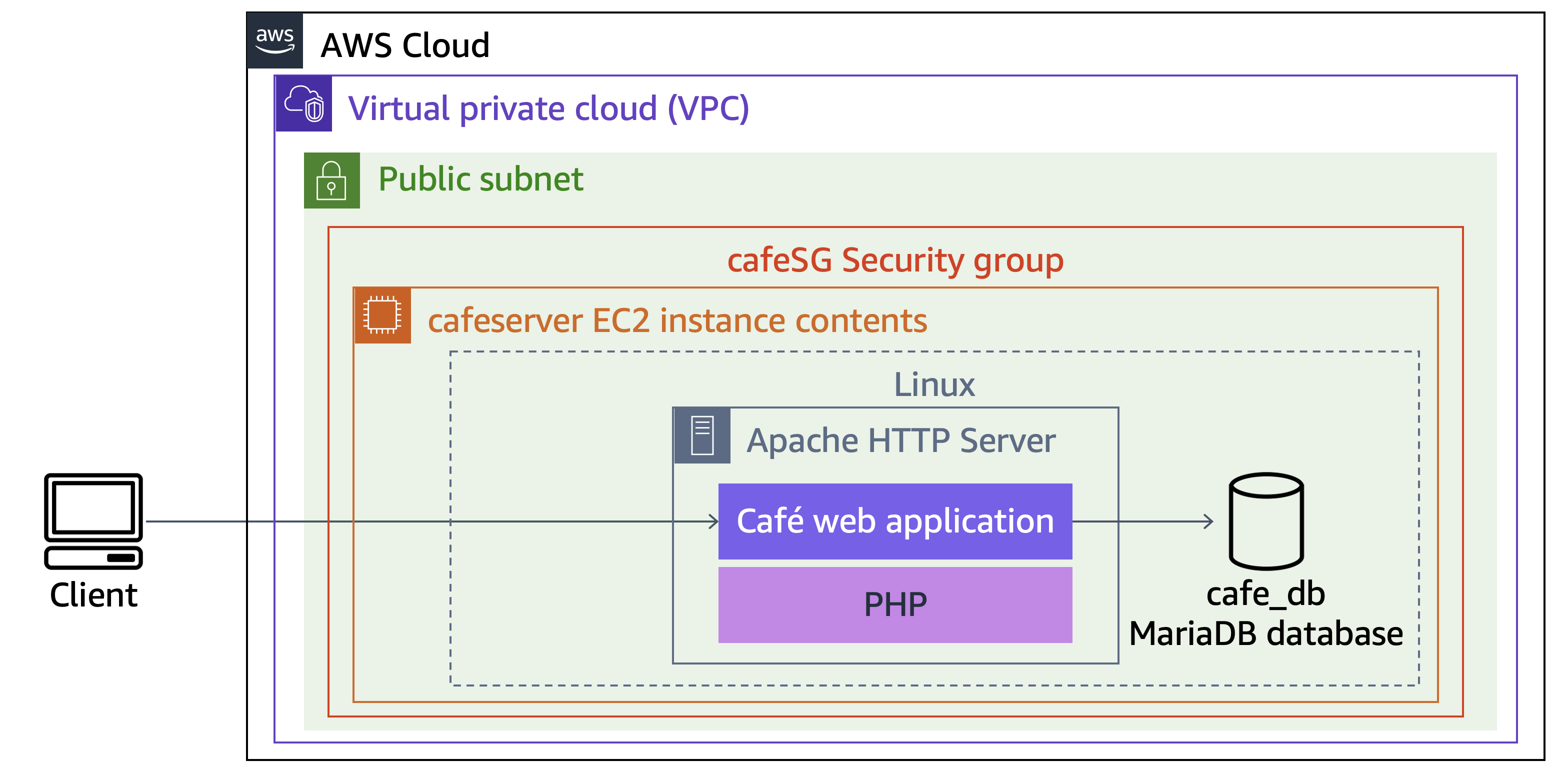 Final Architecture
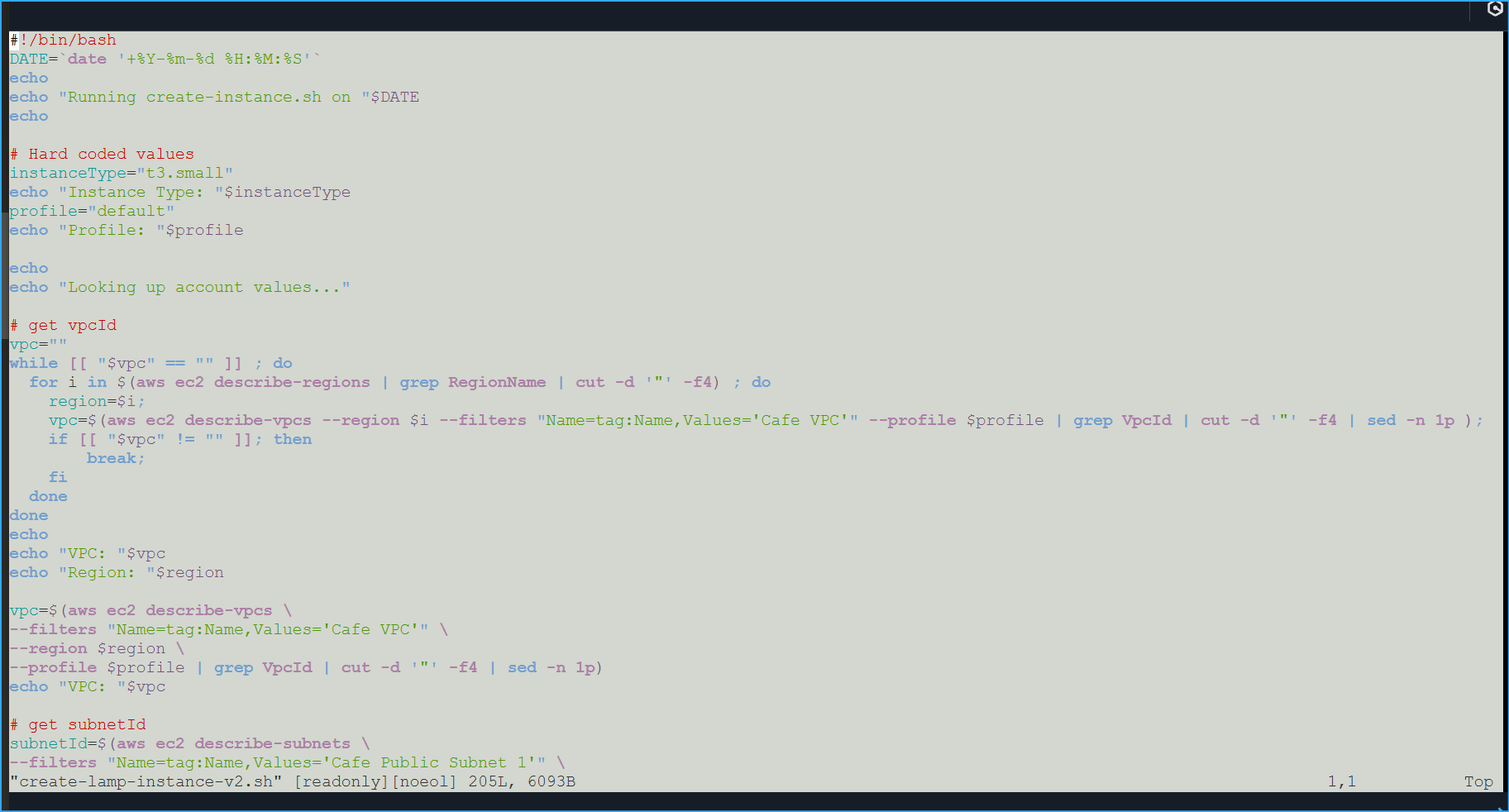 Initial Script in Vim
 Preparing the Script
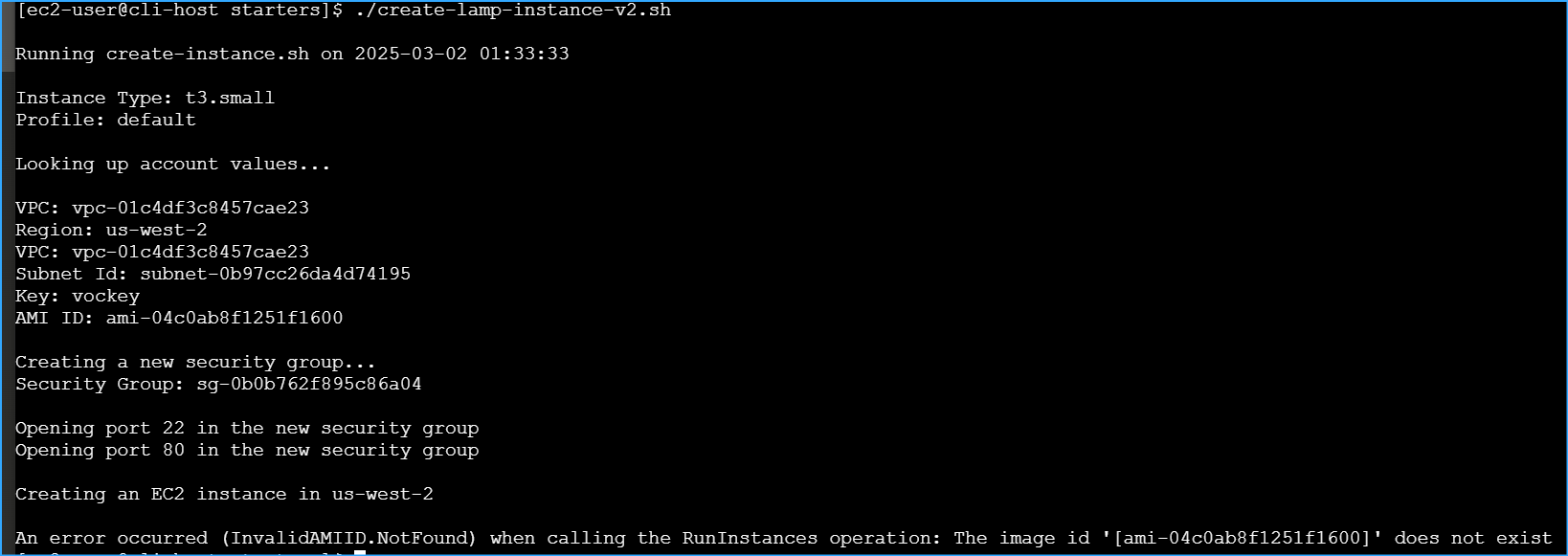 Script Fails with Invalid AMI ID Error
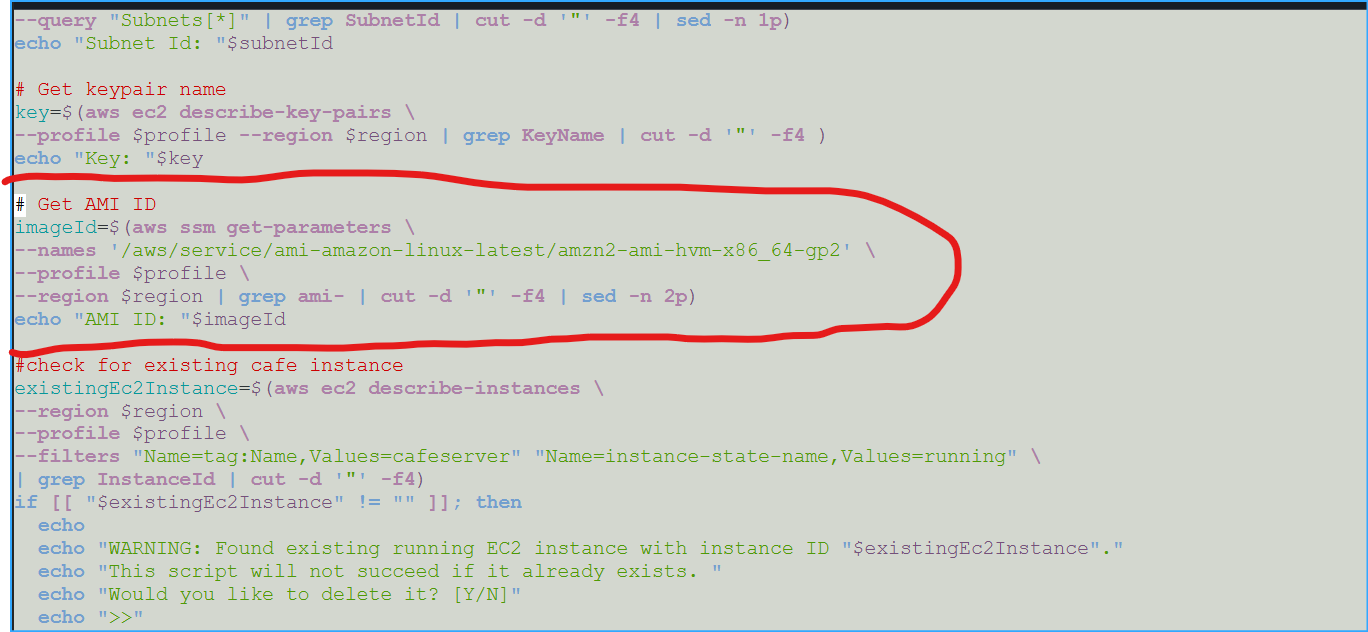 Initial Get AMI Retrieval Script
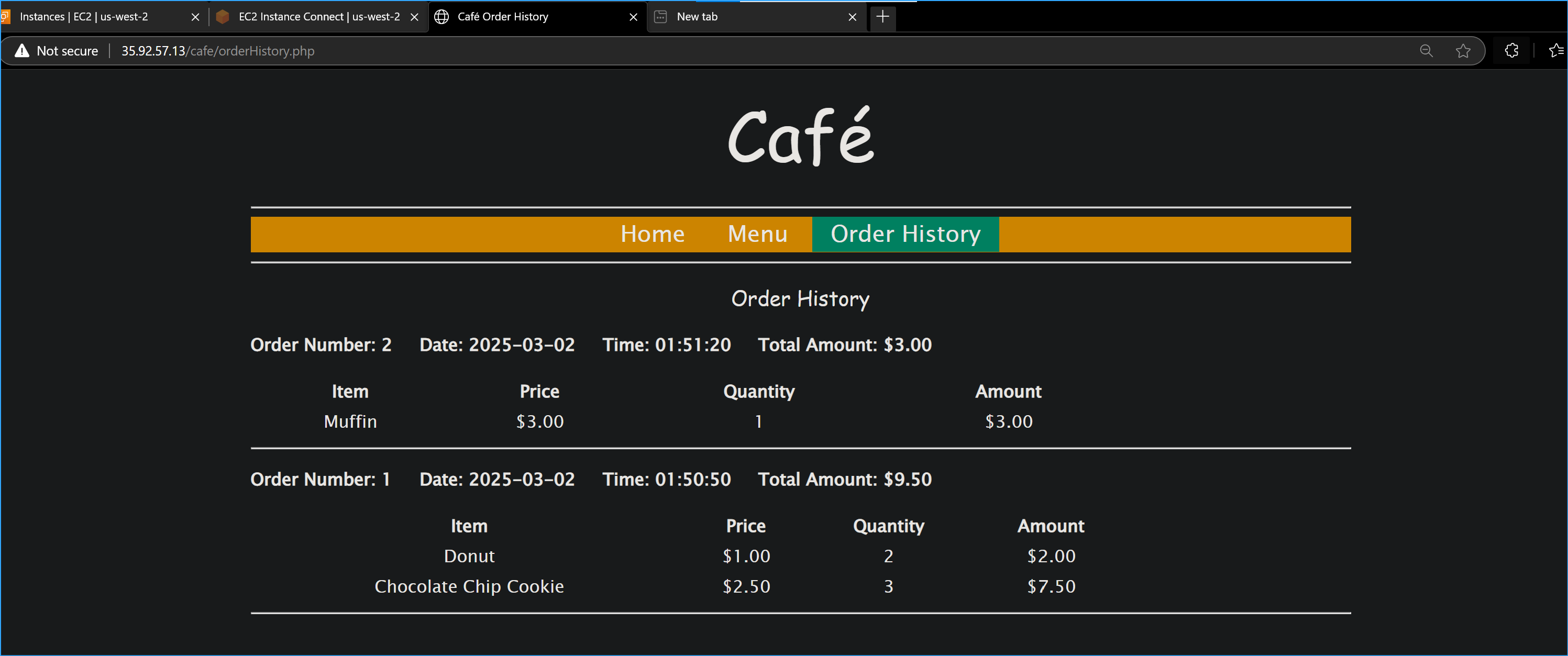 Confirmed Website Functionality Works