Overview
In my work with Amazon S3 here, I created and configured an Amazon S3 bucket to share images with an external user at a media company (mediacouser). This user was hired to provide pictures of products that the café sells. I also configured the S3 bucket to automatically send email notifications to the administrator when the bucket contents were modified.
System Architecture
The usage flow I implemented worked like this:
- When new product pictures are available or existing pictures need updates, a representative from the media company signs in as mediacouser to upload, change, or delete bucket contents.
- Alternatively, mediacouser can use the AWS CLI to change the S3 bucket contents.
- When Amazon S3 detects changes in the bucket contents, it publishes an email notification to the s3NotificationTopic Amazon SNS topic.
- The administrator subscribed to the s3NotificationTopic receives an email with details about the changes.
My Objectives
By the end of this work, I successfully:
- Used s3api and s3 AWS CLI commands to create and configure an S3 bucket
- Verified write permissions for a user on an S3 bucket
- Configured event notification on an S3 bucket
Connecting to the CLI Host EC2 instance and configuring the AWS CLI
Connecting to the CLI Host EC2 instance
First, I connected to the CLI Host EC2 instance using EC2 Instance Connect:
- On the AWS Management Console, I searched for and opened the EC2 Management Console
- In the navigation pane, I selected Instances
- From the list of instances, I selected the CLI Host instance
- I clicked Connect
- On the EC2 Instance Connect tab, I clicked Connect again
- This opened a new browser tab with the EC2 Instance Connect terminal window
I used this terminal window to complete all tasks throughout. When the terminal became unresponsive, I refreshed the browser or reconnected using these steps.
Configuring the AWS CLI on the CLI Host instance
To set up the AWS CLI profile with credentials, I ran the following command in the EC2 Instance Connect terminal:
At the prompts, I entered the following values:
- AWS Access Key ID: I entered the value for AccessKey
- AWS Secret Access Key: I entered the value for SecretKey
- Default region name: I entered us-west-2
- Default output format: I entered json
With this setup, I was ready to run AWS CLI commands to interact with AWS services.
Creating and initializing the S3 share bucket
In this task, I used the AWS CLI to create the S3 share bucket and upload some images.
To create the S3 bucket, I ran:
I replaced <cafe-xxxnnn> with my unique bucket name that began with cafe- and included a combination of letters and numbers.
I received a message similar to: make_bucket: cafe-xxxx9999999
Bucket names cannot contain uppercase letters. I made sure my bucket name didn't include uppercase letters to avoid errors.
Next, I loaded some images into the S3 bucket under the /images prefix. Sample image files were provided in the initial-images folder on the CLI Host:
The command output listed all the image files being uploaded.
To verify that the files were synced to the S3 bucket, I ran:
I could see the details of the uploaded image files, including the number of files uploaded and their total size.
Reviewing the IAM group and user permissions
Next, I reviewed the permissions assigned to the mediaco IAM user group. This group was created to provide a way for media company users to use the AWS Management Console or AWS CLI to upload and modify images in the S3 share bucket.
Reviewing the mediaco IAM group
To review the permissions assigned to the mediaco group:
- On the AWS Management Console, I searched for and opened the IAM Management Console
- In the navigation pane, I selected User groups
- From the User groups list, I selected mediaco
- The Summary page for the mediaco group appeared
- I clicked the Permissions tab
- Next to IAMUserChangePassword, I clicked + to expand the policy
- I reviewed the AWS managed policy that permits users to change their own password
- I collapsed the policy by clicking -
- Next to mediaCoPolicy, I clicked + to expand the policy
I noticed the following statements in this policy:
- The first statement (Sid: AllowGroupToSeeBucketListInTheConsole) defined permissions allowing the user to view the list of S3 buckets in the account using the Amazon S3 console
- The second statement (Sid: AllowRootLevelListingOfTheBucket) defined permissions allowing the user to view the list of first-level objects in the cafe bucket and other objects in the bucket using the Amazon S3 console
- The third statement (Sid: AllowUserSpecificActionsOnlyInTheSpecificPrefix) defined permissions specifying actions the user could perform on objects in the cafe-*/images/* folder. The main operations were GetObject, PutObject, and DeleteObject, corresponding to read, write, and delete permissions granted to the mediacouser user.
Reviewing the mediacouser IAM user
To review the properties of the mediacouser user:
- In the IAM console navigation pane, I selected Users
- From the Users list, I selected mediacouser
- On the Permissions tab, I saw two policies: IAMUserChangePassword and mediaCoPolicy, assigned to the mediaco IAM group
- To verify the mediaco IAM group, I clicked the Groups tab
- I confirmed mediacouser was a member of this group and inherited the permissions assigned to the mediaco group
I created an access key for the mediacouser:
- I clicked the Security credentials tab
- In the Access keys section, I clicked Create access key
- I selected Command Line Interface (CLI)
- I checked the box "I understand the above recommendation and want to proceed to create an access key"
- I clicked Next, then Create access key
- I downloaded the .csv file with the credentials
Testing the mediacouser permissions
I tested the permissions by signing in to AWS Management Console as mediacouser and performing view, upload, and delete operations on the contents of the images folder in the S3 share bucket.
To test viewing:
- I selected Donuts.jpg and clicked Open
- A new browser tab opened showing various donuts
To test uploading:
- I clicked Upload
- On the Upload page, I clicked Add files and selected an image from my local computer
- I clicked Upload
- After uploading, I clicked Close
To test deleting:
- I selected Cup-of-Hot-Chocolate.jpg
- I clicked Delete
- On the Delete objects page, I typed "delete" in the confirmation box
- I clicked Delete objects
To test unauthorized operations:
- In the breadcrumb trail, I clicked my bucket to return to the bucket content list
- I clicked the Permissions tab
- For Permissions overview, I saw the error message "Insufficient permissions"
- I confirmed mediacouser couldn't change bucket permissions
Configuring event notifications on the S3 share bucket
In this task, I configured the S3 share bucket to generate event notifications to an SNS topic whenever the bucket contents changed.
Creating and configuring the s3NotificationTopic SNS topic
I returned to the AWS Management Console where I was signed in as voclabs/user.
- I searched for and opened the Simple Notification Service console
- In the navigation pane, I selected Topics
- I clicked Create topic
- I selected Standard
- For Name, I entered s3NotificationTopic
- I clicked Create topic
To configure the topic's access policy, I clicked Edit and expanded the Access policy section. I replaced the contents of the JSON editor with the following policy:
This policy granted my cafe S3 share bucket permission to publish messages to the s3NotificationTopic SNS topic.
Email Subscription Setup
- In the s3NotificationTopic pane, I clicked the Subscriptions tab
- I clicked Create subscription
- I clicked the Topic ARN box and selected s3NotificationTopic
- From the Protocol dropdown list, I selected Email
- In the Endpoint box, I entered my email address
- I clicked Create subscription
- I checked my email inbox and found a message with subject "AWS Notification - Subscription Confirmation"
- I opened the email and clicked Confirm subscription
Adding an event notification configuration to the S3 bucket
I created an event notification configuration file identifying events for Amazon S3 to publish and the topic destination for notifications:
I customized and pasted this JSON configuration:
This configuration requested Amazon S3 to publish event notifications to my SNS topic whenever an ObjectCreated or ObjectRemoved event occurred on objects with a prefix of images/.
To associate the configuration with my bucket, I ran:
Testing the S3 share bucket event notifications
In this final task, I tested the S3 bucket event notification by performing the expected mediacouser operations which triggered email notifications.
Configuring the AWS CLI for mediacouser
At the prompts, I entered the mediacouser credentials:
- AWS Access Key ID: I pasted the Access key ID from mediacouser_accessKeys.csv
- AWS Secret Access Key: I pasted the Secret Access Key from the same file
- Default region name: I pressed Enter to keep the same Region
- Default output format: I entered json
Testing Operations and Notifications
To test the put operation, I uploaded an image:
I checked my email inbox and found a notification with:
- The eventName value was ObjectCreated:Put
- The object key was images/Caramel-Delight.jpg
Next, I tested the get operation:
I noticed no email notification was generated for this operation, which was expected since my bucket was configured for notifications only on object creation or deletion.
Then I tested the delete operation:
I received another notification message with:
- The eventName value was ObjectRemoved:Delete
- The object key was images/Strawberry-Tarts.jpg
Finally, I tested an unauthorized operation:
The command failed with this error message: "An error occurred (AccessDenied) when calling the PutObjectAcl operation: Access Denied"
Summary
- Successfully implemented a secure file sharing system using Amazon S3
- Created and configured an S3 bucket with appropriate permissions
- Set up IAM user access control for external media company
- Implemented event notifications using Amazon SNS
- Configured secure access policies between services
- Verified all operations work correctly through testing
- Confirmed security controls prevent unauthorized operations
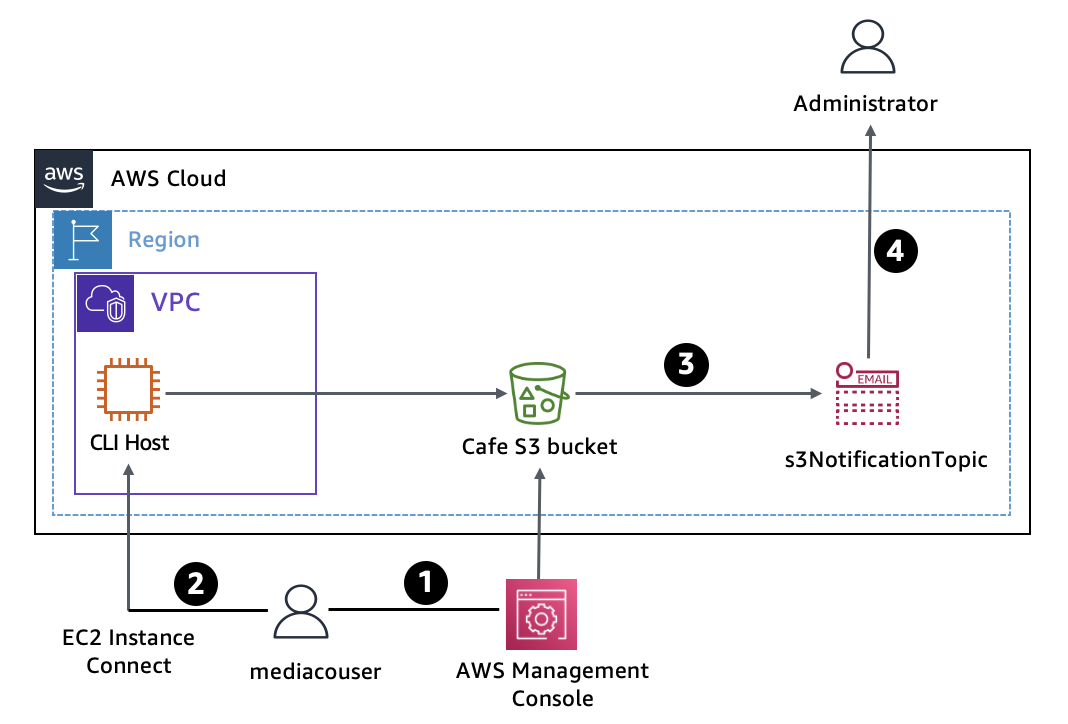 Architecture and Usage Flow
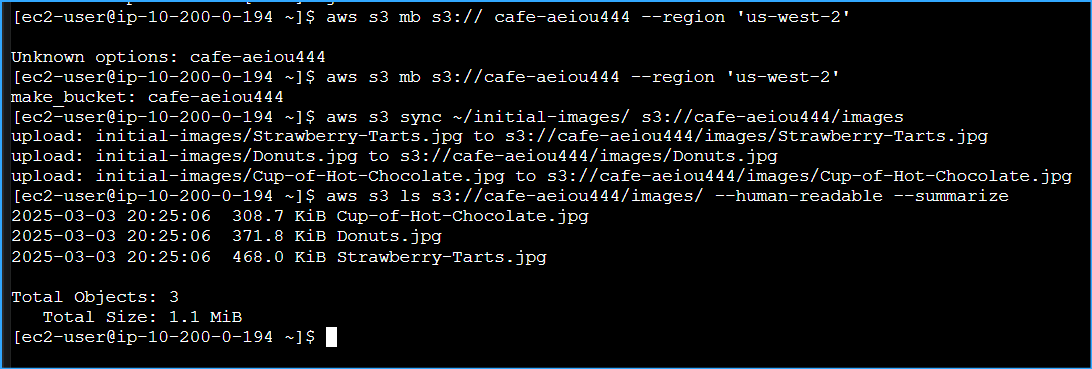 Made S3 Bucket Loaded Images Into It Verified Sync
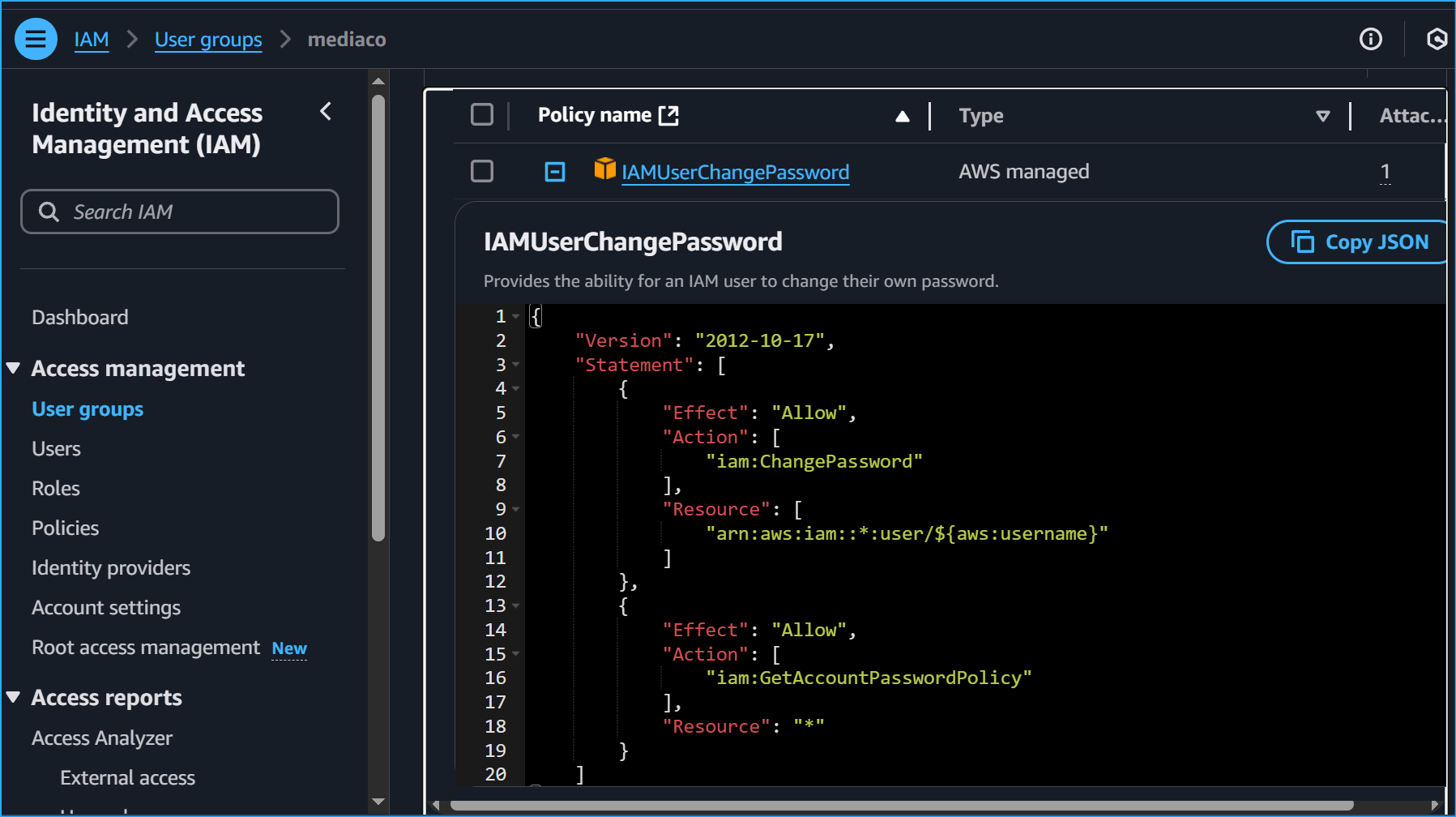 IAM User Change PW Policy
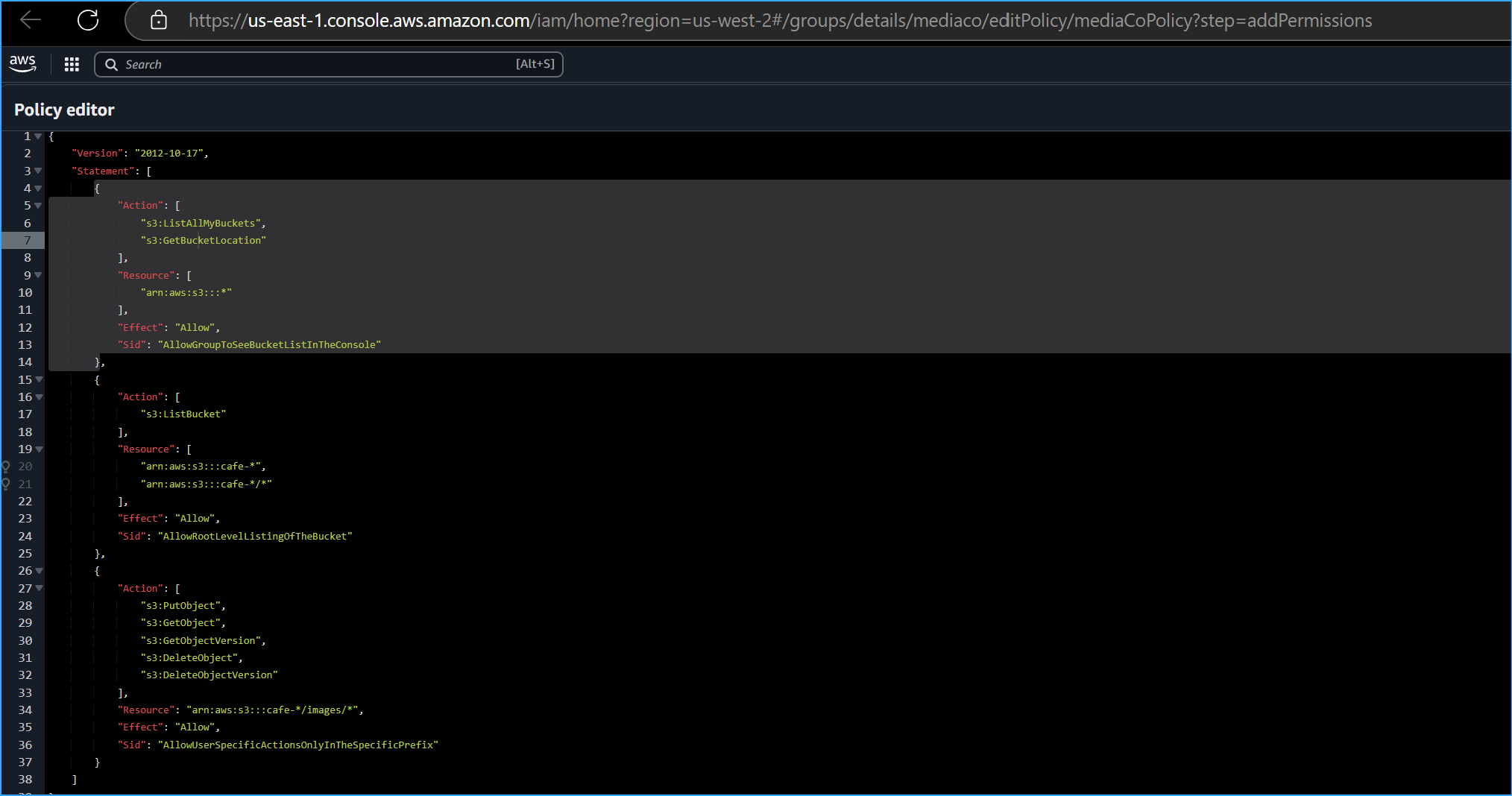 MediaCo Policy
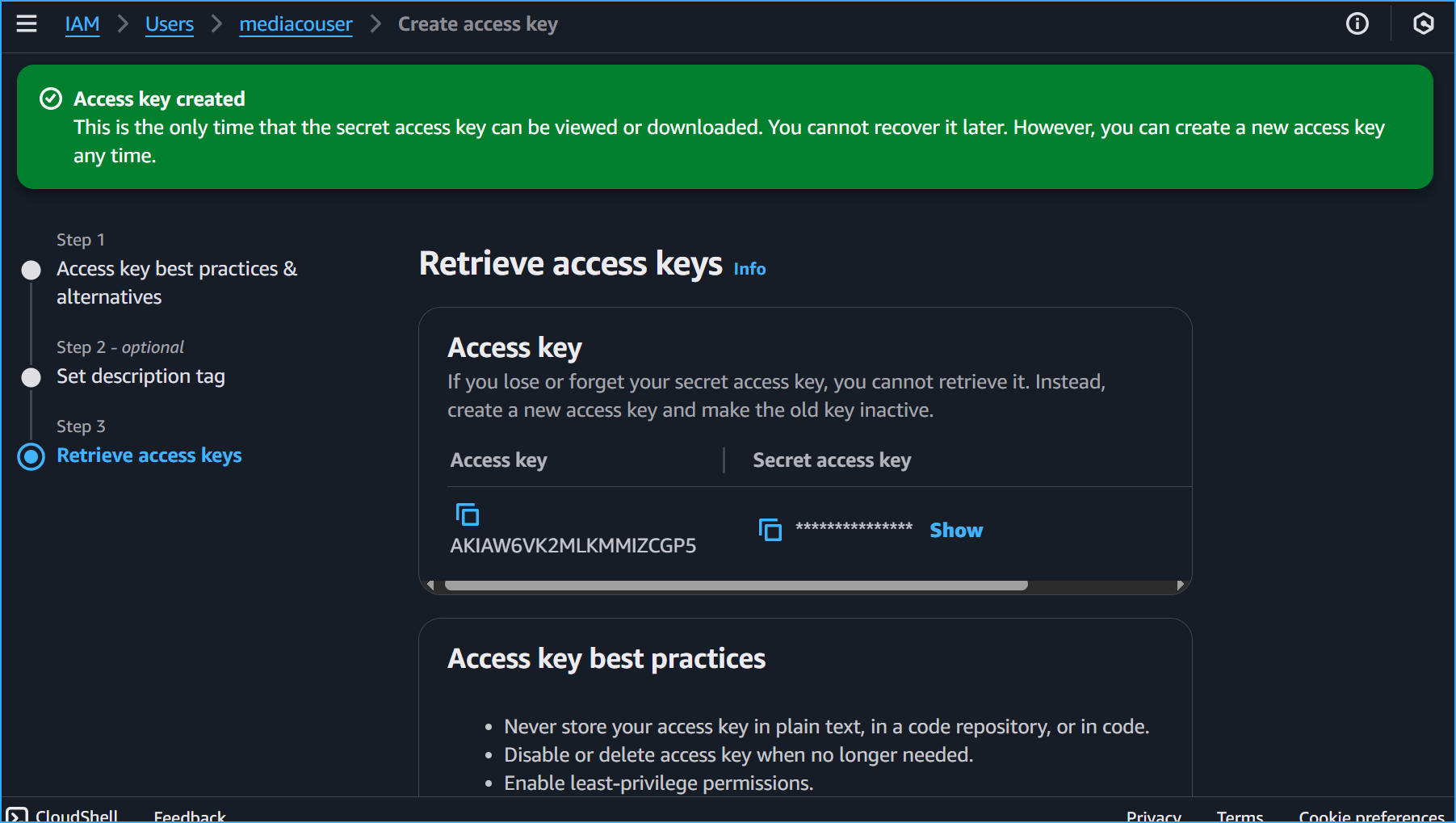 Created CLI Access Key for MediaCo User in IAM
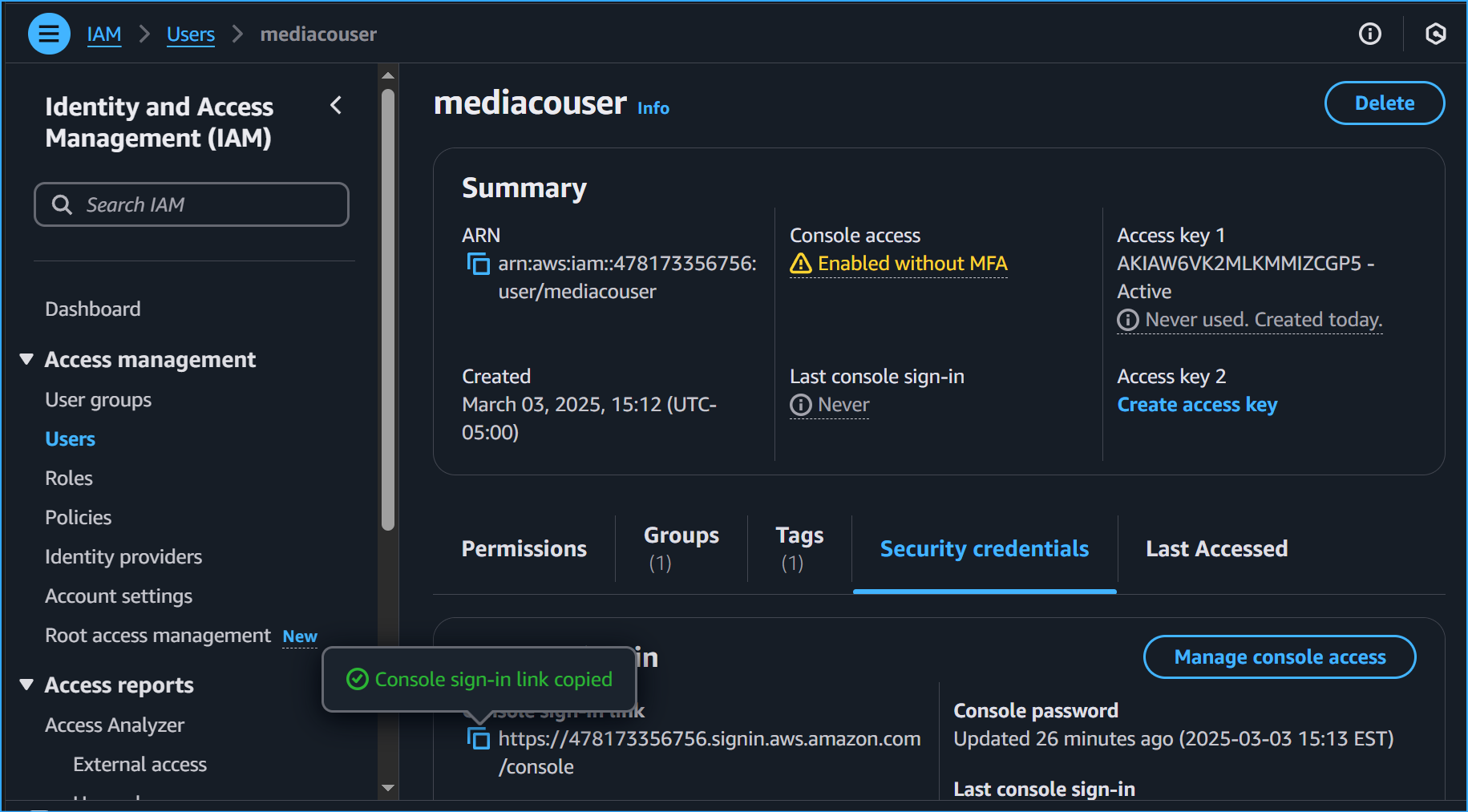 Copied Console Sign In Link
 Enabled Multi Session Support Then Added Session Next
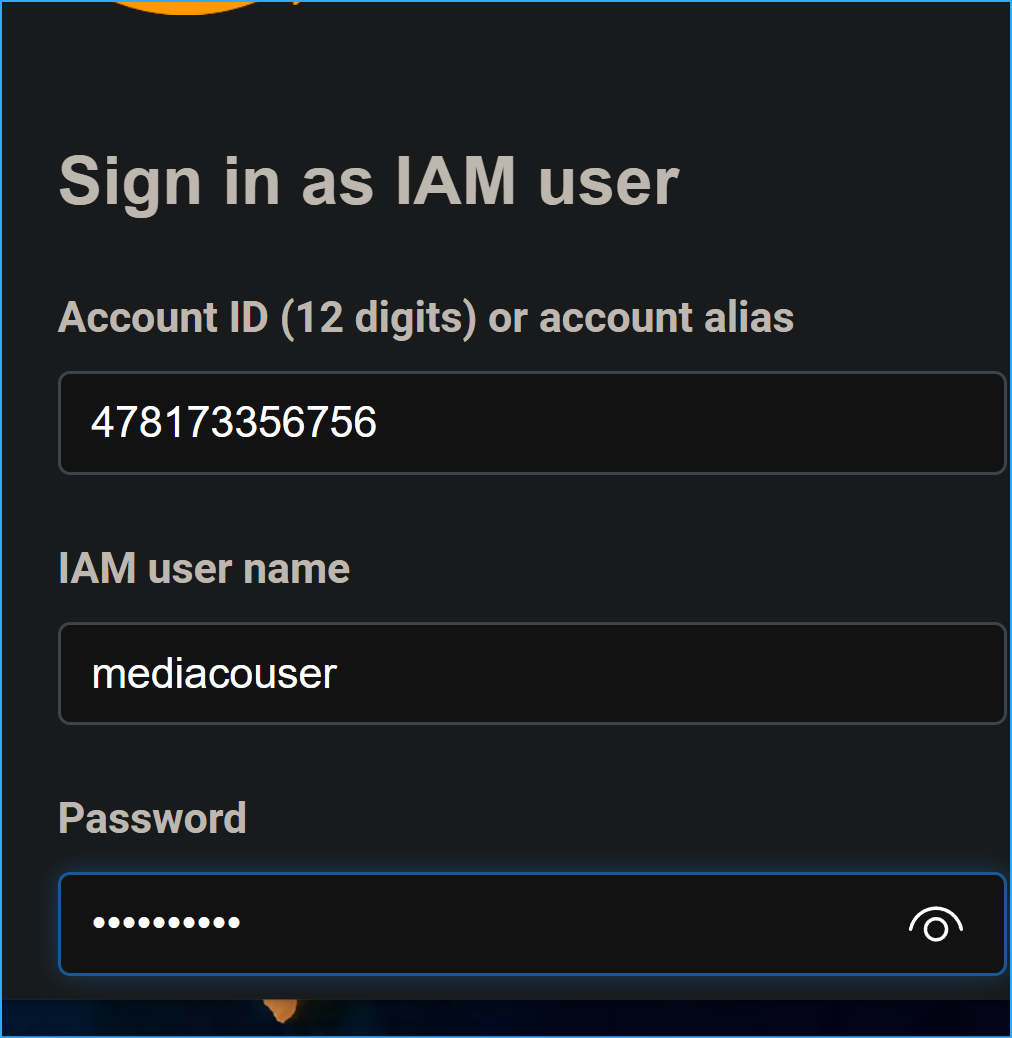 After Enabling Multi Session Support and Adding Session I Signed In
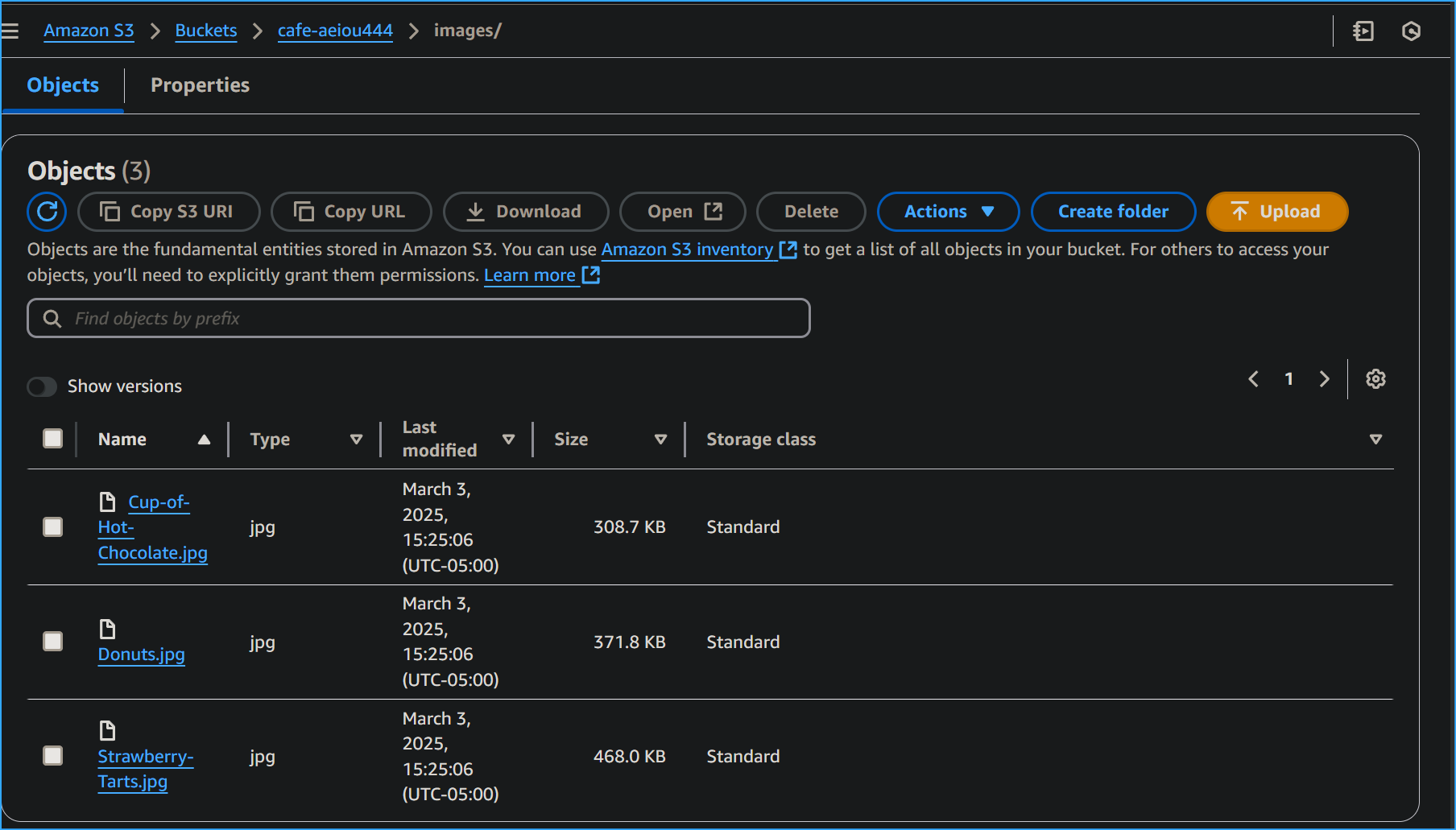 MediaCo S3 Bucket Viewed in AWS Management Console
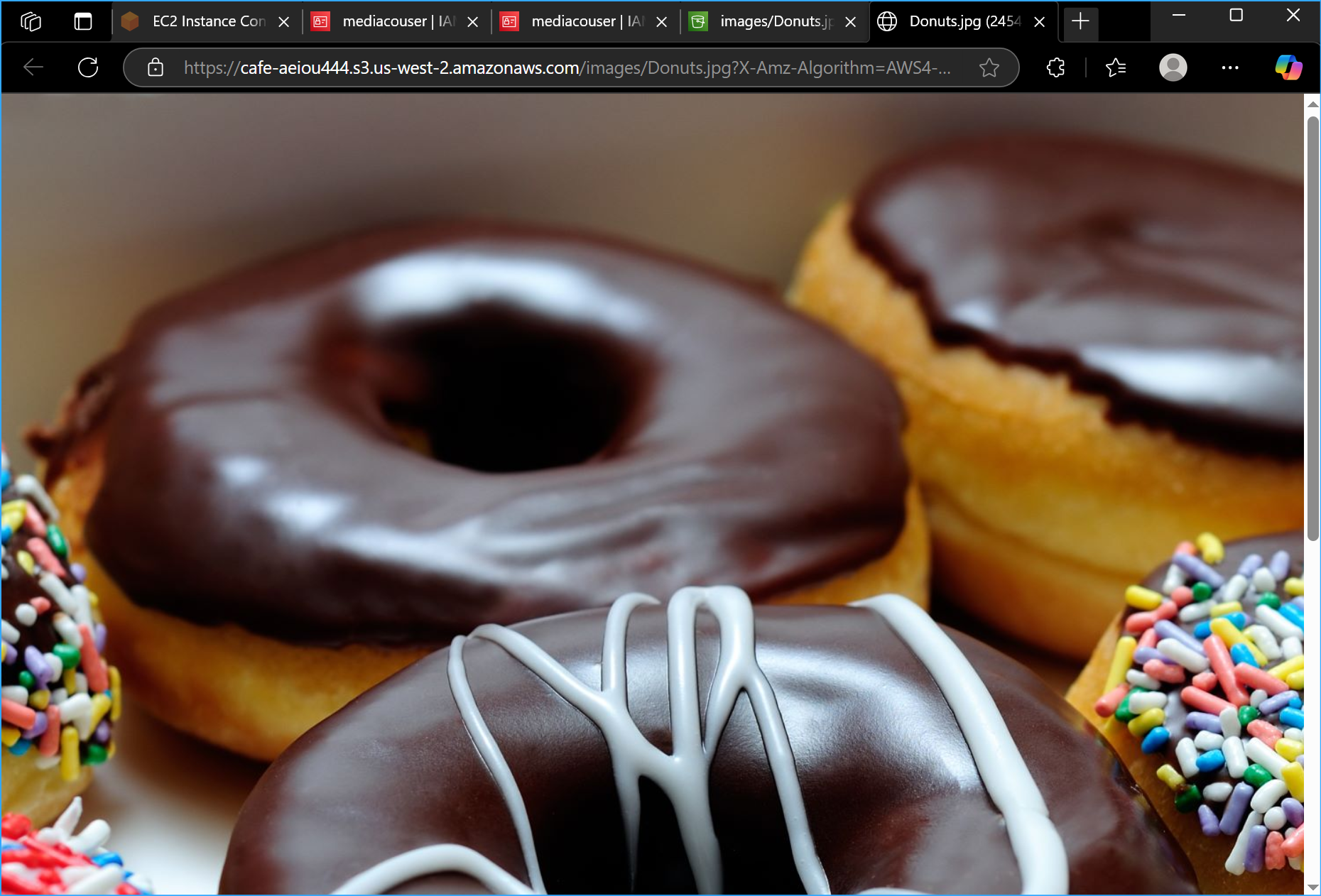 Donuts Image Displays When Clicking Open in Donuts JPG
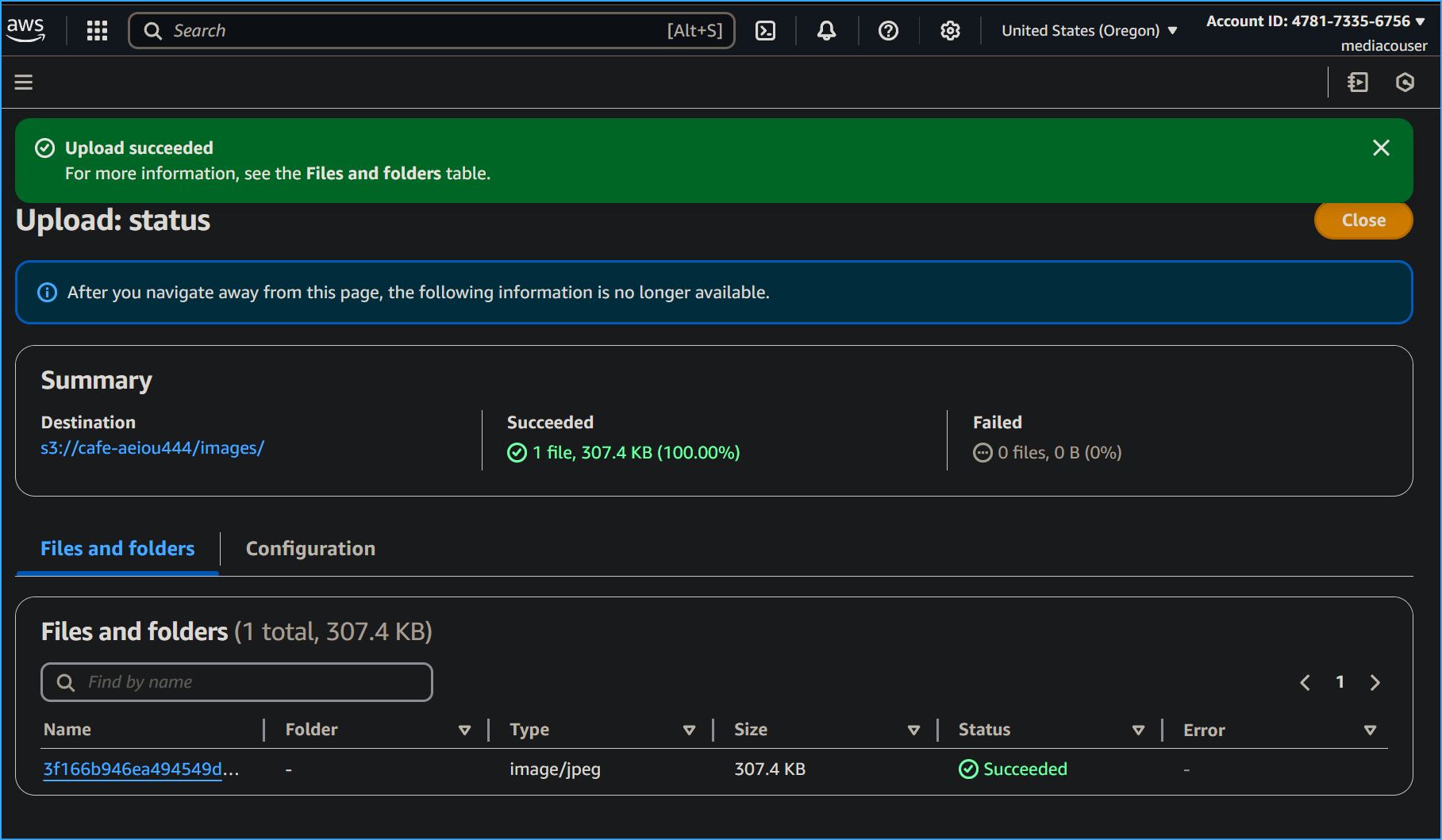 Upload Image From Local Computer Succeeded
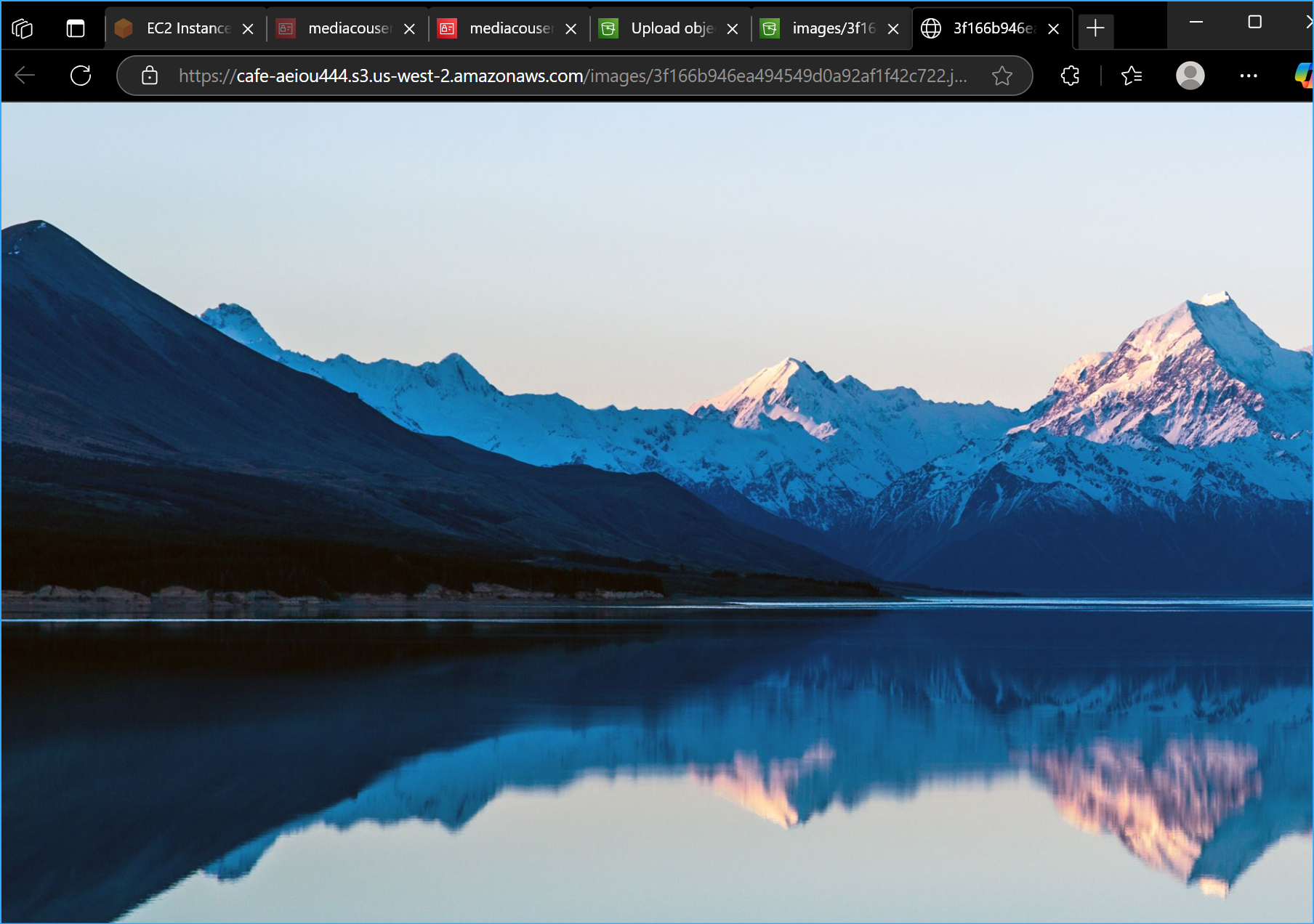 Confirmed Upload Image Displays on Open in Location in S3 Bucket
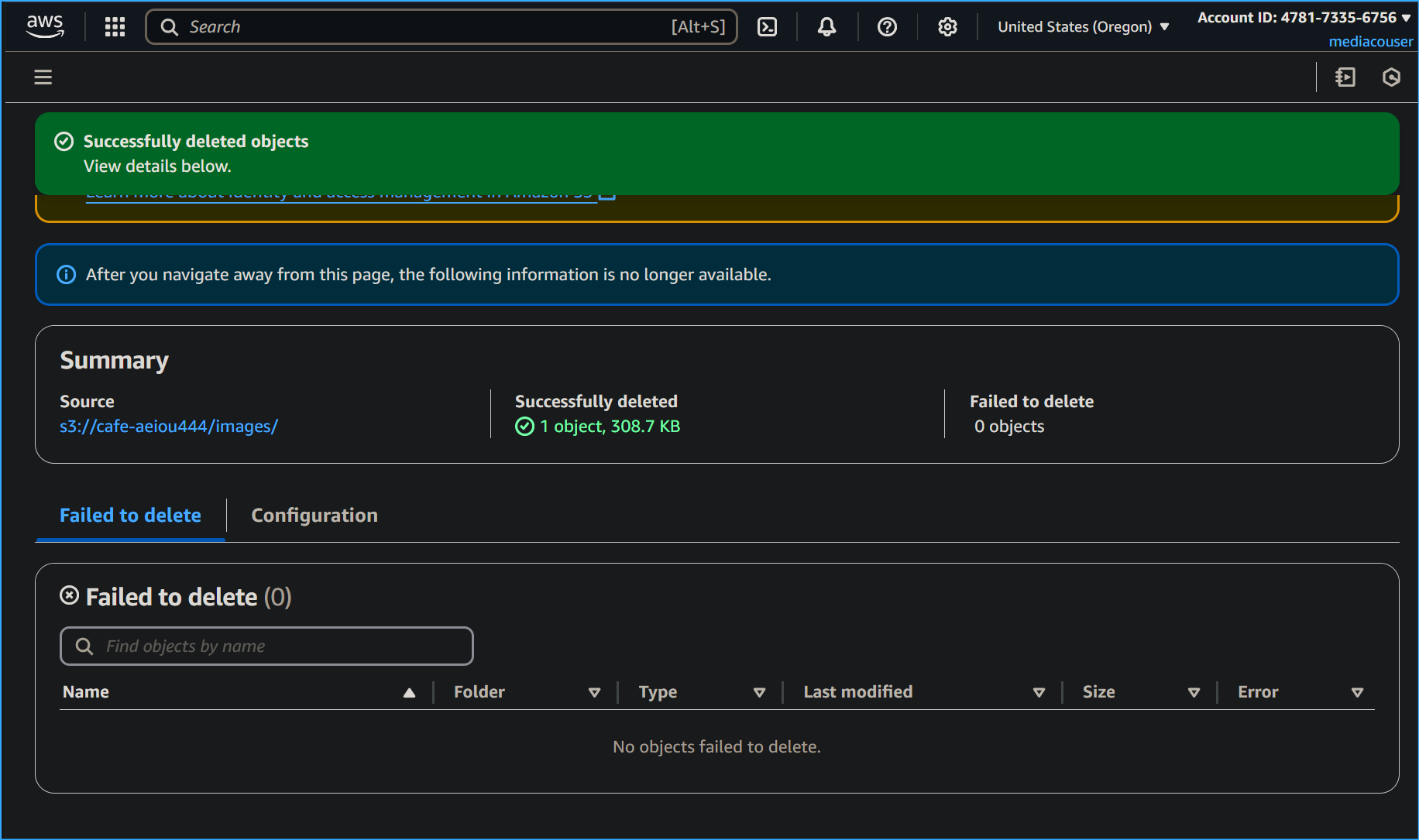 Delete Hot Chocolate JPG Works
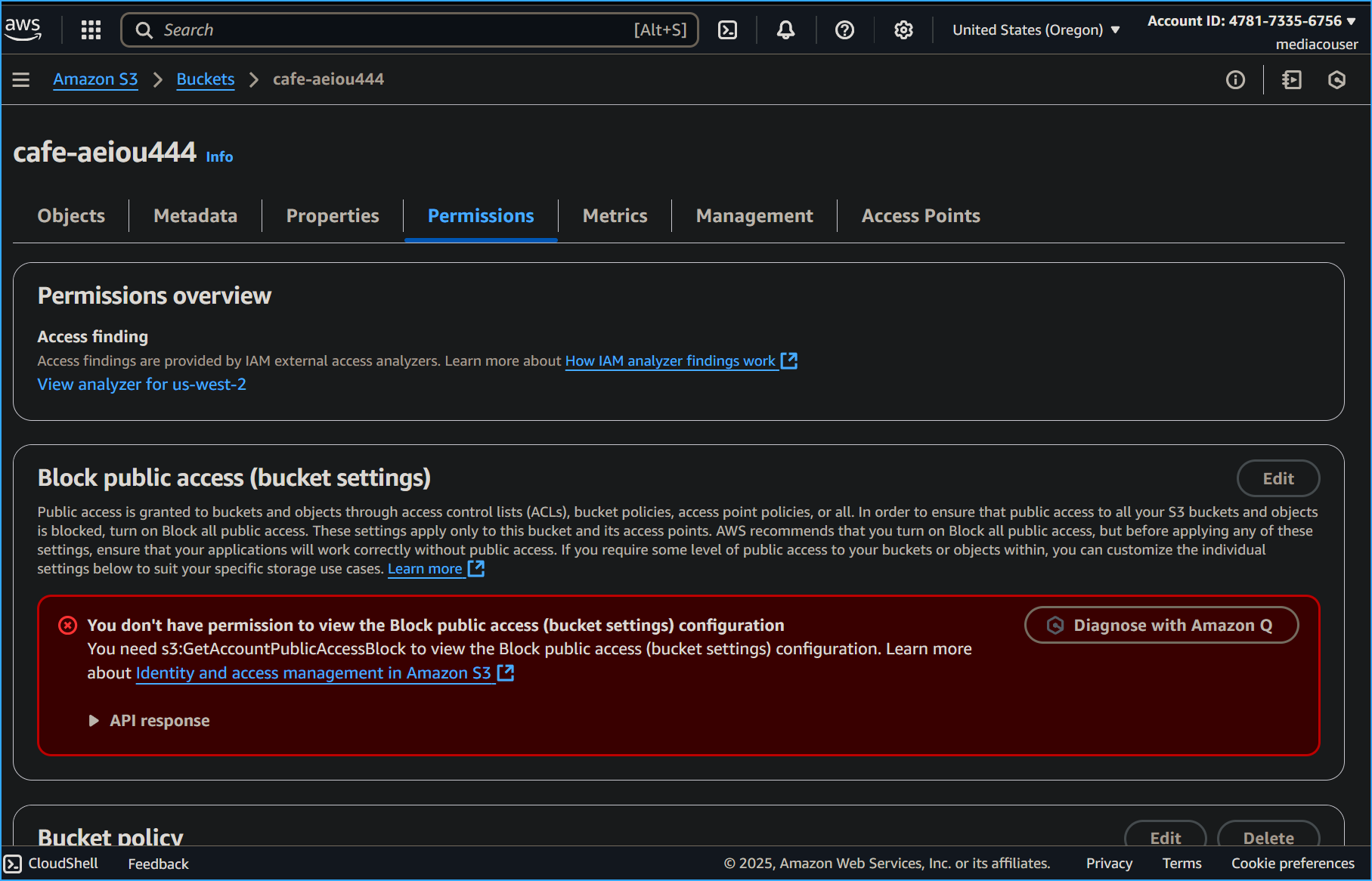 Confirmed MediaCo Cannot Change Bucket Permissions
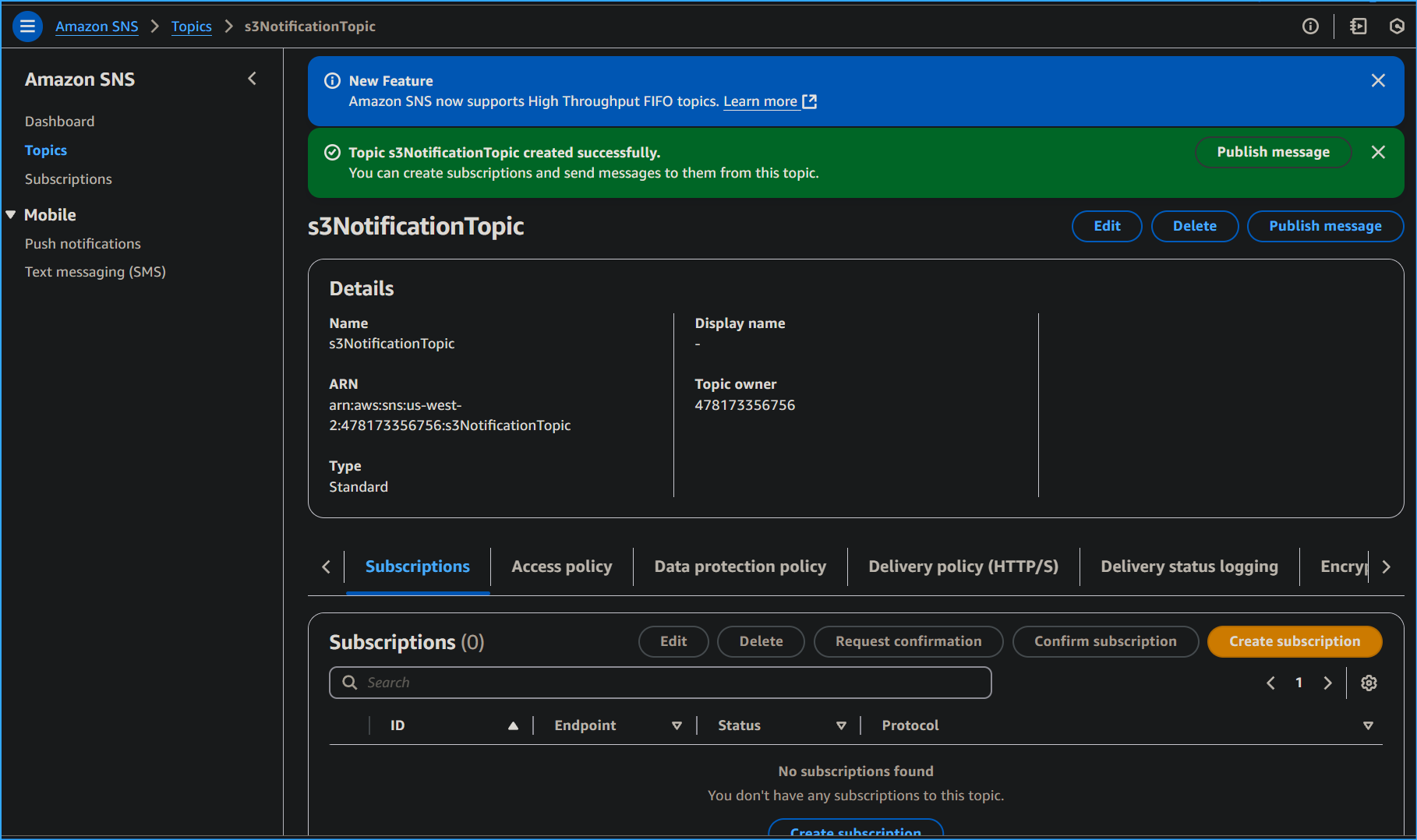 S3 Notification Topic Created in SNS
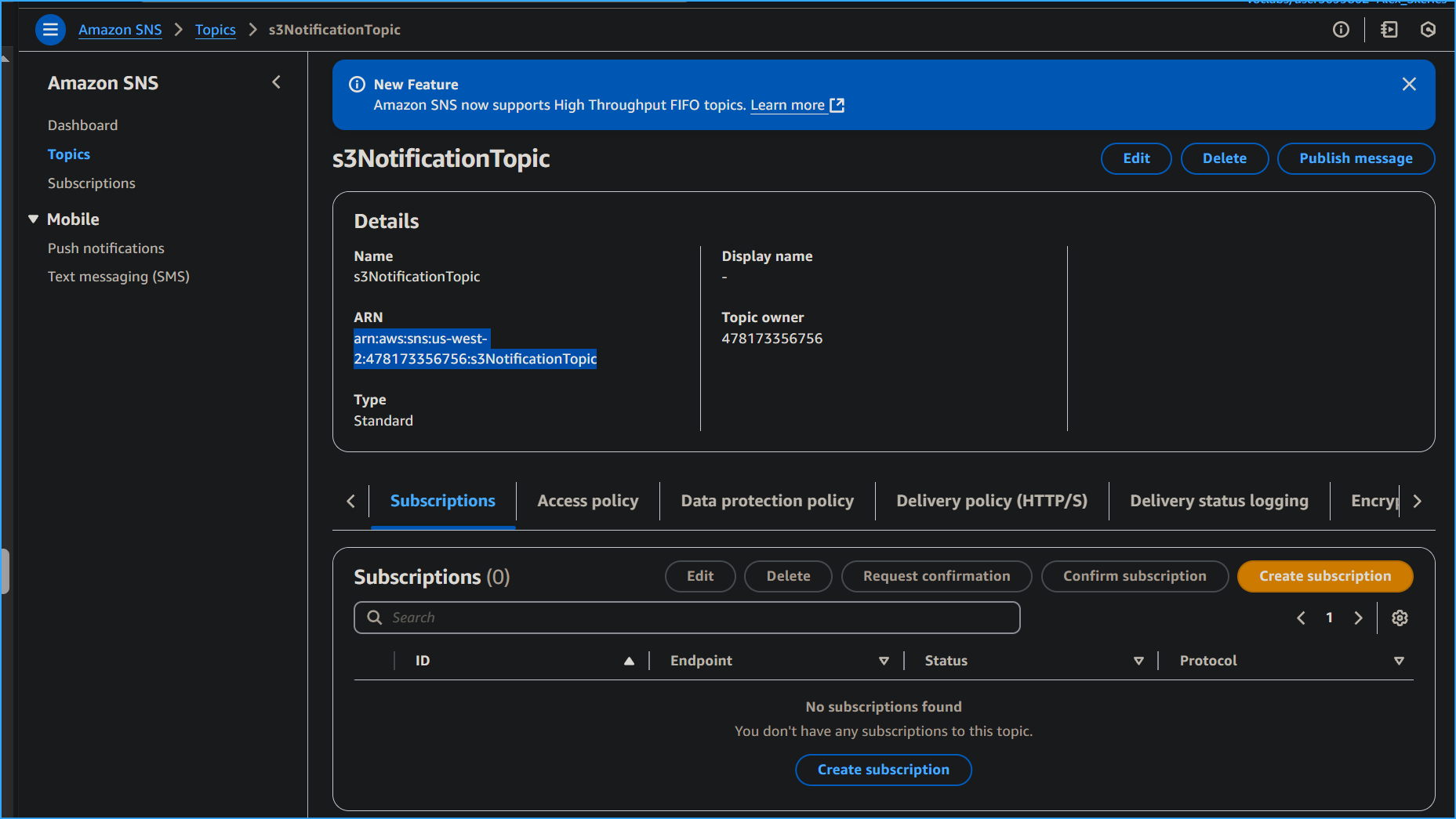 Copied ARN Value
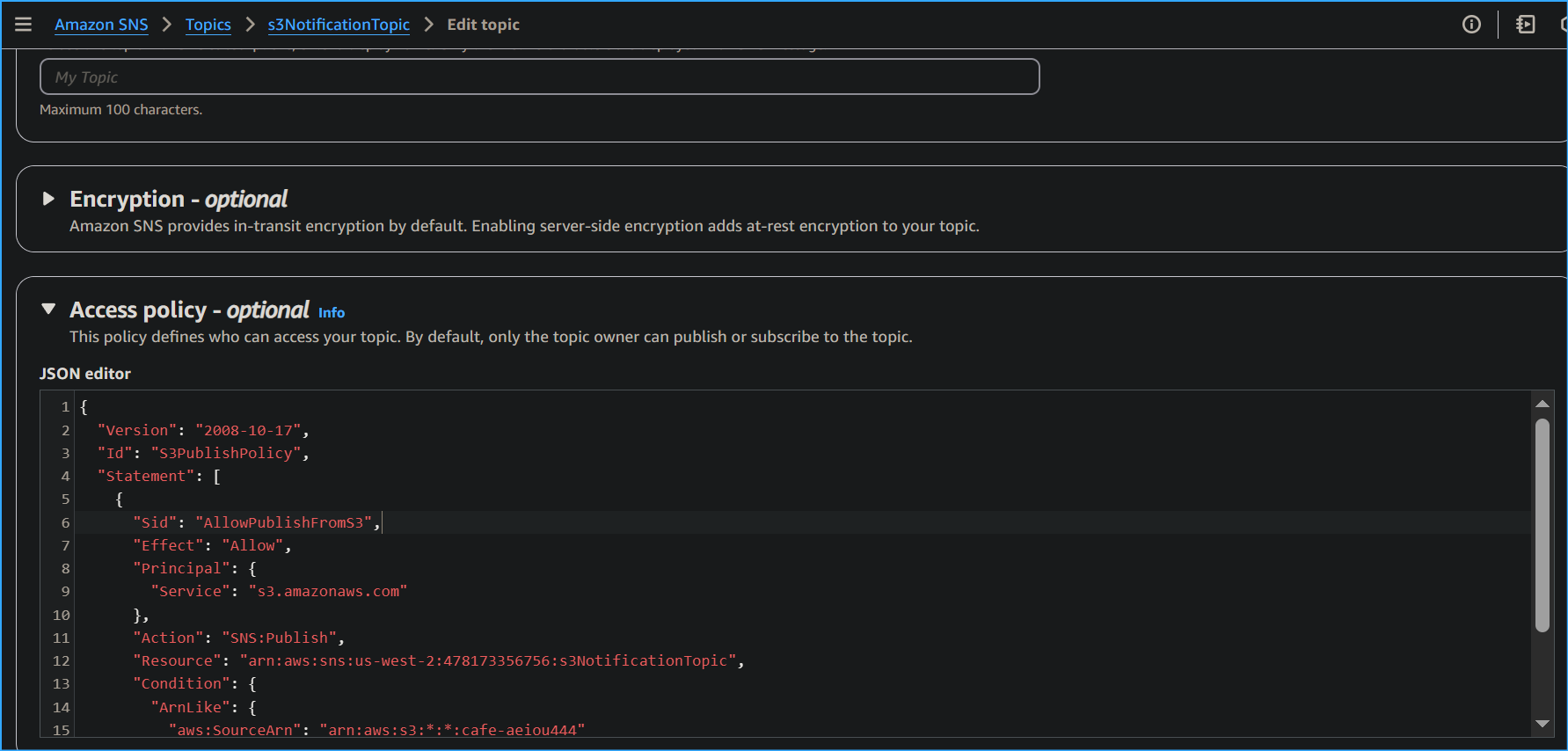 Edited Access Policy and Updated with My Info
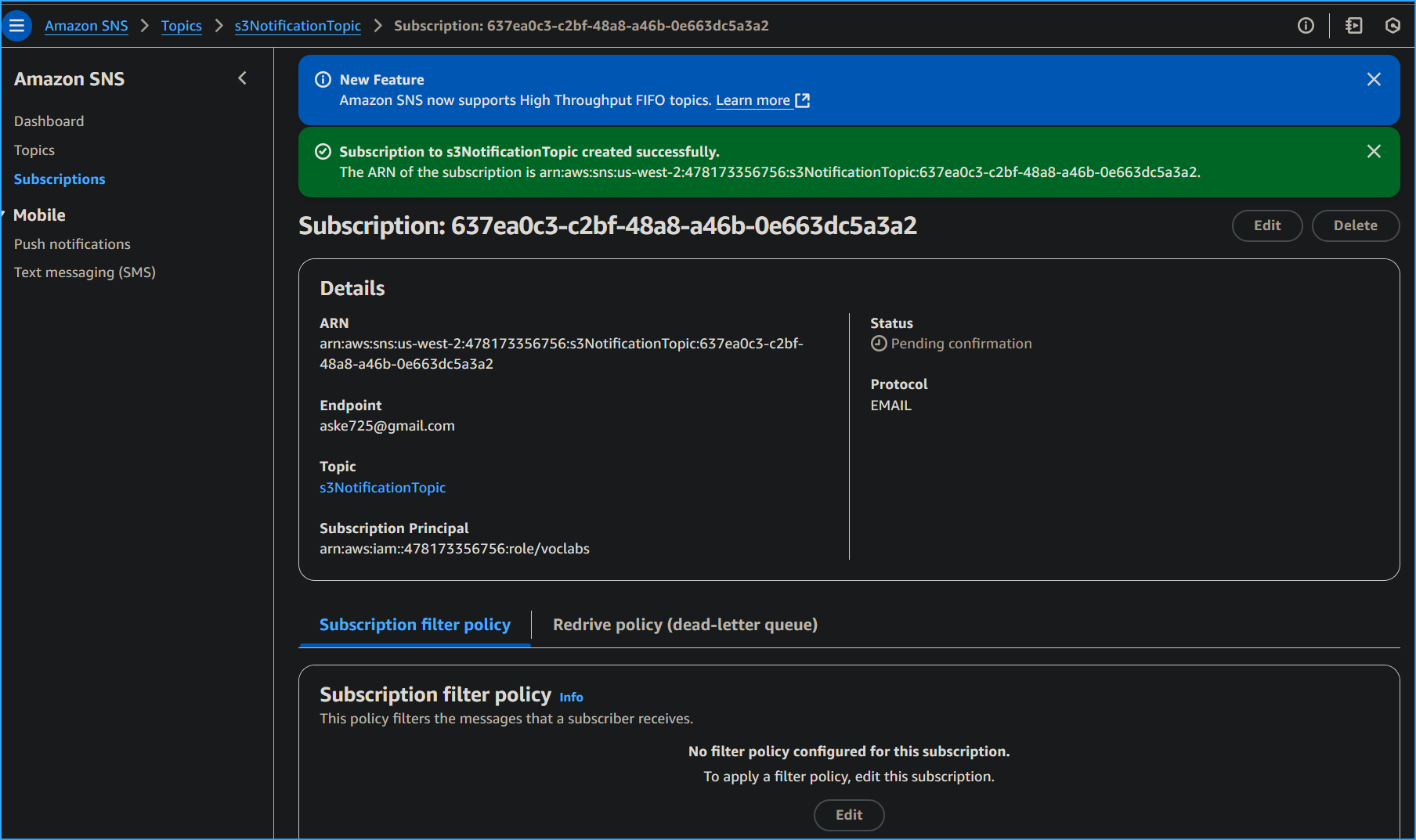 Created Subscription to SNS Topic with Email Then Confirmed
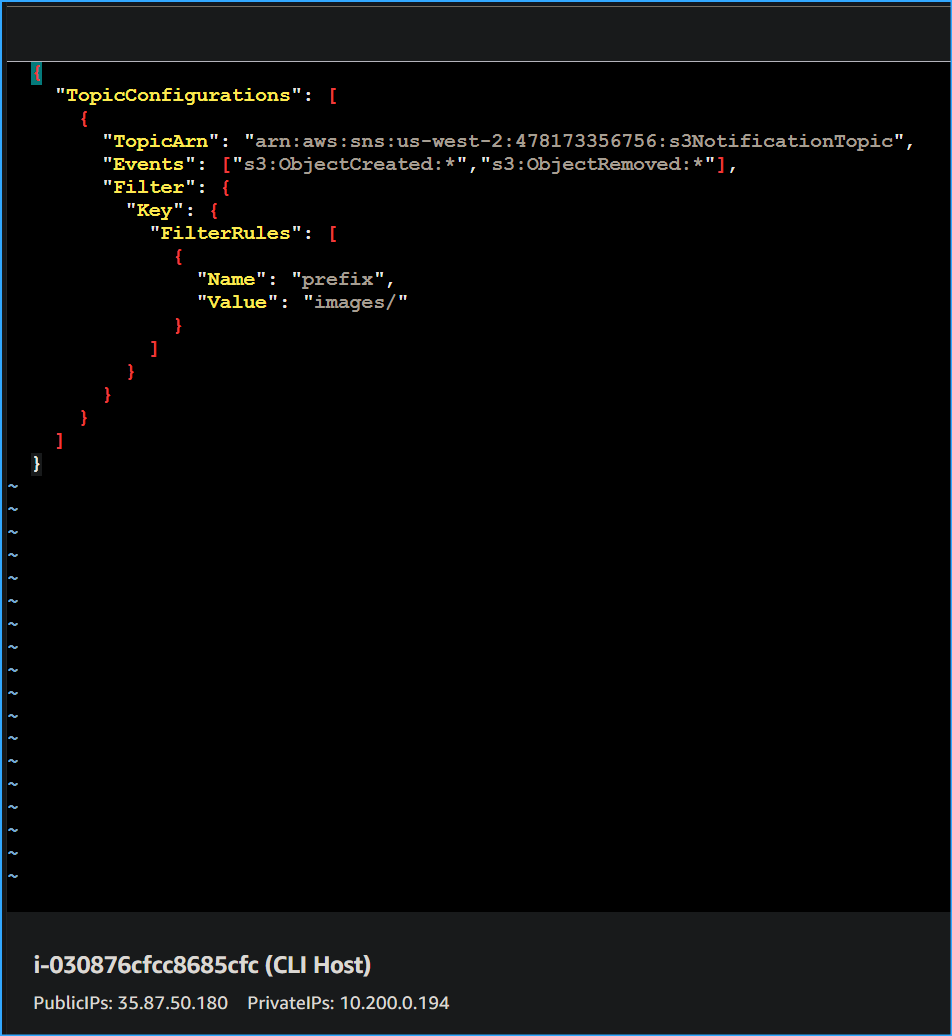 Created VIM File for S3 Event Notification Input My Info
 Associated Event Config File with S3 Share Bucket
 Configured CLI Host to Use MediaCo User Credentials Then Put Image Into S3 Bucket
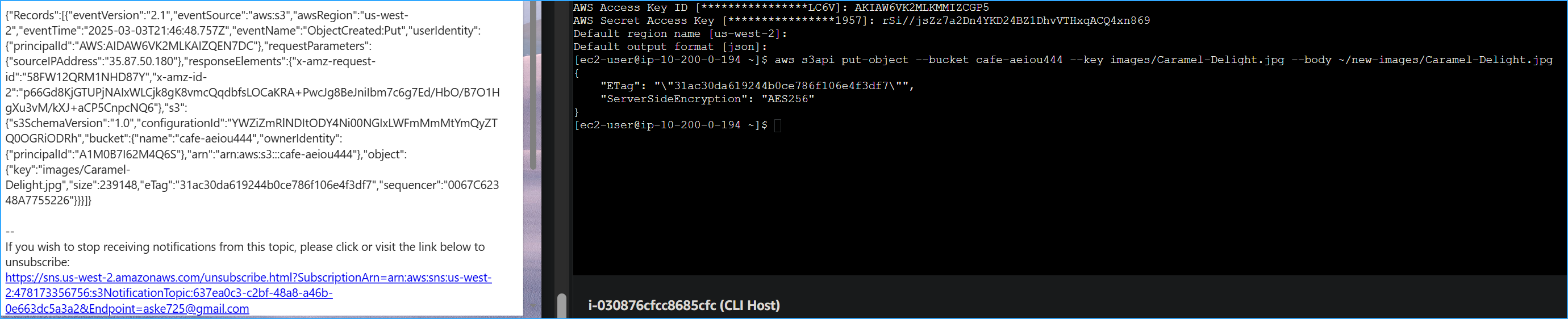 Email Notification Confirmed Put Object Event
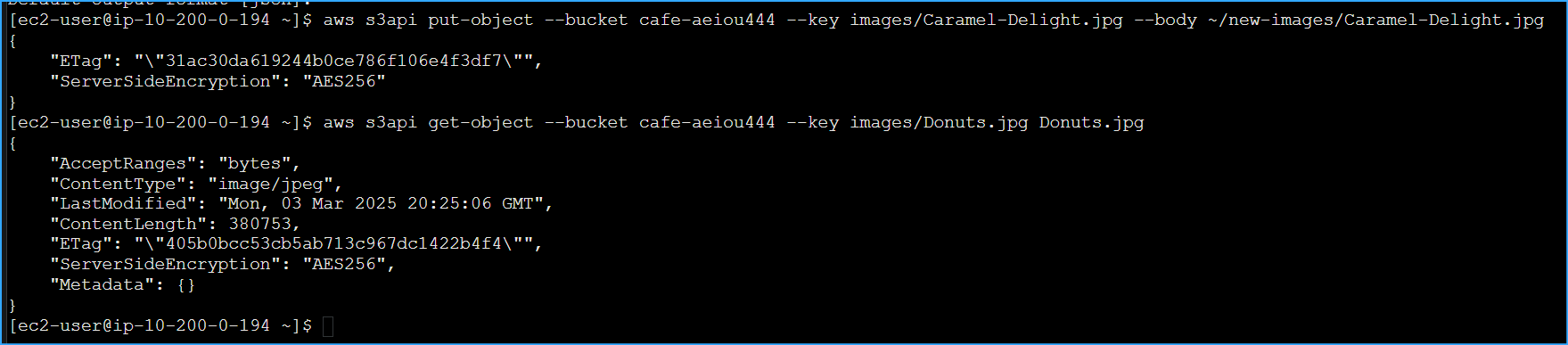 No Email Notification for Get Object Since It Was Not Configured That Way
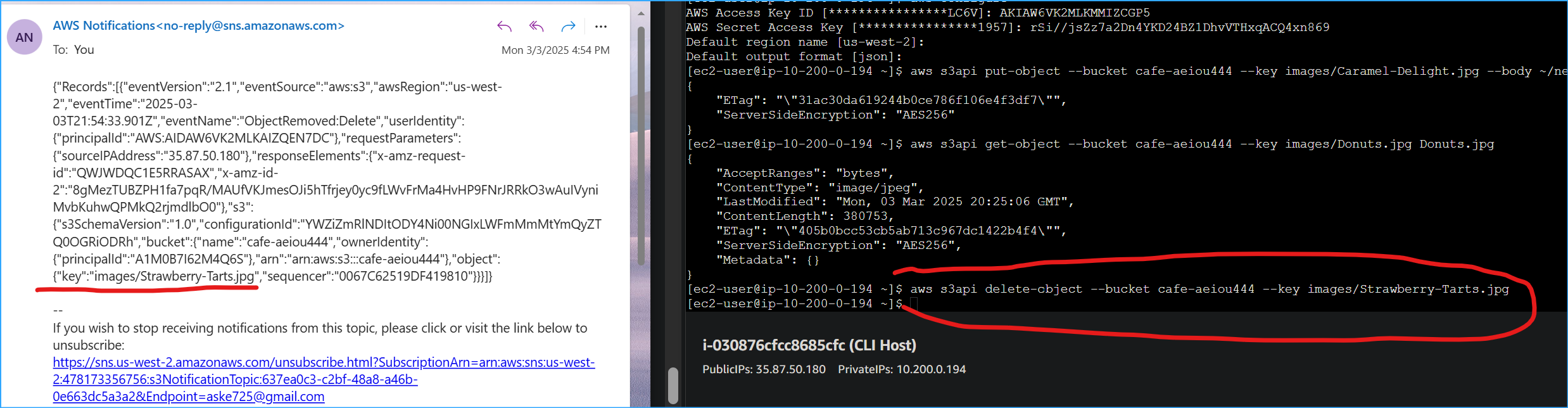 Delete Object Sent Email Notification
 Change Permissions of Object Failed with Error Message as Expected